


Audience: Security Analysts, Threat Hunters, Content Developers, Administrators, MSSPs
Product Module: Securonix Spotter
Last Updated: October 15, 2026
Tags: Spotter, Query Performance, Query Timeout, Search Optimization, Slow Search, Threat Hunting, Query Troubleshooting
Overview
When a Spotter query runs slowly or times out, first determine whether its time range, source scope, or conditions are contributing to the delay. Change one item at a time and confirm that the revised search still includes the events required for the investigation.
This guide uses a firewall investigation to show how to establish a baseline, narrow the search, test conditions, measure performance, and validate the results.
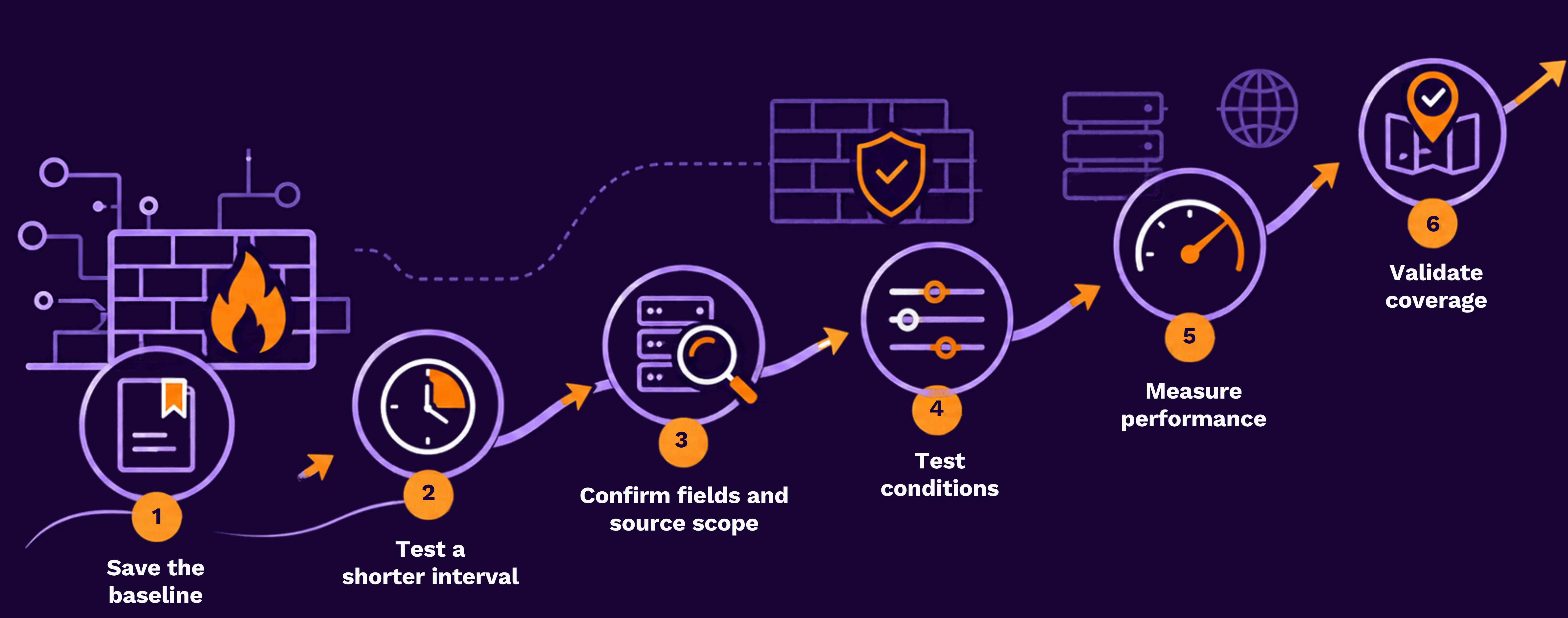
Quick diagnosis
| Symptom | Start here |
|---|---|
| Longer periods time out | Step 1 — Test a shorter interval |
| Events are unexpected or missing | Step 2 — Confirm fields and scope |
| The query uses broad or negative comparisons | Step 3 — Optimize conditions |
| Adding a condition or OR group makes the query slow | Step 4 — Isolate the change |
| You need to compare execution duration | Step 5 — Measure performance |
| The search completes but results or charts load slowly | Investigate display delay |
| A minimal query fails or several users are affected | Contact Support |
Before you begin
Open Spotter and save the original query before editing it. Record the exact start and end timestamps, time zone, approximate elapsed time, and outcome. Capture the full error if the search fails.
For example, an investigation may require firewall events involving destination IP 10.20.30.40:
index = activity
AND resourcegroupname = "Production_Firewalls"
AND destinationaddress = "10.20.30.40"
Replace the example group and field values with values confirmed in your environment. Keep a known matching event available so that performance changes can be checked against investigation accuracy.
| Baseline item | What to record |
|---|---|
| Query and source scope | Complete original query, index, resource group or type |
| Interval | Exact start/end timestamps and time zone |
| Observed behavior | Completion, timeout, error, partial results, or display delay |
| Timing | Approximate elapsed time to completion or failure |
| Expected evidence | A known event and the source, direction, and fields the investigation requires |
A timeout can occur with or without partial results. Preserve the actual message shown. Partial results do not establish complete investigation coverage. The effective timeout depends on the deployment and configuration.
Step 1: Test a shorter search interval
Keep the query unchanged to isolate the effect of the time range.
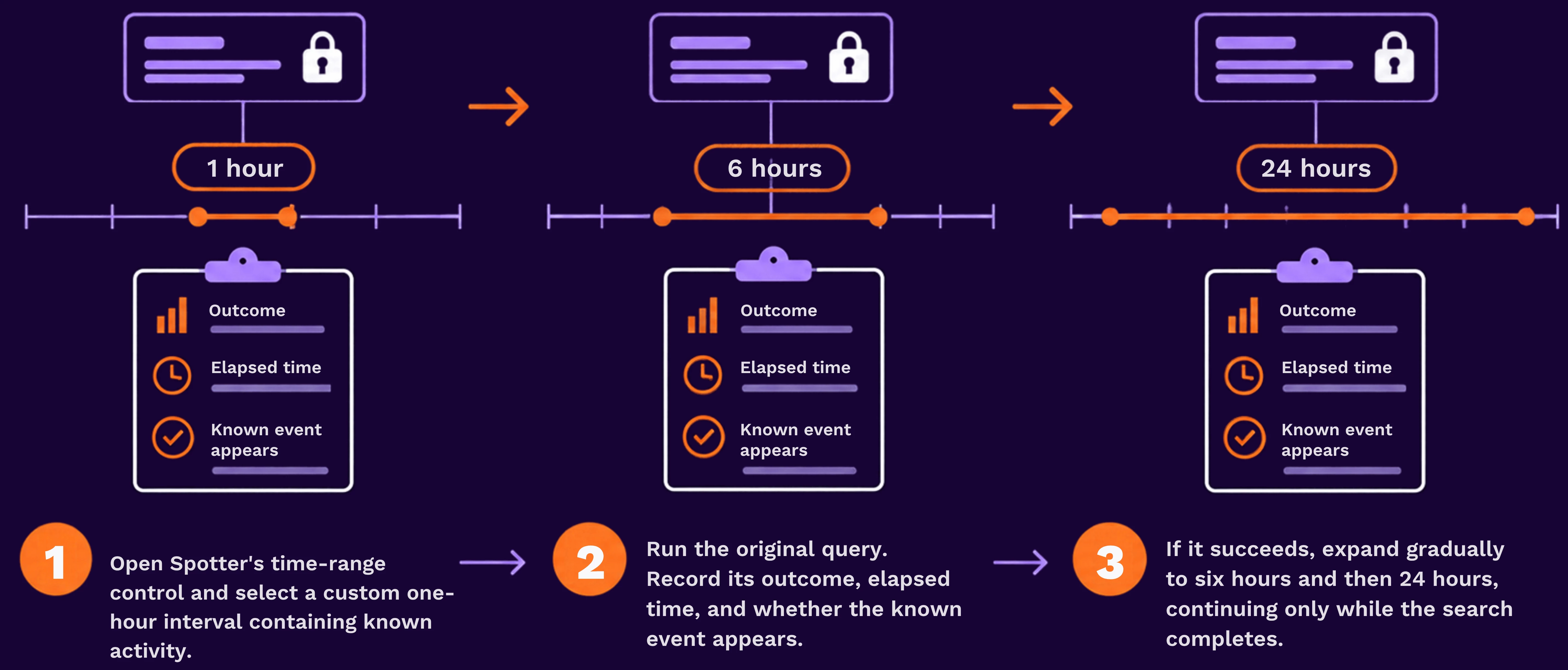
UI element to change: the time-range selector. Keep query text and time zone fixed during this test.
| Observation | Next action |
|---|---|
| Short intervals succeed, longer intervals fail | Continue to Step 2 to narrow the source scope, or search consecutive smaller intervals while tracking complete period coverage. |
| The one-hour query also times out | Continue to Step 2. |
| The query completes with no results | Confirm the known event's timestamp and fields in Step 2 before treating this as a performance failure. |
Step 2: Confirm fields and source scope
Instead of searching all activity for an IP address, narrow the search to the type of source expected to contain the evidence. If you know the specific datasource, narrow it further using its resource group.
For example, suppose you are investigating 10.20.30.40 and expect the relevant events to come from Palo Alto firewalls. The following examples progressively reduce the search scope. Use the same short time interval for each test.
A. Start with the broad free-text search
index = activity
AND "10.20.30.40"
This searches for the value across searchable activity content without identifying a source type or address field. It may include unrelated datasource types and matches where the IP appears in a different context.
B. Narrow to the expected resource type
index = activity
AND resourcetype = "Palo Alto Next-Generation Firewall"
AND "10.20.30.40"
Added condition: resourcetype limits the search to the expected product/device type. Events from other resource types are excluded, reducing the population being searched.
Use the actual resource-type value from your environment.
C. Narrow further to the expected datasource’s resource group
index = activity
AND resourcetype = "Palo Alto Next-Generation Firewall"
AND resourcegroupname = "Production_Firewalls"
AND "10.20.30.40"
Added condition: resourcegroupname restricts the search to the expected group within that resource type. Use this additional restriction when you know which configured datasource should contain the evidence. A group can contain multiple devices; it does not necessarily identify one firewall.
D. Use the confirmed address field
Open a relevant event and check which field contains the IP address. If the investigation specifically concerns destination traffic, use:
index = activity
AND resourcetype = "Palo Alto Next-Generation Firewall"
AND resourcegroupname = "Production_Firewalls"
AND destinationaddress = "10.20.30.40"
Changed condition: destinationaddress replaces free-text matching with an exact match on the relevant field.
The progression is:
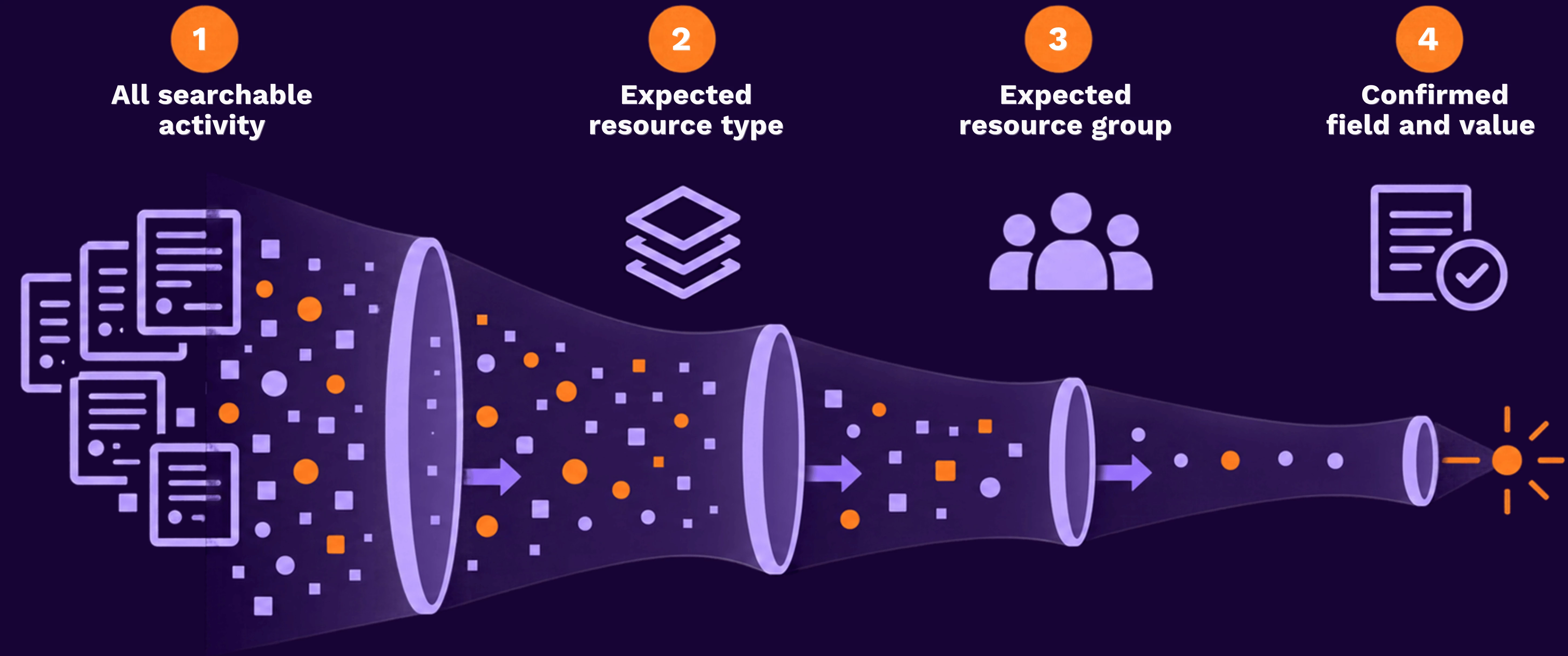
Each restriction can reduce unnecessary searching, but it also excludes data. Confirm that the selected type, group, and traffic direction preserve the investigation’s required events. If the direction is unknown, use the source-or-destination example below.
Step 3: Optimize conditions
Use precise conditions when the investigation supports them. Test their effect on the same interval; operator choice alone does not guarantee a particular execution time.
| Pattern | What to consider |
|---|---|
| Exact value known | Use equality for the complete value after confirming its format. |
| CONTAINS or wildcard matching | Keep it when partial matching is required; first restrict the source and time range. |
| Negative comparisons | Consider a positive condition identifying the required population, but preserve exclusions that define the investigation. |
| Several source alternatives | Group alternatives explicitly and retain all required groups or types. |
-
Example of a broad account search
index = activity
AND resourcegroupname = "Production_Firewalls"
AND accountname CONTAINS "smith"-
More specific account search
index = activity
AND resourcegroupname = "Production_Firewalls"
AND accountname = "jsmith"
Clause to compare: accountname CONTAINS "smith" versus accountname = "jsmith". These searches are not equivalent: equality excludes other accounts containing “smith.” Adopt it only when the complete account value is the intended target.
Write the query with clear source scope and entity conditions. Do not assume that moving a clause earlier in the text forces a particular execution order. Use the search help and optimization guidance for the deployed release before applying specialized operators or syntax.
Step 4: Isolate conditions and OR groups
Test one change at a time using the same index, resource scope, fixed interval, and time zone.
- Test A — Exact destination:
index = activity
AND resourcegroupname = "Production_Firewalls"
AND destinationaddress = "10.20.30.40"- Test B — Add the required partial account condition:
index = activity
AND resourcegroupname = "Production_Firewalls"
AND destinationaddress = "10.20.30.40"
AND accountname CONTAINS "smith"| Outcome | Next action |
|---|---|
| Both complete | Compare durations in Step 5 and validate relevant events. |
| A succeeds but B fails | The added condition may contribute. Test exact matching if appropriate. |
| Both fail | Reduce scope only where the investigation permits. Escalate if a minimal known-data search also fails. |
| B completes with no results | Check the account value and mapping; the added condition may exclude the evidence. |
-
Test large OR expressions in groups
For a search requiring source-or-destination matches for two IP addresses, preserve the full original expression and test the address groups separately.
Group A:
index = activity
AND resourcegroupname = "Production_Firewalls"
AND (sourceaddress = "10.20.30.40" OR destinationaddress = "10.20.30.40")
Group B:
index = activity
AND resourcegroupname = "Production_Firewalls"
AND (sourceaddress = "10.20.30.41" OR destinationaddress = "10.20.30.41")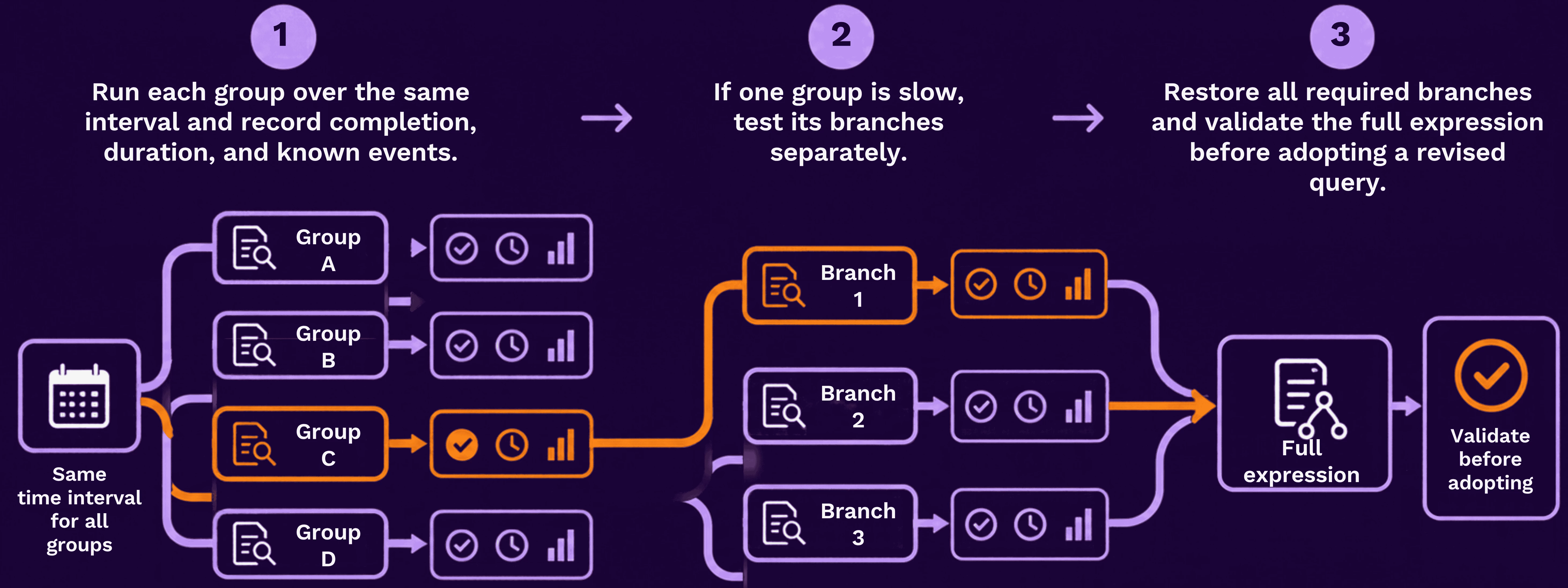
If separate searches are necessary, run every group across the complete required period and combine their event sets. Deduplicate events matching multiple groups; adding match counts can double-count them. Replacing OR with AND changes the query's meaning.
Step 5: Measure query performance
-
Use Console to identify the search
Open Spotter's Console tab and locate the corresponding query using the available timestamp, query text, and reported matches. Use those records to correlate your tests. Measure elapsed time separately when Console does not display duration.
-
Use execution reporting where available
Ask an administrator to locate Spotter Metrics → Execution Details Report in the reporting interface, where available for the release. Use the report's query identifier, user, timestamps, searched interval, and execution-duration fields to match successful test runs.
Confirm the report's retention and included execution outcomes in the documentation for your release. A failed or timed-out search may not appear. Preserve its query, interval, error, and observed duration directly from Spotter.
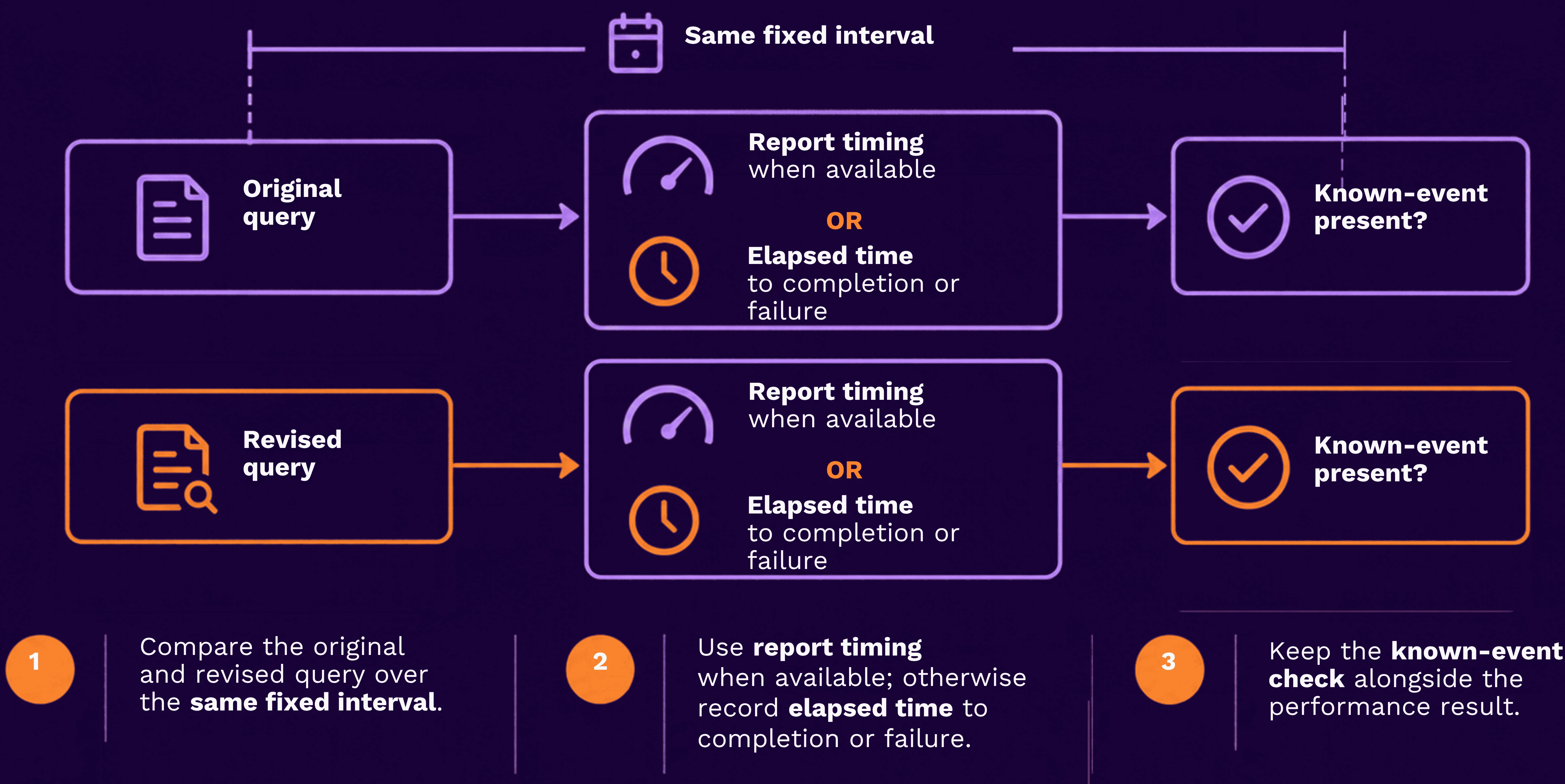
| Version | Interval and time zone | Duration | Outcome | Required event present |
|---|---|---|---|---|
| Original | Record exact values | Record actual value | Completed / Failed / Partial | Yes / No |
| Revised | Same interval | Record actual value | Completed / Failed / Partial | Yes / No |
Workload, caching, and data volume also influence timing. A single faster execution is useful evidence, but does not establish that the changed clause caused the improvement.
Step 6: Validate investigation coverage
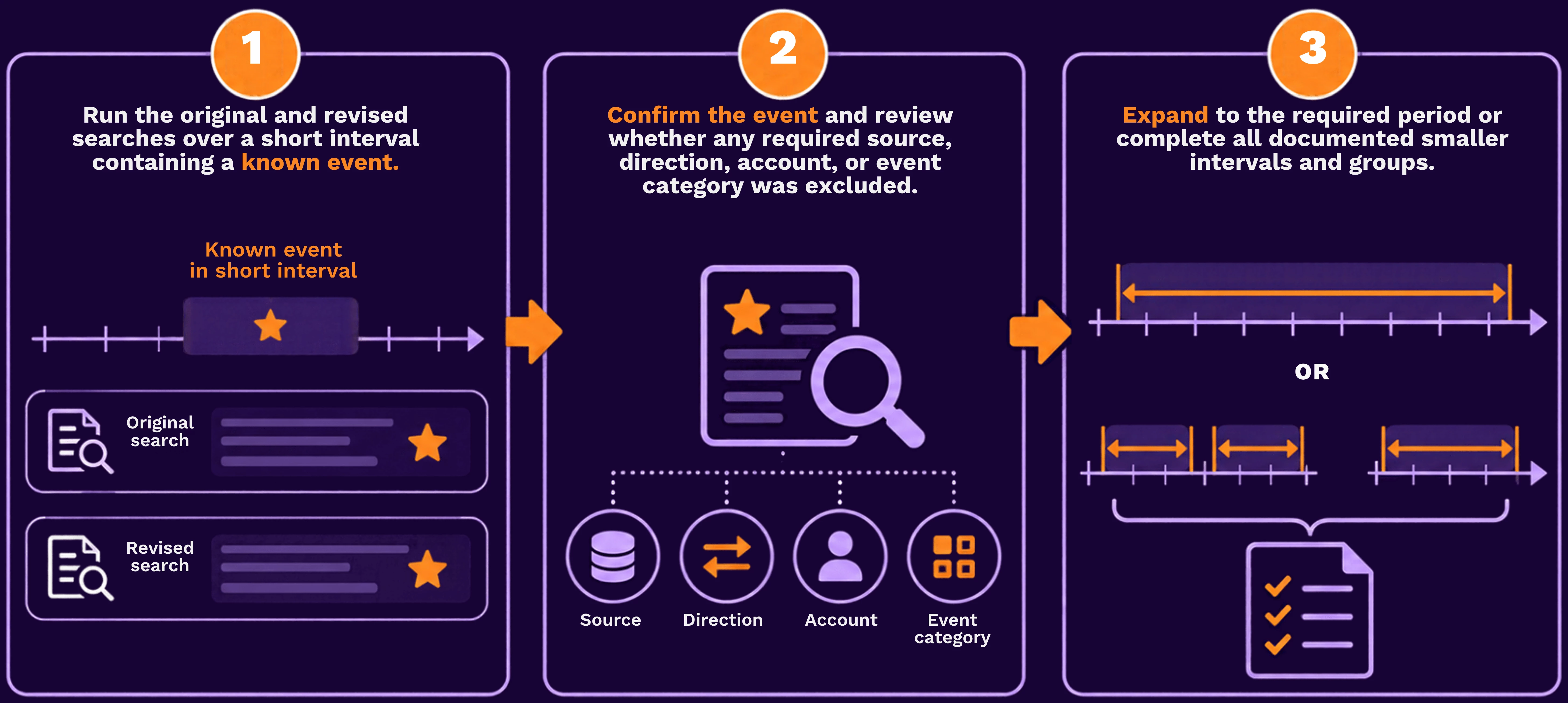
Successful optimization means: the query completes, required evidence remains present, and the full investigation scope is covered. One matching event verifies a useful sample; it does not by itself prove completeness.
When the search completes but results display slowly
Record execution completion separately from the time until events, sorting, or charts become usable.
If completion cannot be established, record the observed status and ask an administrator or Support to distinguish execution from display delay. For persistent display problems, include browser/version, affected views, screenshots, and separate execution/display timings. Avoid launching overlapping searches while results load.
Choose the next action if the query still fails
| Observation | Next action |
|---|---|
| Short intervals succeed; the full period fails | Search consecutive intervals and track boundaries so required events are neither missed nor counted twice. |
| The original fails; a narrower query succeeds | Use the revised query only after Step 6 confirms that its scope meets the investigation requirements. |
| A minimal source-specific query also times out | Escalate with both query versions, interval, duration, and full error. |
| The query completes with zero results | Check timestamps, field values, source availability, and access using a known event. |
| Multiple users or unrelated queries are affected | Gather representative examples and involve Support. |
| The query completes but the display is unusable | Provide execution evidence and the affected view details. |
When to contact Securonix Support
Contact Support when a narrowly scoped known-data query consistently fails, several users are affected, previously working searches fail without an explained change, or display problems persist after execution completes.
| Evidence | What to provide |
|---|---|
| Environment and impact | Tenant, affected users, first occurrence, and affected query types |
| Queries | Complete original and revised versions, index, and resource scope |
| Interval | Exact start/end timestamps and time zone |
| Execution | Observed duration, complete error, partial-results status, and query ID where available |
| Comparison | Intervals and condition changes tested, expected events, and outcomes |
| Reporting | Console records and available execution-report details for successful runs |
| Display issue | Browser/version, affected view, sorting/chart settings, and separate display timing |
| Changes | Relevant datasource, parser, role, or platform changes |
Remove credentials, tokens, and sensitive event content from attachments.
Related resources
- Spotter Search Help
- Securonix documentation portal — locate Spotter Query Optimization, Spotter Screen, and Spotter Metrics for your release.
- Understanding and Troubleshooting the Activity Import Screen
Share a Spotter optimization tip
Share a useful query pattern or troubleshooting observation in the Securonix Community with sensitive values removed. For persistent environment-specific errors, open a Support case with the comparison evidence collected above.