


Audience: Administrators, Security Analysts, MSSPs
Product Module: Activity Import, Securonix Cloud Hub, Spotter
Last Updated: October 14, 2026
KB ID: KB-20261001-syslog-logs-not-appearing
Tags: syslog, Cloud Hub, Activity Import, Spotter, datasource, parser, log ingestion, troubleshooting, Derived Fields,
unparsed events
Overview
A syslog datasource can look correctly configured while the expected events remain missing from Spotter. The source may not be forwarding them, the messages may reach the wrong listener or datasource, or parsing and ingestion settings may prevent them from becoming searchable.
Follow one known event through the collection path to identify the first failing checkpoint:
Source forwarding → Cloud Hub receipt → Datasource assignment → Parsing and ingestion → Spotter search
Work through the checkpoints in order. If you already have reliable evidence that an earlier checkpoint passed, start at the first unproven stage. After correcting an issue, send a fresh event and verify that checkpoint before continuing.
When to use this guide
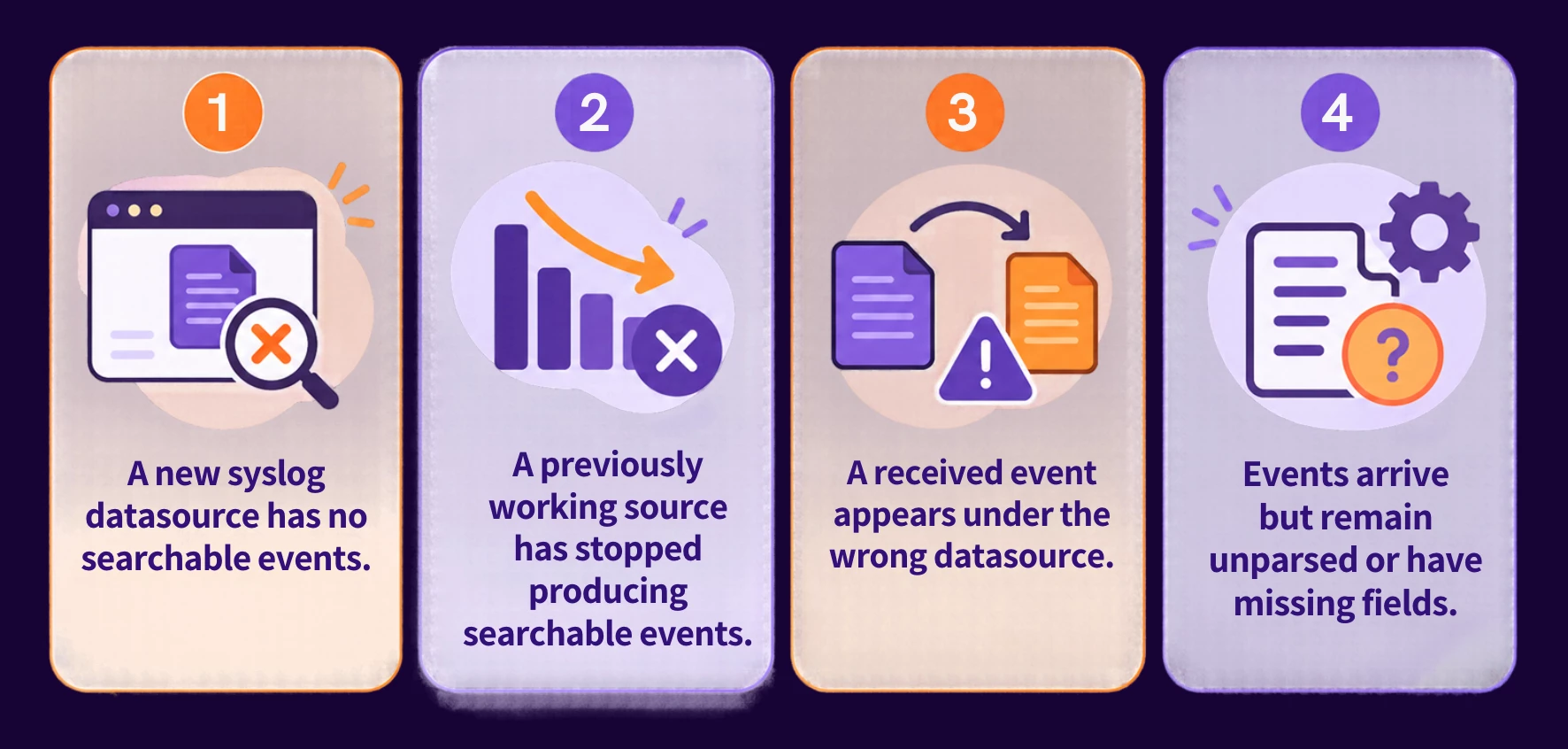
Quick diagnosis
| What you observe | Start here |
|---|---|
| The event is absent from the source log | Step 1 — Event generation and forwarding |
| Forwarding was attempted, but receipt is unproven | Step 2 — Cloud Hub receipt |
| The received event appears under the wrong datasource | Step 3 — Datasource assignment |
| Events arrive but are unparsed or required fields are missing | Step 4 — Parsing, ingestion, and Derived Fields |
| Receipt and processing are proven, but Spotter finds nothing | Step 5 — Search validation |
| Several unrelated sources stop together | Check Cloud Hub health in Step 2 and collect Support evidence |
Before you begin
Confirm that you can view the production Activity Import configuration, Cloud Hub status, and Spotter in the correct tenant and resource group. Identify the sending device or application and its intended datasource.
Choose a recent event that should have been forwarded, or generate a permitted event through the source's normal logging process. Record the original message and its timestamp.
For example, a firewall named fw-prod-01 might generate a message containing SYSLOG_TEST_001. Use this marker only if it actually appears in the source message; otherwise, select a distinctive value from your own event.
Keep the following details with your troubleshooting notes. Gather configuration and diagnostic information as you work through the steps.
| Item | What to record |
|---|---|
| Environment | Tenant, resource group, production datasource, and Cloud Hub |
| Test event | Sanitized raw message, distinctive value, timestamp, and source time zone |
| Sender | Hostname, IP address, and any relay between the source and Hub |
| Destination | Cloud Hub hostname or IP address, protocol, and port |
| History | Last successful event and recent changes |
Save the current configuration before making a correction. Change only the setting implicated by the failed checkpoint and retest one change at a time.
Step 1 : Confirm event generation and forwarding
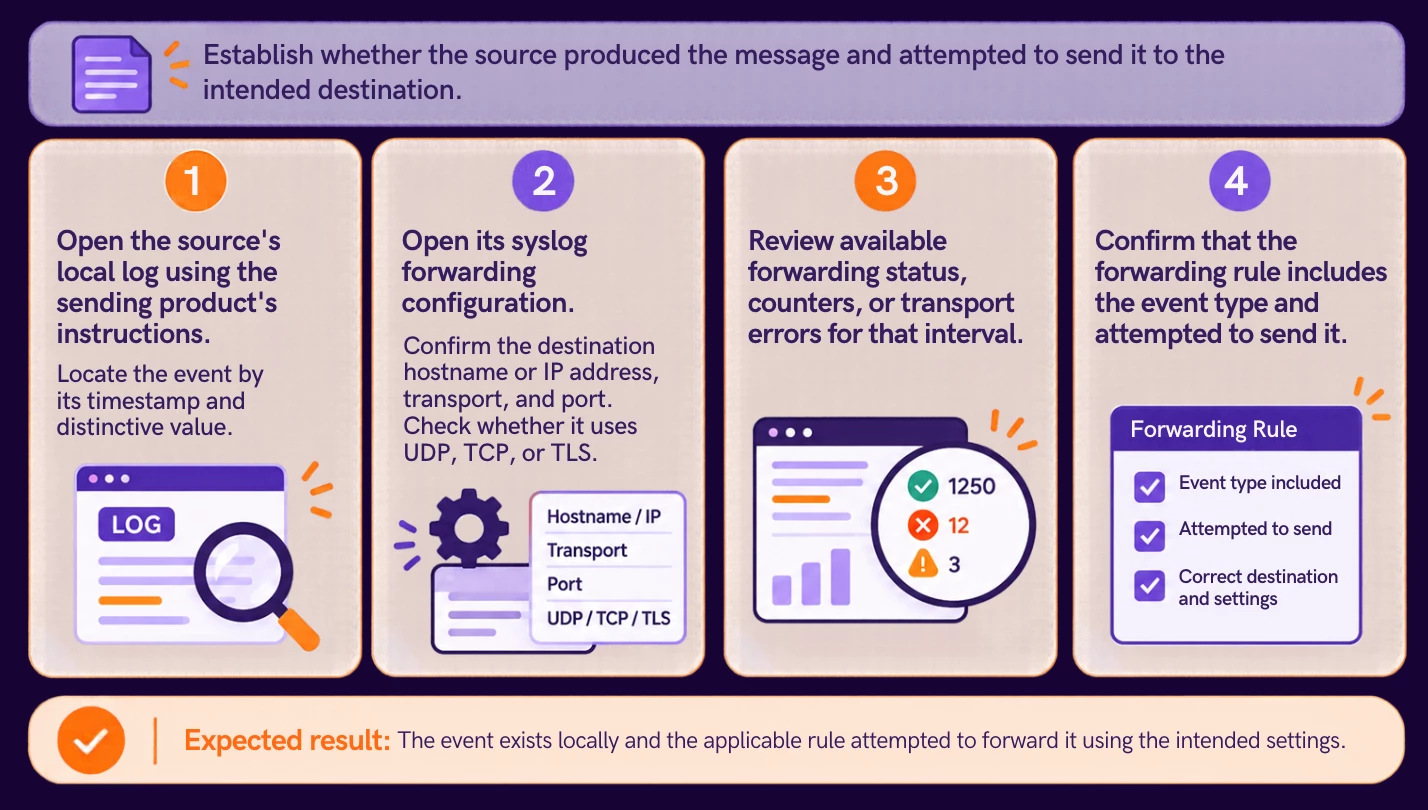
| Result | Next action |
|---|---|
| The event was not generated | Correct source logging or audit configuration, then generate another event. |
| The event exists, but forwarding was not attempted | Correct the forwarding rule and retest. |
| Forwarding was attempted | Continue to Step 2 to prove receipt. |
| Forwarding evidence is unavailable | Record what is known and use receipt diagnostics in Step 2. |
Resolve source delivery before changing the Securonix parser.
Step 2 : Confirm Cloud Hub receipt
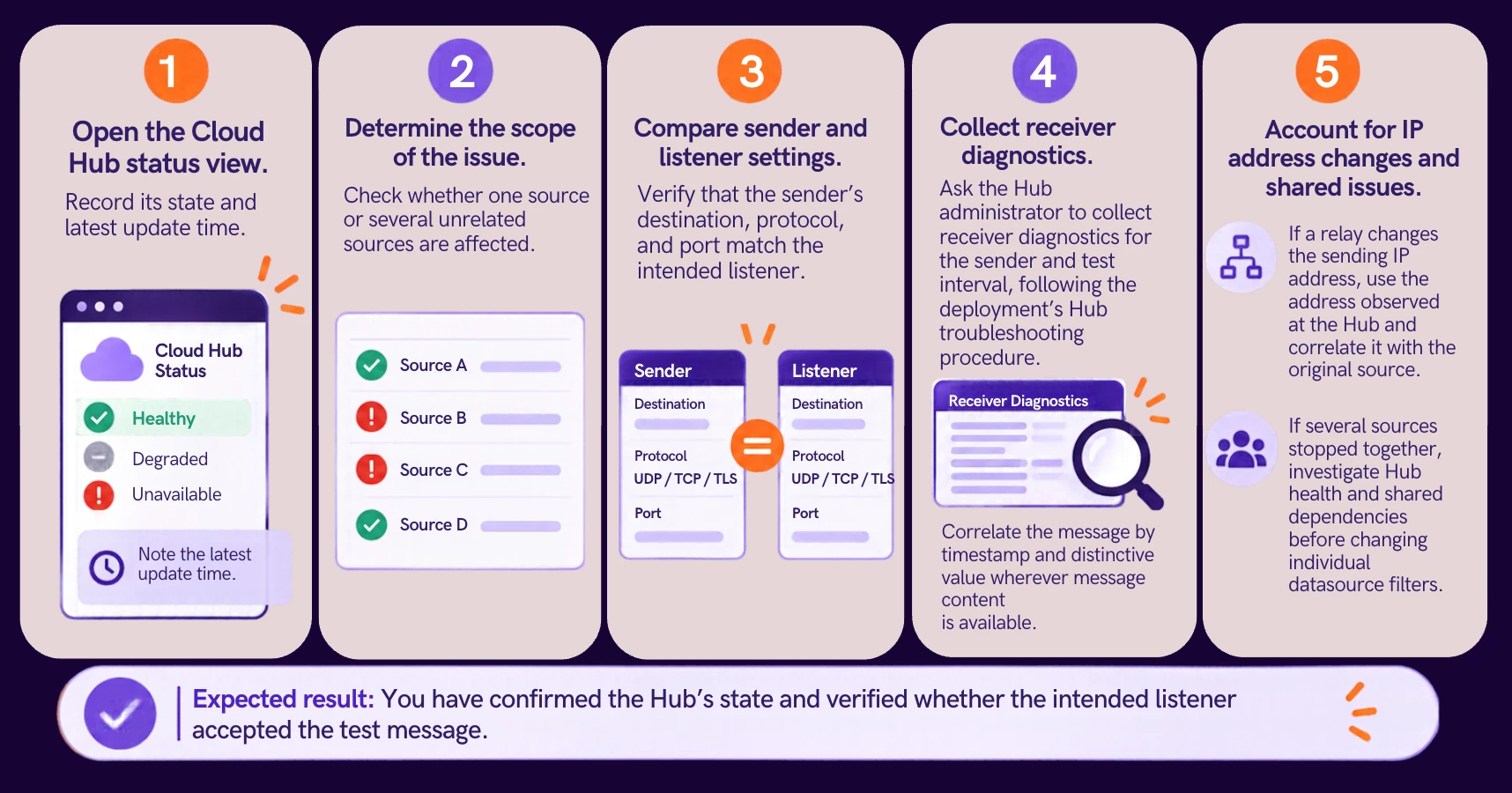
Inspect a Linux listener and capture test traffic
For a Linux Hub or RIN that supports shell diagnostics, an administrator can perform these checks. Where shell access is unavailable, ask Support to collect equivalent listener and receipt evidence.
Check the bound socket:
sudo netstat -antulpLocate the configured port and compare the protocol and bind address with the sender's destination. TCP should show a LISTEN entry; UDP does not have that TCP state. Where the installation uses syslog-ng, check the owning process. If the socket is absent, resolve the listener configuration before retesting.
Capture the relevant traffic. Replace SENDER_IP and PORT with the sender address observed at the Hub and the configured destination port.
For plaintext TCP syslog:
sudo tcpdump -i any -nn -s 0 -A 'src host SENDER_IP and tcp dst port PORT'For UDP syslog:
sudo tcpdump -i any -nn -s 0 -A 'src host SENDER_IP and udp dst port PORT'Start the capture, generate one test event, and compare the packet time and message content with your sample. Stop with Ctrl+C after the test interval.
For TLS, use the TCP filter without -A to inspect connection traffic. An ordinary capture does not decrypt the message; use supported receiver diagnostics to correlate it after TLS termination.
Interpret the evidence: A bound socket establishes that a socket is available. Captured packets establish network arrival. Listener diagnostics establish message acceptance. Neither an online Hub nor a successful connection proves that the message was ingested.
| Receipt evidence | Next action |
|---|---|
| No relevant traffic reaches the port | Check forwarding, routing or relay behavior, and intervening firewalls; retest. |
| Sender and listener use different settings | Correct the destination, protocol, or port mismatch; retest. |
| Packets arrive, but acceptance is unproven | Check listener diagnostics or involve Support before proceeding. |
| The intended listener accepts the test message | Continue to Step 3. |
A UDP send does not confirm delivery. A TCP or TLS connection confirms connectivity, but receipt still requires evidence of the actual message.
Step 3 : Confirm datasource assignment
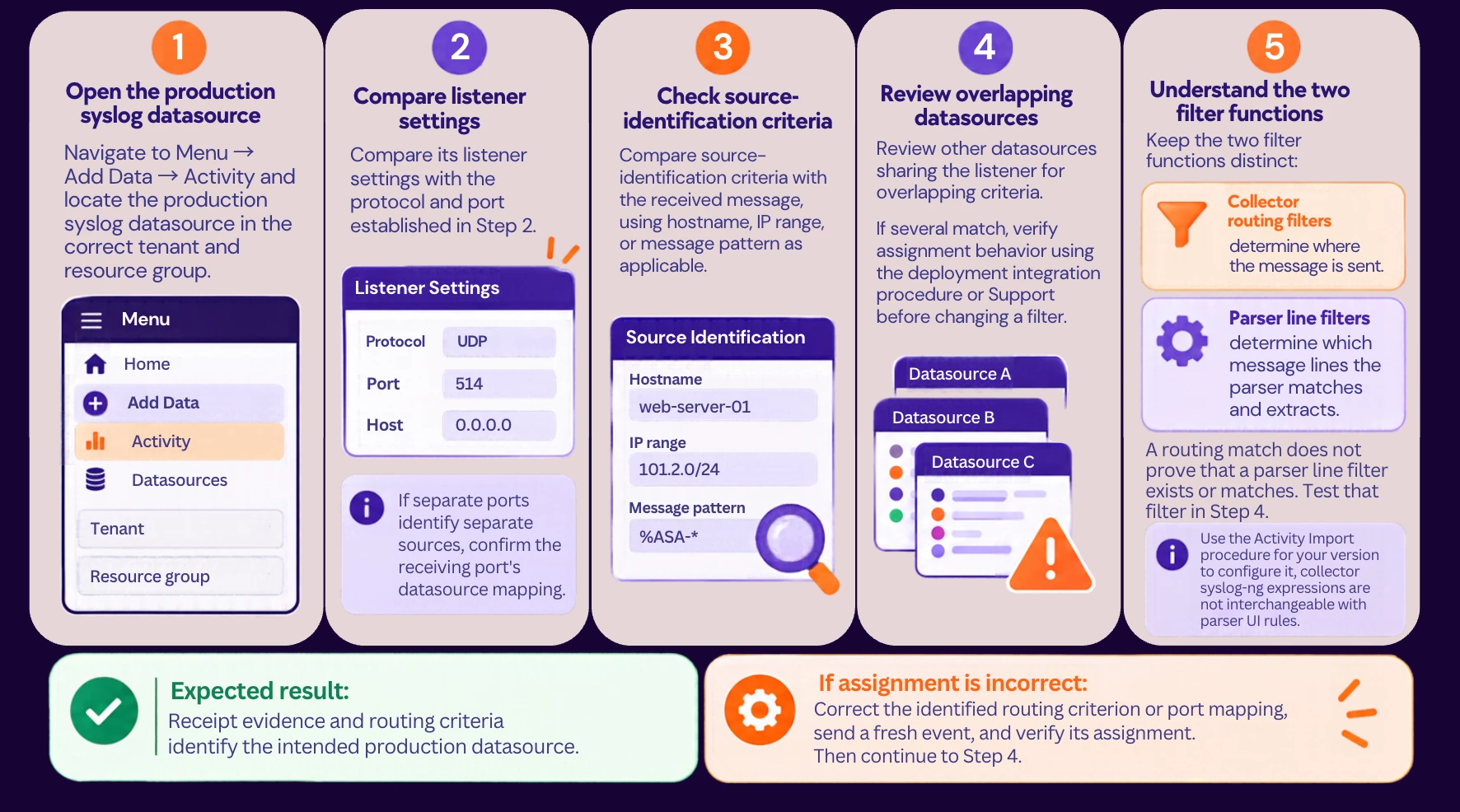
Step 4 : Confirm parsing and ingestion
Review the settings on the datasource that actually received the message.
-
Test the current message against the parser
Confirm that the parser matches the vendor, product, and current syslog format. Compare with a previously successful message if available; firmware or logging-format changes can affect parsing.
- Open the datasource's parser test or preview area using the Activity Import procedure for your version.
- Paste the raw test event into the sample input and run the preview.
- Inspect the line-filter match and parsed fields. If it reports No Match, preserve the outcome and resolve the parser or line-filter mismatch. If no required line filter is configured, add the intended rule using the documented procedure.
- For a matching sample, compare the parsed timestamp, hostname, and required fields with the raw message. Save a sanitized sample and preview outcome.
If the controls are unavailable, ask the datasource administrator or Support to run the sample and provide its match outcome and parsed fields.
Expected result: The sample follows the intended parsing path and produces the expected values. Preview success validates the sample; production delivery is verified in Step 5.
-
Review unparsed-event handling
Open Action Taken on Unparsed Events, under More Settings where available in your version. Record the current action before changing it.
Select Ingest as unparsed events when unmatched messages must be searchable. Messages retained only in HDFS do not appear in Spotter. Record temporary changes so that intended production handling can be restored after troubleshooting.
-
Check required Derived Fields
Open the datasource's Derived Fields configuration. Confirm that the required attributes are selected and enabled, and compare their mappings with the raw message. Missing fields can result from either parser mapping or Derived Field configuration.
| Processing outcome | Next action |
|---|---|
| The message does not match the parser | Validate its format, parser assignment, and line filter using the sample. |
| Unparsed messages are retained outside searchable storage | Review the unparsed-event action if searchable messages are required. |
| The event is parsed, but a required field is absent | Check its mapping and enabled Derived Field. |
| Parsing and ingestion settings support the event | Save and apply the relevant configuration, then continue to Step 5. |
Follow the datasource's documented procedure to apply changes. If a saved correction is not reflected in production, ask the administrator or Support whether an additional deployment action is required.
Send a fresh event after the correction. Use a new marker such as SYSLOG_TEST_002 if supported, and record its timestamp separately so an older sample is not mistaken for successful recovery.
Step 5 : Find the event in Spotter
Open Spotter in the correct tenant. Use a narrow custom interval around the new event's timestamp, accounting for its time zone and observed clock differences.
Start with the activity index and actual resource-group name:
index = activity
AND resourcegroupname = "Production_Firewalls"
Replace Production_Firewalls with your group name. Open events around the known time and compare their timestamp, datasource, and raw message with the sample.
Then add the distinctive-value condition using a confirmed searchable field or the message-search syntax supported by your release. If that search returns nothing, remove only the marker condition and repeat the group search over the same interval. A marker may not be searchable even when the event has arrived.
-
Refresh configuration and retest
If receipt and ingestion evidence are present but the event is still missing:
- Click the down arrow in the Spotter search bar and select Refresh Config. Allow the refresh to finish.
- Open the menu again and select Update Cache. Record any success or error message displayed.
- Rerun the same narrow search.
Perform this refresh once. If the event remains absent, check the following before escalating:
| Check | What to verify |
|---|---|
| Time | Raw timestamp, parsed event time, datasource time zone, and search range agree. |
| Access | The user can search the resource group in the intended tenant. |
| Search conditions | Index, group, field names, and values match the event. |
| Processing progress | Available ingestion status is progressing for the datasource. |
The searchable period describes event-time coverage, not a receipt timestamp or proof that every event in that interval was ingested. Unexpected timestamps can distort that range. Compare raw and parsed times and verify arrival by finding the event itself.
Expected result: Spotter shows the fresh event with its correct timestamp, datasource, and required fields. If only fields are missing, return to Step 4; repeat delivery checks only if new evidence indicates a delivery problem.
Verify recovery
| Checkpoint | Evidence of success |
|---|---|
| Source forwarding | A current event is generated and forwarded by the intended rule. |
| Hub receipt | The intended listener accepts the corresponding message. |
| Datasource assignment | The message is assigned to the intended production datasource. |
| Parsing and ingestion | Required filters permit the message and its parsed or unparsed ingestion path is correct. |
| Field availability | Required mappings and Derived Fields are configured and visible. |
| Spotter results | The fresh event appears with the expected timestamp and datasource. |
| Continued operation | A later normal event also becomes searchable without another correction. |
Record the correction and its supporting evidence. Confirm normal collection continues beyond the manual test.
Common troubleshooting mistakes
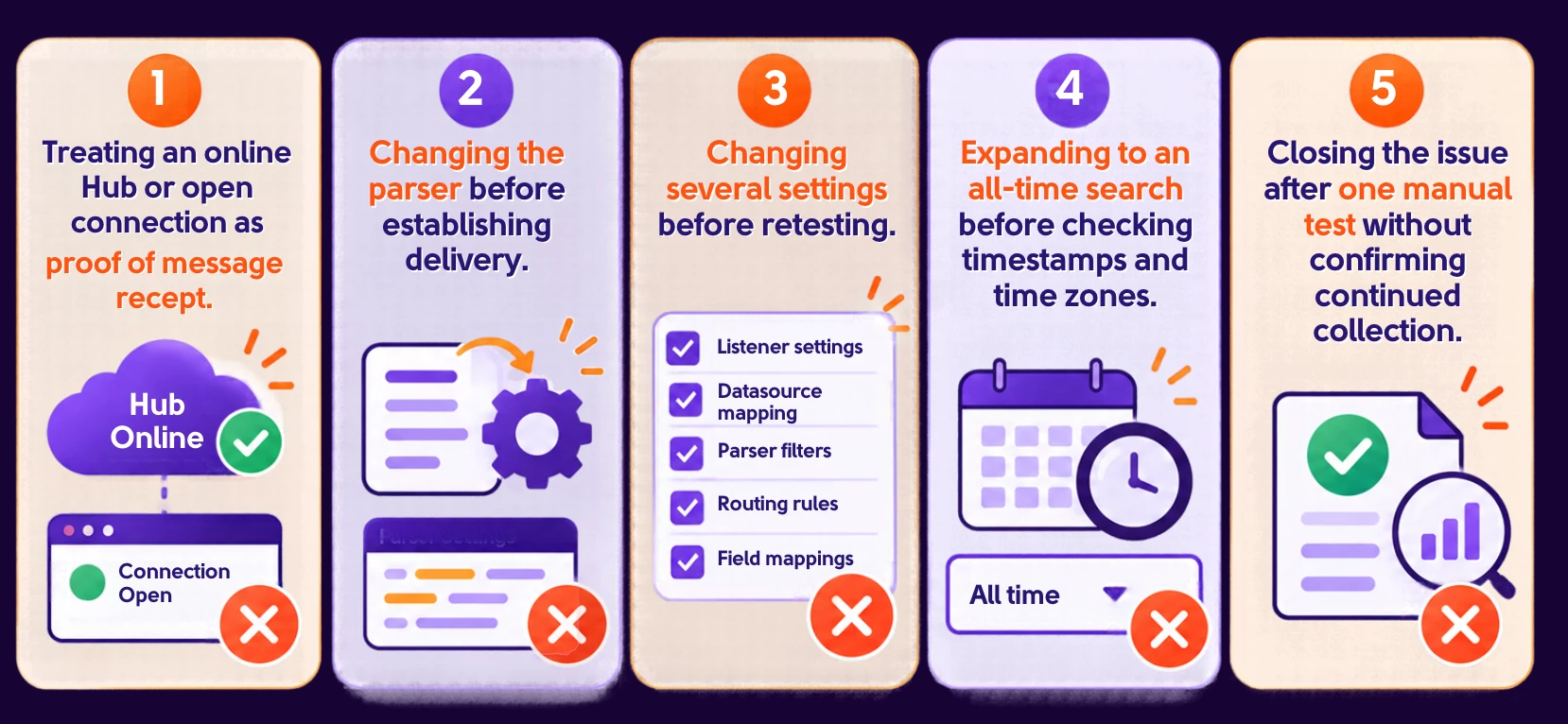
When to contact Securonix Support
Contact Support when the first failing checkpoint remains unresolved, assignment or parser behavior is unexplained, receipt and processing are proven but events remain unavailable, or several sources fail together. Also escalate recurring issues or corrections outside your access.
Include the evidence collected during the workflow:
| Evidence | What to provide |
|---|---|
| Environment | Tenant, resource group, datasource, and Cloud Hub names |
| Sender and destination | Hostname, sender IP, relay details, destination, protocol, and port |
| Test event | Sanitized raw message, distinctive value, source timestamp, send time, and time zones |
| Receipt | Listener details and diagnostics showing arrival and acceptance |
| Datasource settings | Identification filters, parser line filters, parser, Derived Fields, and unparsed-event action |
| Spotter | Query, time range, result, and configuration/cache refresh outcome |
| History and impact | Affected sources, last successful event, recent changes, and corrections tested |
State the last checkpoint that passed and the first checkpoint that failed. Remove credentials and sensitive content from attachments.
Related resources
- Syslog Integration with Securonix Cloud Hub
- Activity Import Screen
- Spotter Search Help
- Understanding and Troubleshooting the Activity Import Screen
- How to Group Data Sources and Improve Search Efficiency in Securonix
- Troubleshooting Securonix Hub
Share your troubleshooting experience
Share the checkpoint that failed and the correction that worked in the Community comments, removing sensitive message content and environment details. For an unresolved issue specific to your environment, open a Support case with the evidence collected above.