


Target Audience: Securonix Customers and Partners
Product Module: Securonix Spotter
Tags: Securonix Spotter, Spotter Queries, Query Syntax, Search Terms, Streaming Operators, Transforming Operators, Data Processing Operators
Overview
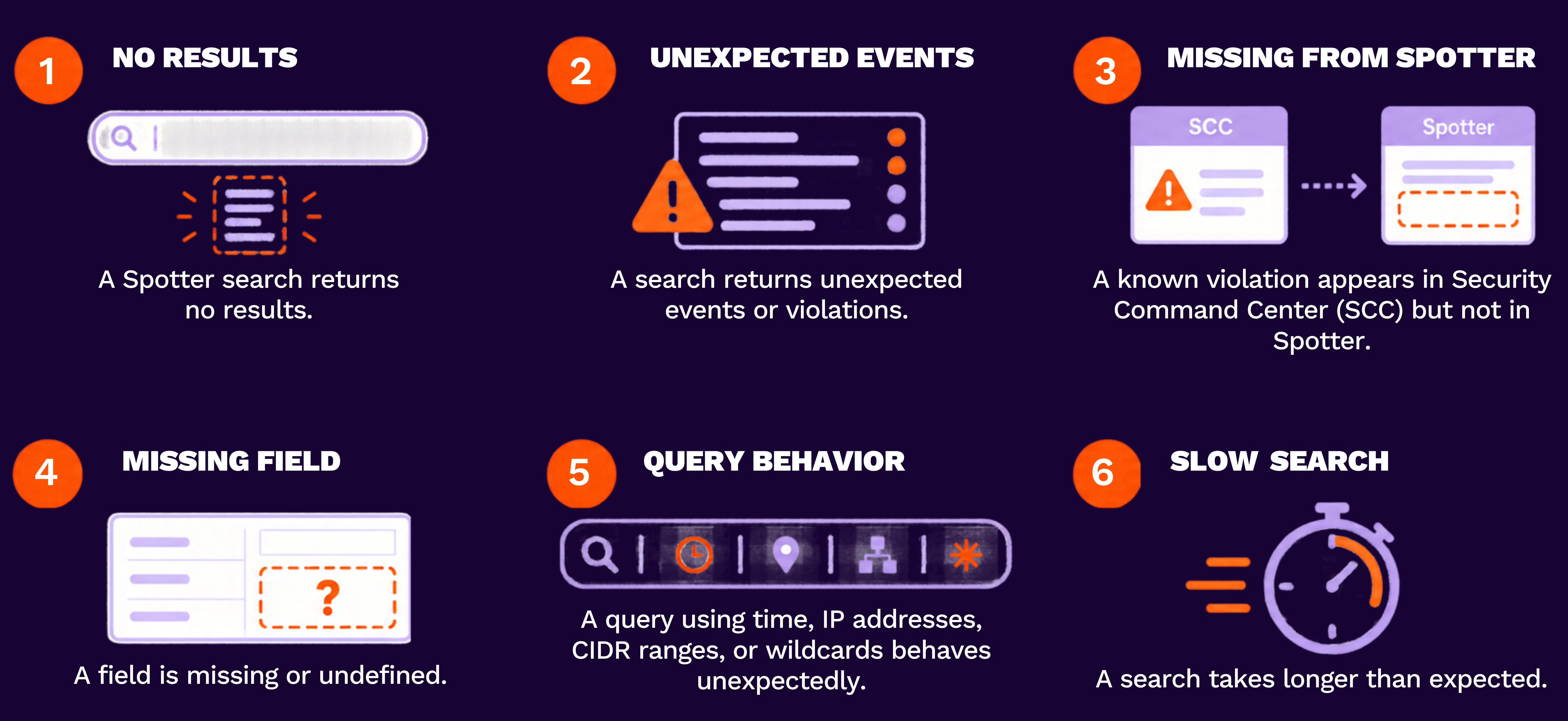
A Spotter query can run successfully yet return no results, too many results, or results that do not match the investigation. In most cases, the issue comes down to one of five things: the selected index, time range, field name, field value, or query logic.
This guide provides a repeatable way to isolate the cause without rebuilding the entire query at once.
When to use this guide
Use this workflow when:
Quick diagnosis: start broad, then add one condition at a time
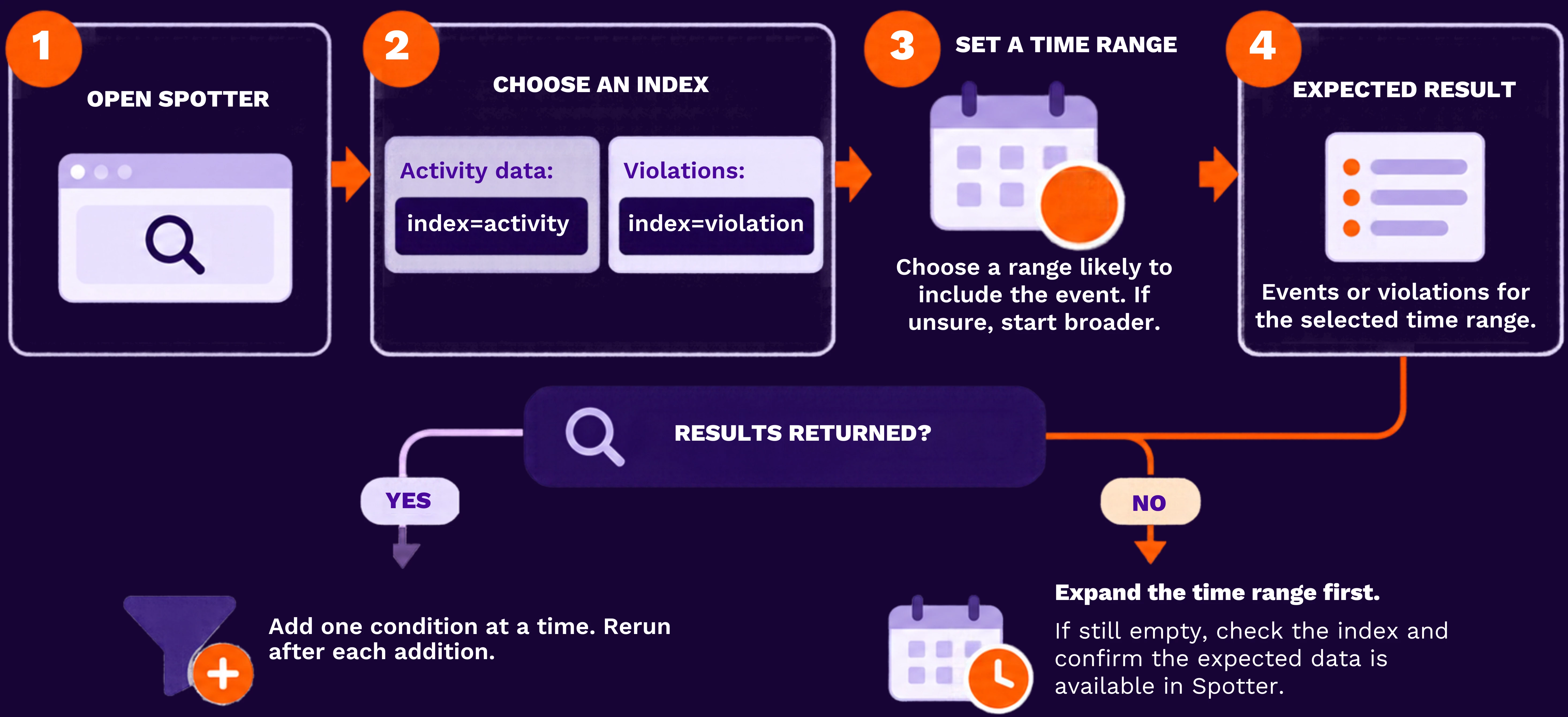
Open Spotter and begin with the index that matches the data you need.
- For activity data, start with: index=activity
- For violations, start with: index=violation
Set a time range that is likely to include the event. If you are unsure when it occurred, begin with a broader range than usual.
Step 1 – Filter to the relevant data source
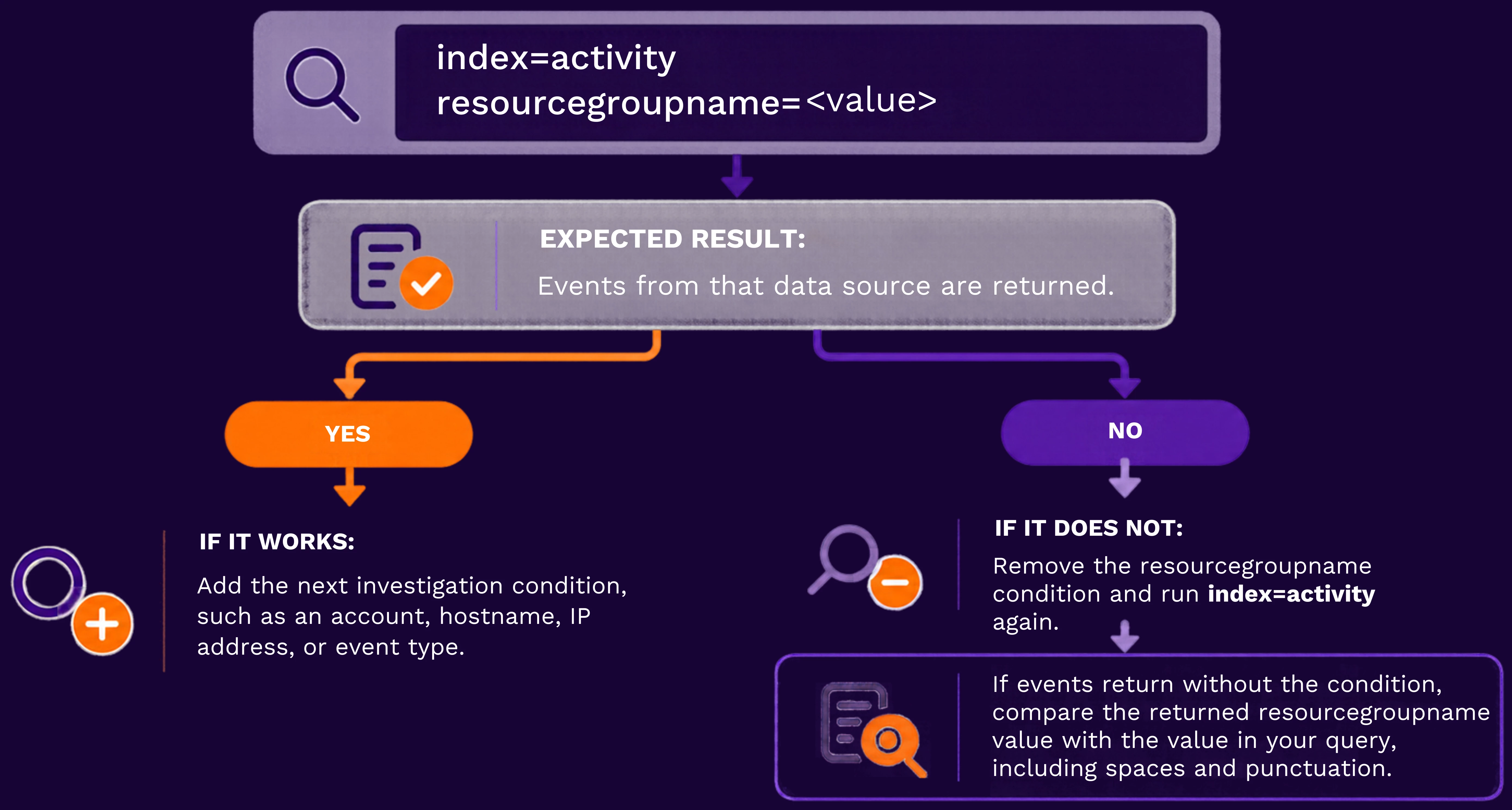
If you know the data source name, add it first:
index=activity AND resourcegroupname="My Data Source" Replace "My Data Source" with the exact data source name.
Step 2 – Add the field and value you need
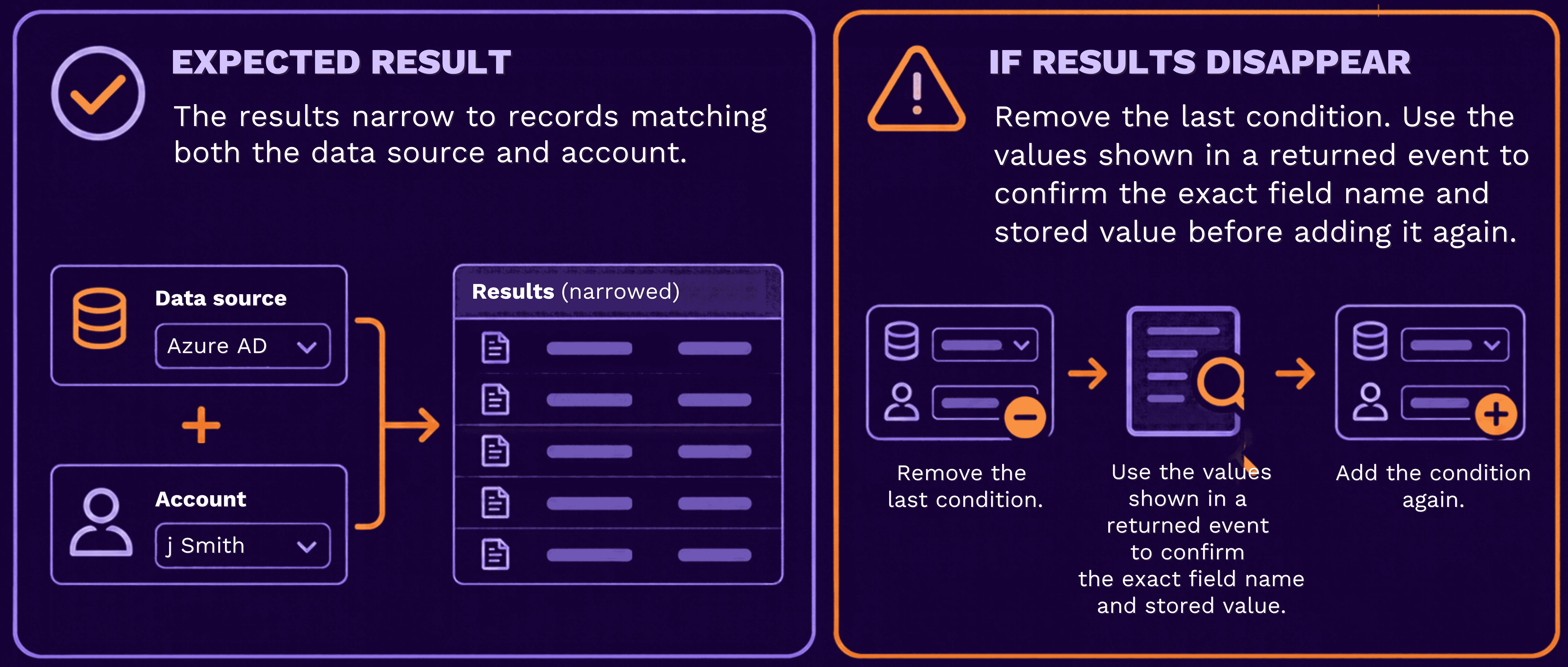
For example, to find activity for a user:
index=activity AND resourcegroupname="My Data Source" AND accountname="jdoe" If the account value contains special characters, spaces, punctuation, or a reserved term, enclose it in double quotation marks.
Step 3 – Group complex logic clearly
Use parentheses when combining AND and OR conditions:
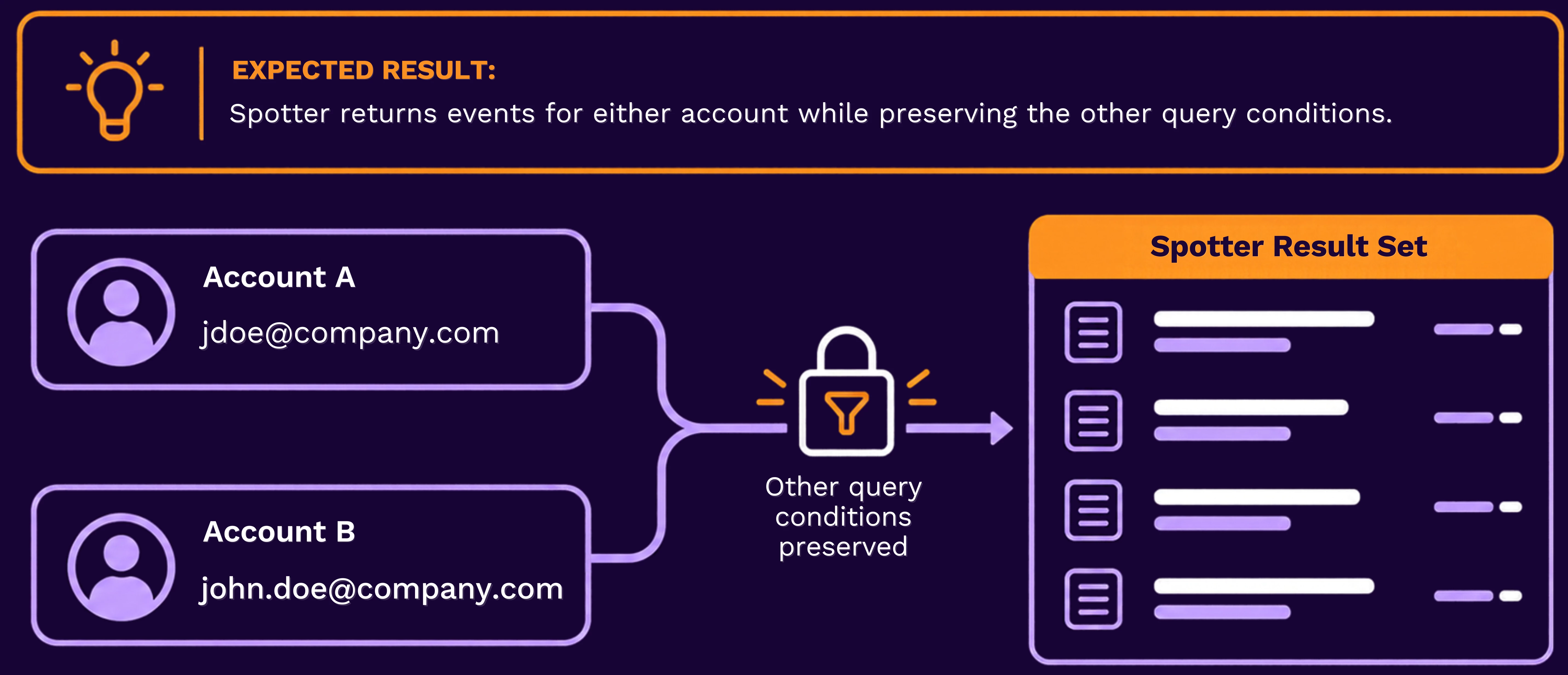
index=activity AND (accountname="jdoe" OR accountname="jsmith") Use parentheses or brackets for grouping. Do not use curly brackets.
Expected result: Spotter returns events for either account while preserving the other query conditions.
Find a violation that appears in SCC
A violation can appear in SCC but not in a Spotter search when the search time range is based on the wrong timestamp.
-
eventtime is when the original event occurred.
-
generationtime is when the violation was detected.
-
indexedat is when the event was indexed.
Start by expanding the Spotter time range. Then list the policy names associated with the account:
index=violation AND accountname="<account>" | STATS policyname Replace "<account>" with the account value from SCC.
Troubleshoot missing fields and geolocation data
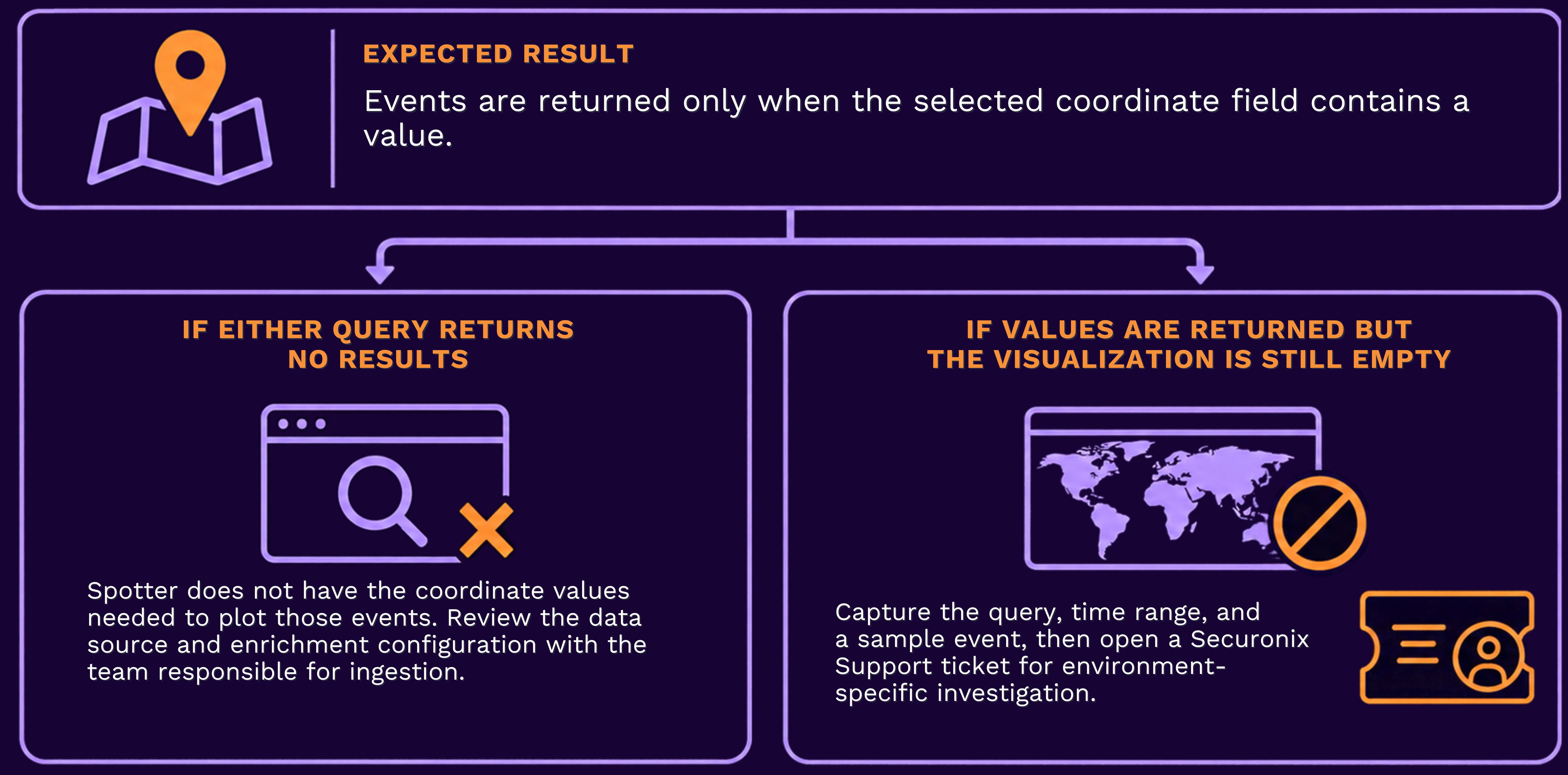
A field may be unavailable because the selected data source does not populate it for the events in the current result set.
For geolocation visualizations, test whether the events contain coordinates:
eventlatitude != unknown Then test:
eventlongitude != unknown
Troubleshoot IP and CIDR searches
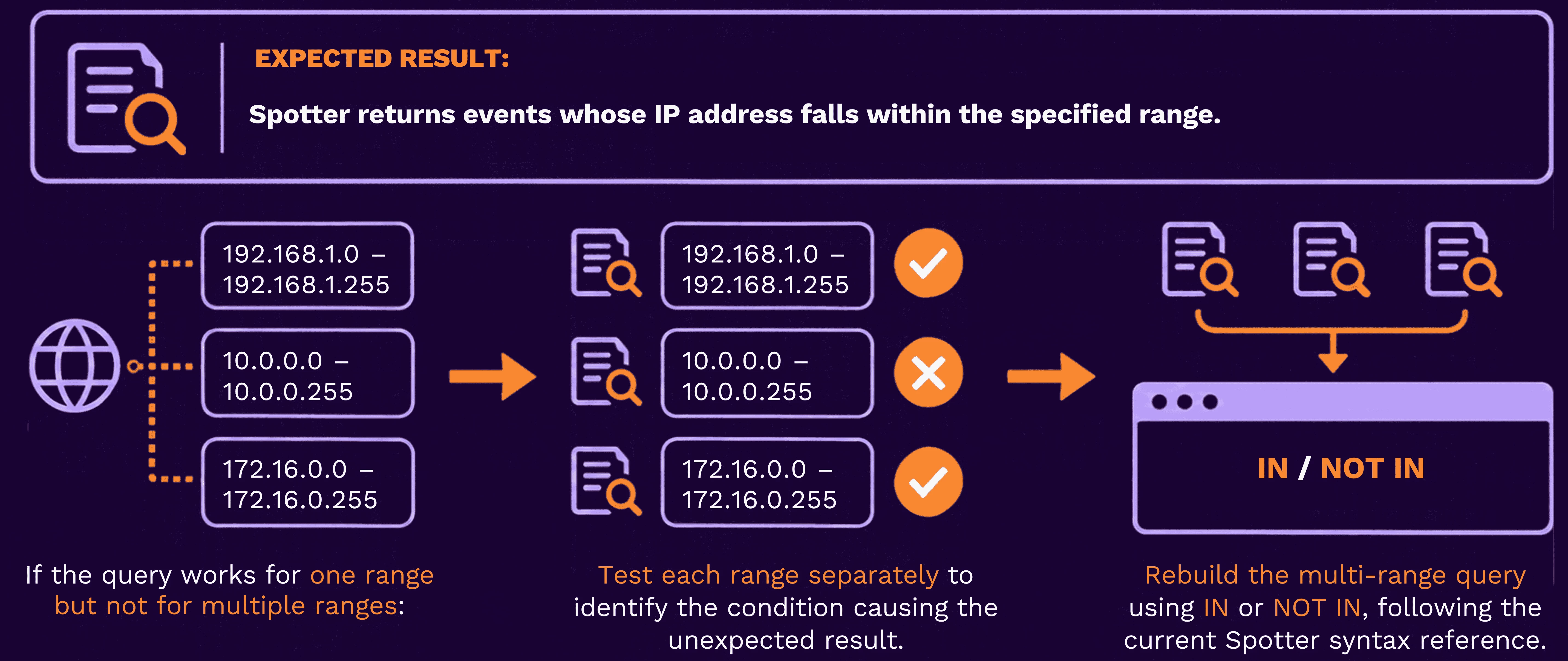
Use CIDR notation only with an IP address field. Test one range before combining multiple ranges.
For example:
ipaddress = <CIDR-range> Replace <CIDR-range> with the range you want to test.
Improve a slow Spotter search
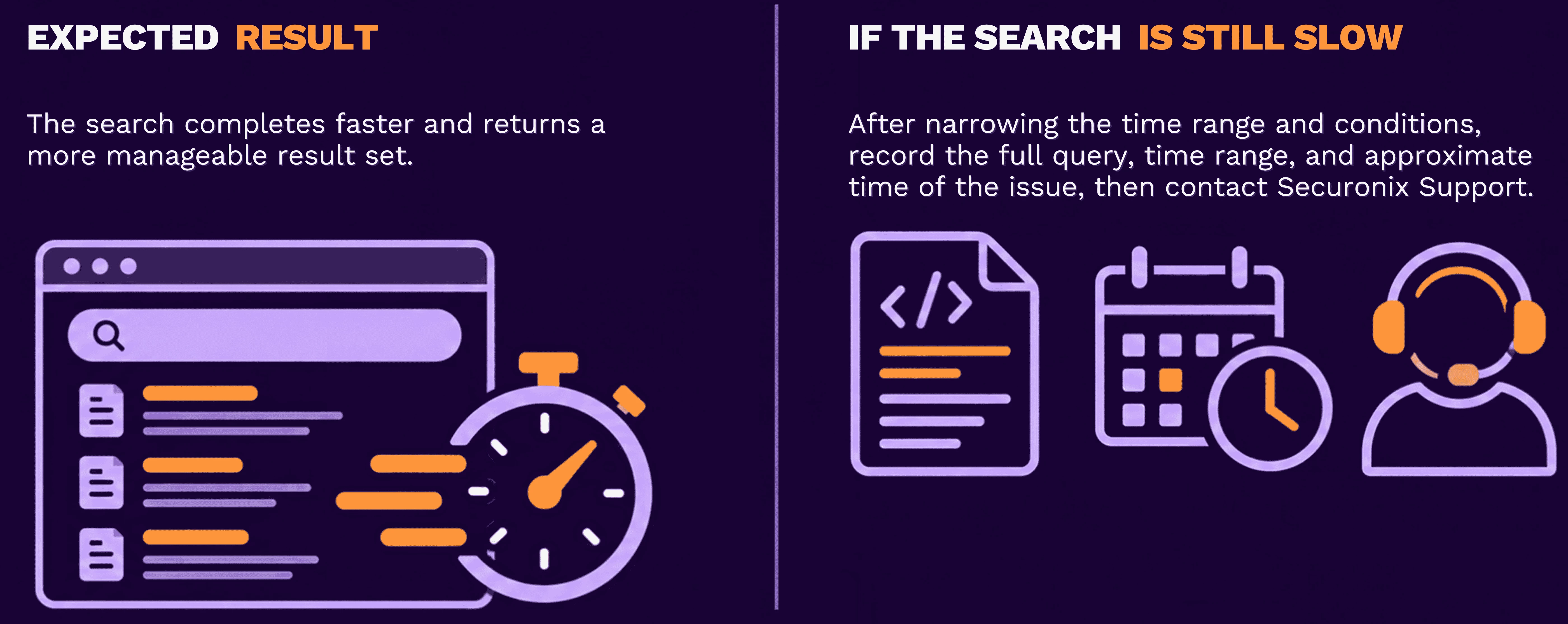
Start with a small, focused time range and add only the conditions needed for the investigation.
For example, begin with:
index=activity AND resourcegroupname="My Data Source" Then add the account, host, IP address, or event type required for the investigation.
Avoid leading wildcards, broad contains searches, unnecessary fields, and large time ranges unless they are required.
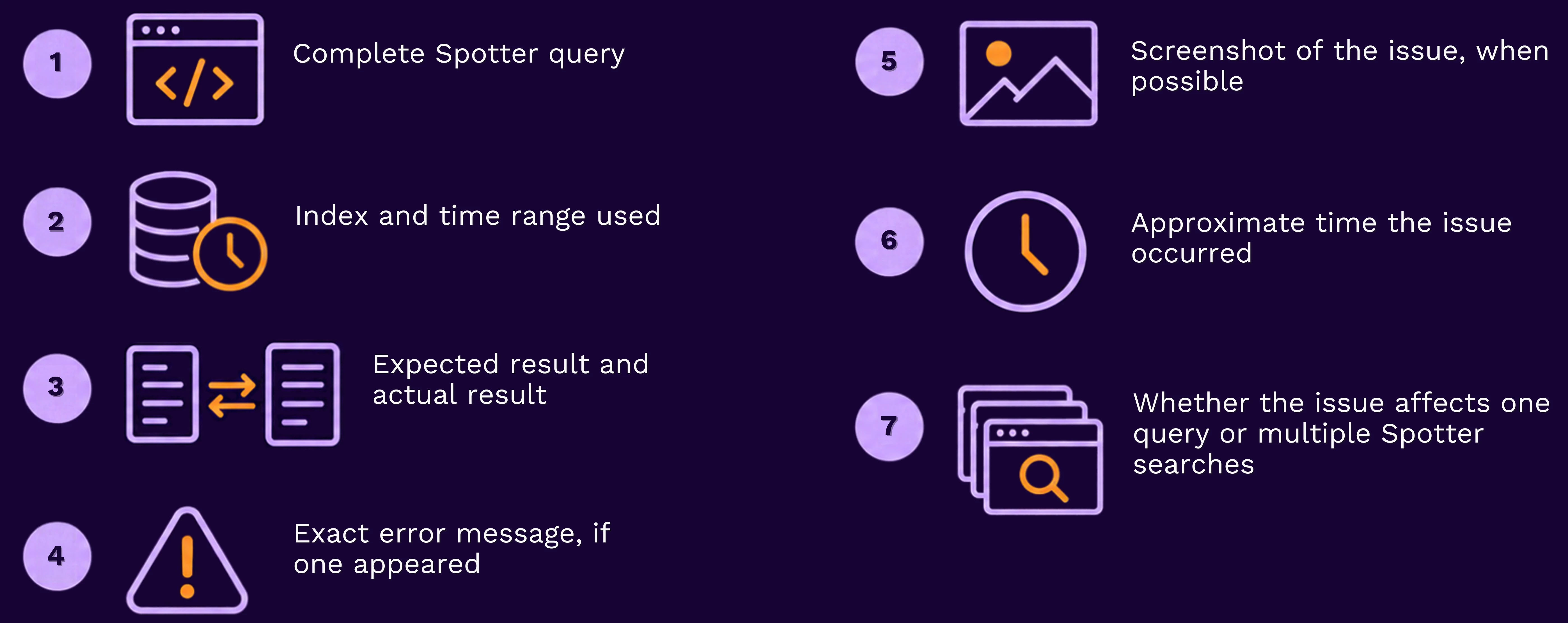
Before opening a Support ticket
Include the following information:
Related resources
-
Your environment’s Spotter operator and query-syntax reference
Have a different query-validation approach that works well in your environment? Share it in the Community—your example may help another analyst resolve a similar search issue.
If the issue is specific to your environment, persists after these steps, or appears to involve missing data, configuration, or product behavior, open a Securonix Support ticket so the team can investigate it with you.