


Target Audience: Securonix Customers and Partners
Product Module: Securonix Unified Defense SIEM – Spotter API
Tags: Spotter API, Spotter Search, API, Troubleshooting, Query Status, Search Results, Authentication, Query Execution
Overview
Spotter API searches are processed asynchronously. A request can be accepted successfully but remain in progress, fail during execution, or complete without allowing the expected results to be retrieved.
This article focuses on troubleshooting the Spotter API request and execution process when a search becomes stuck or fails.
Why It Matters
A Spotter API search can fail at different points in the request lifecycle. Identifying where the process stops helps you isolate the issue without making unnecessary changes to the search itself.
What You’ll Learn
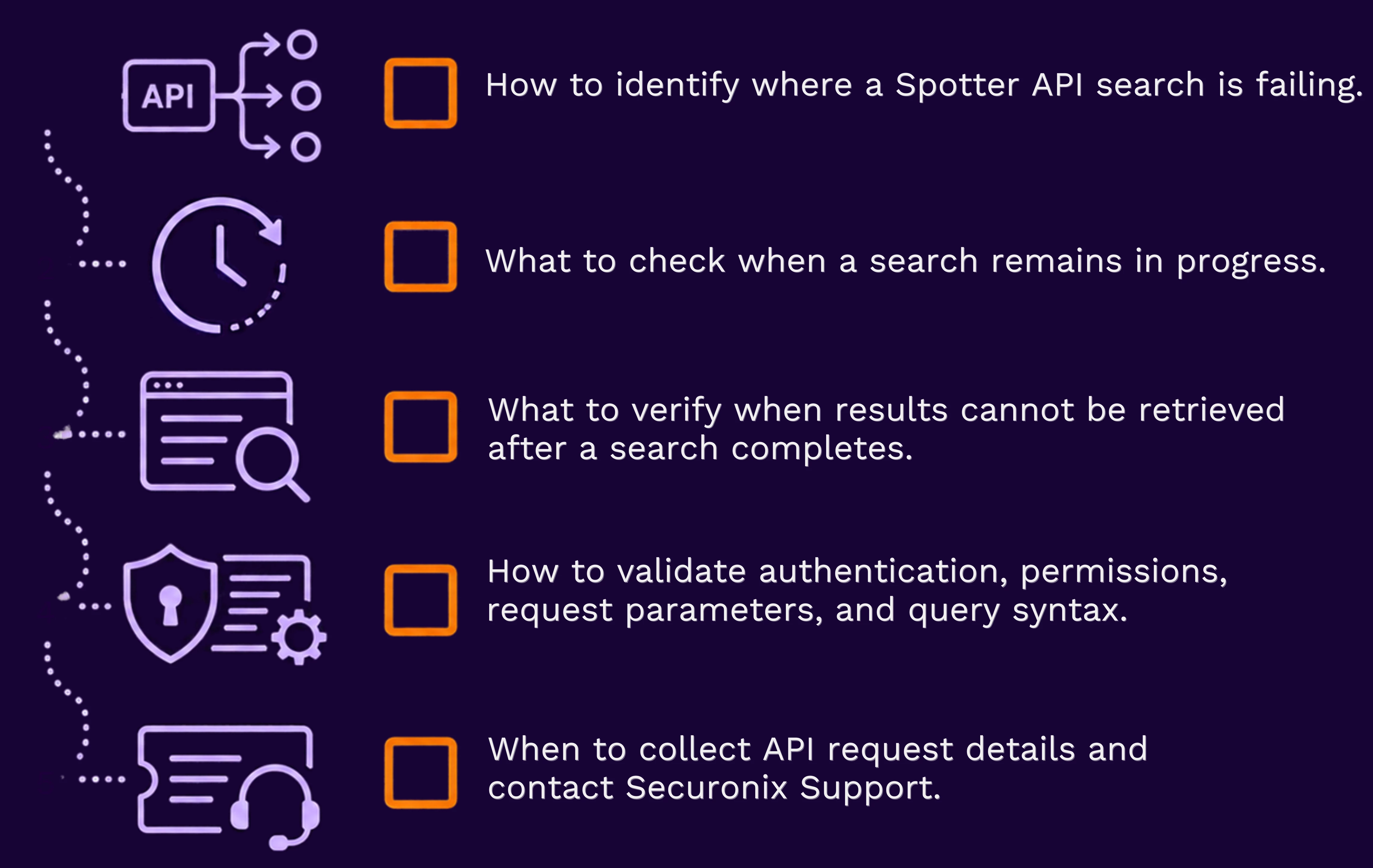
By the end of this article, you will know:
Understand the Spotter API Search Process
Spotter API searches use an asynchronous workflow:
Submit the search → Check the search status → Retrieve the results
Submitting a request and receiving a queryId means the request was accepted for processing. It does not mean the search has completed.
Start by identifying the last step that completed successfully.
What you observe | What it may indicate |
| Authentication fails | The session, token, or account permissions may be invalid |
| Search submission fails | The request or payload may not be accepted |
| Search remains in progress | The search may still be processing or waiting in the queue |
| Search completes but results fail | The search completed, but result retrieval encountered an issue |
| Search is cancelled | The running search was stopped before completion |
Check Authentication and Permissions
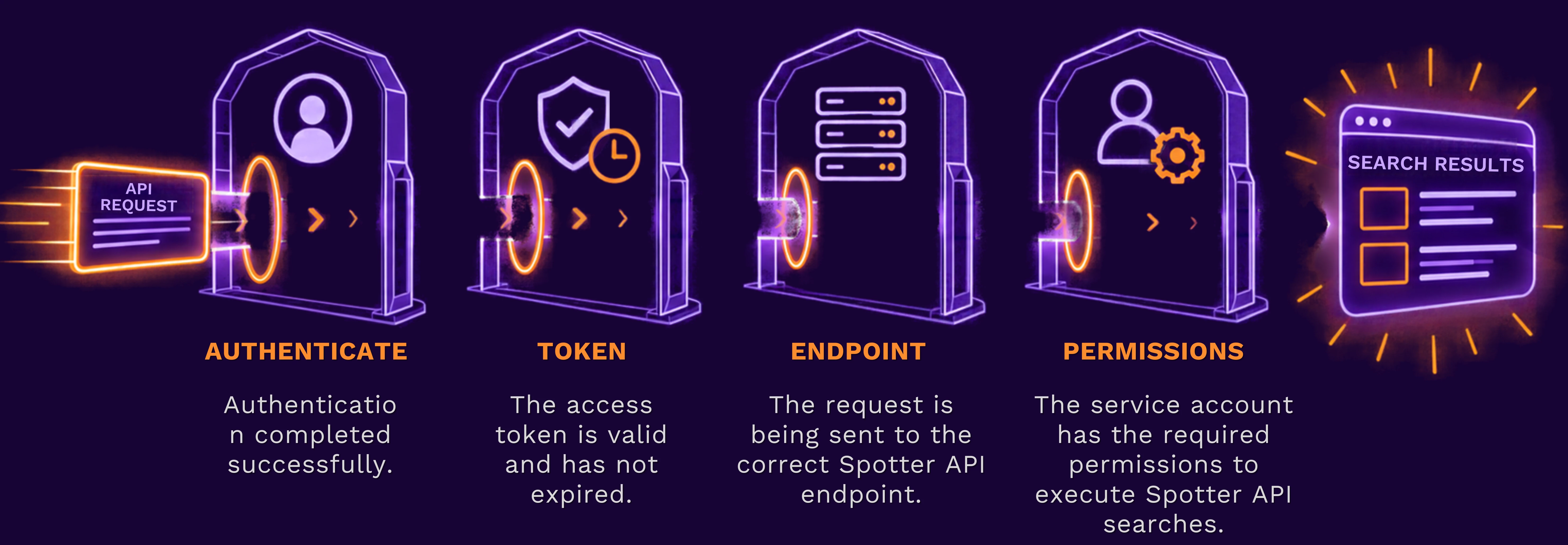
A successful connection to the Spotter API does not always mean the account is authorized to execute searches.
When authentication or authorization fails, verify that:
If possible, test the same request with an administrator account or token. If the request succeeds with the administrator account but fails with the service account, the issue may be related to account permissions rather than the request itself.
Avoid repeatedly submitting the same request until authentication and permissions have been verified.
When a Search Remains Stuck
Because Spotter API searches run asynchronously, you must check the status of a submitted search before retrieving its results.
If a search remains in a Submitted or Running state for an extended period:
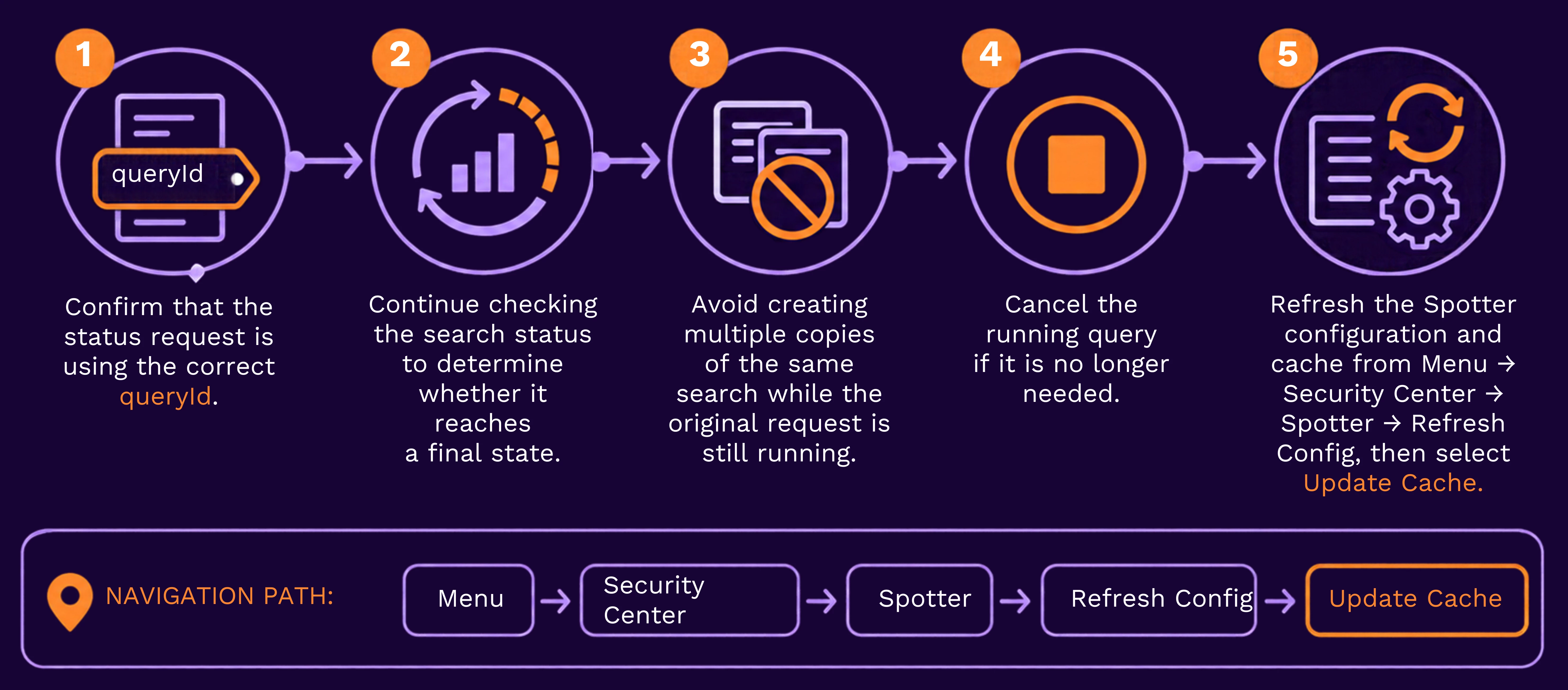
A search that continues to remain in progress after these checks may indicate a backend processing or queuing issue. Contact Securonix Support for further investigation.
Validate the Request Payload
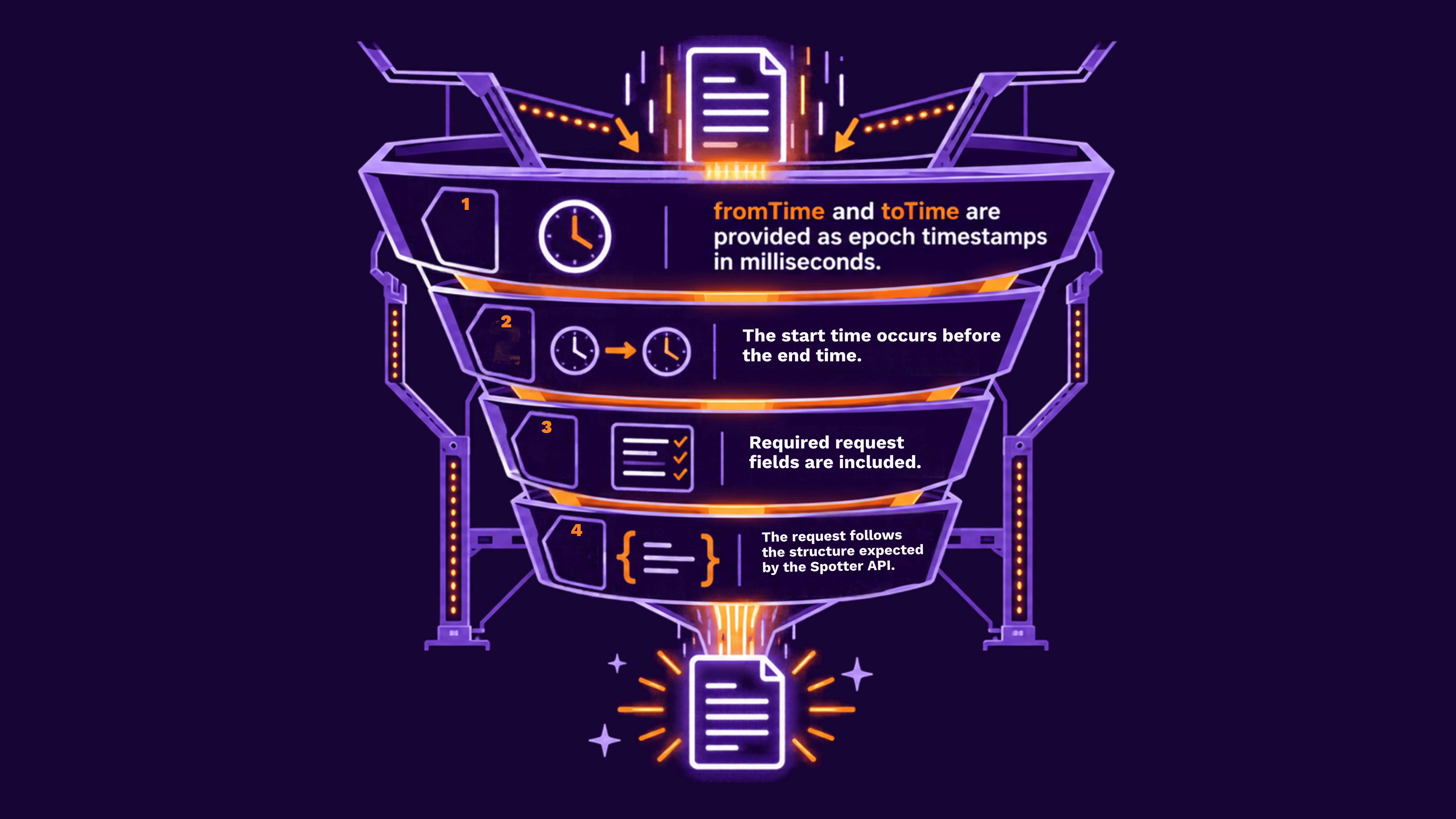
The Spotter API expects a specific request structure and correctly formatted time values.
When a search submission fails, verify that:
For example:
{
  "query": "index = violation",
  "fromTime": 1739332315000,
  "toTime": 1749028747000,
  "timeout": 3600,
  "limit": 1000,
  "columns": ["*"],
  "sortBy": "eventtime",
  "sortOrder": "desc"
}
The fields and values used in your implementation may vary, but required fields should not be omitted. For example, requests that do not include expected fields such as columns may fail during processing.
Verify Query Syntax
A query that works in the Spotter interface may not always be supported through the Spotter API.
The Spotter API does not support queries that use pipe (|) aggregation operators.
For example: index = violation | TOP policyname
Use a standard filter query instead and perform any additional aggregation or processing outside the API when needed.
If an otherwise valid API request returns an internal server error, review the query for unsupported operators before troubleshooting other parts of the request.
Check Result Retrieval Separately
A search that reaches a completed state may still encounter an error when the client requests the results.
When this occurs:
☐ Confirm that the correct queryId is being used.
☐ Verify that the results request is being sent only after the search reaches a completed state.
☐ Review the response from the results request separately from the original search submission response.
This distinction is important because the search may have completed successfully even when the results request fails.
Test With a Smaller Search
When a request is accepted but consistently takes too long to complete, use a smaller test search to determine whether the issue is related to the amount of data being processed.
For example, use a narrower time range or a smaller result set for the test.
The purpose of this test is to determine whether the API workflow can successfully submit, execute, and return a simpler request. It is not necessary to redesign the original search unless the testing identifies the query as the likely cause.
Capture API Details Before Contacting Support
If the problem continues, collect the information needed to help Support identify where the request is failing.
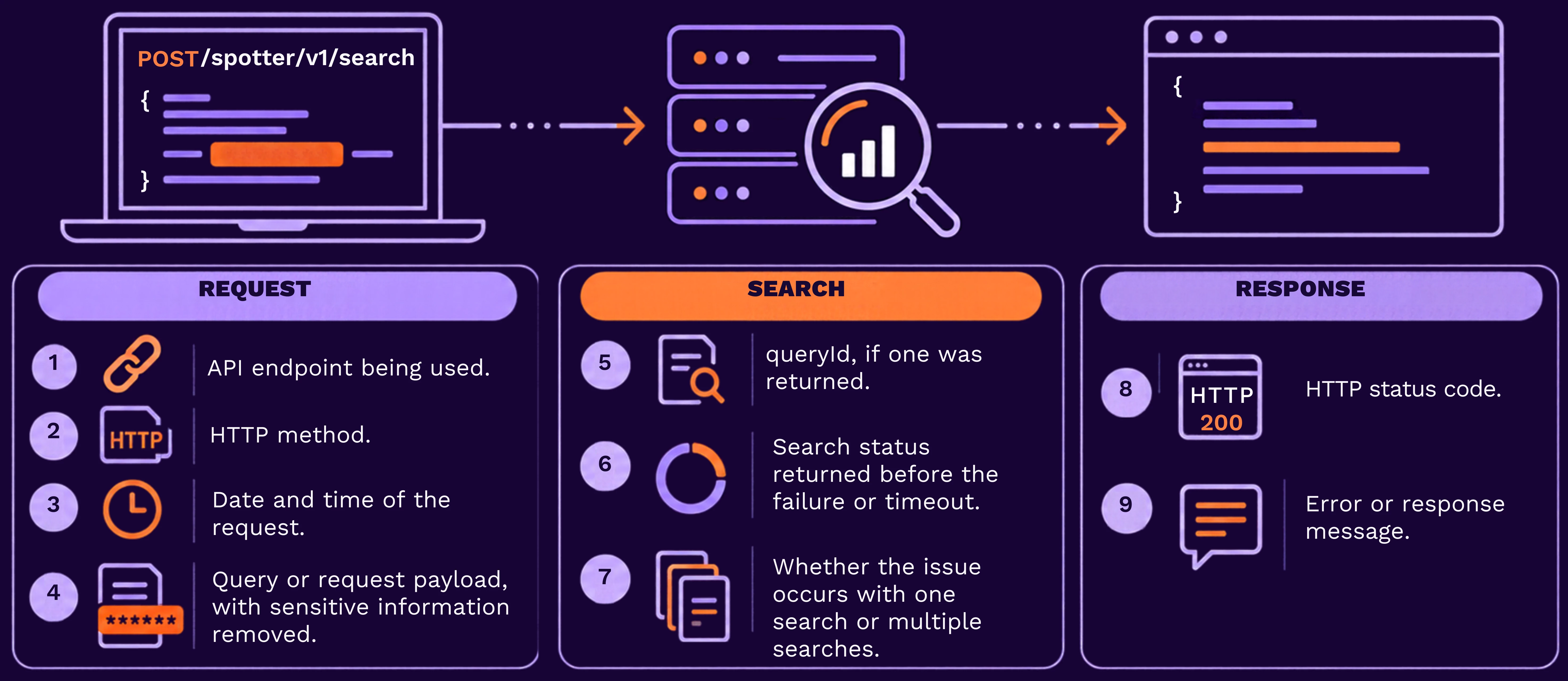
When requested by Support, additional request diagnostics such as a HAR file may also help identify failed or delayed network requests. Remove or securely submit any sensitive authentication information according to Securonix Support guidance.
When to Contact Securonix Support
Contact Securonix Support when:
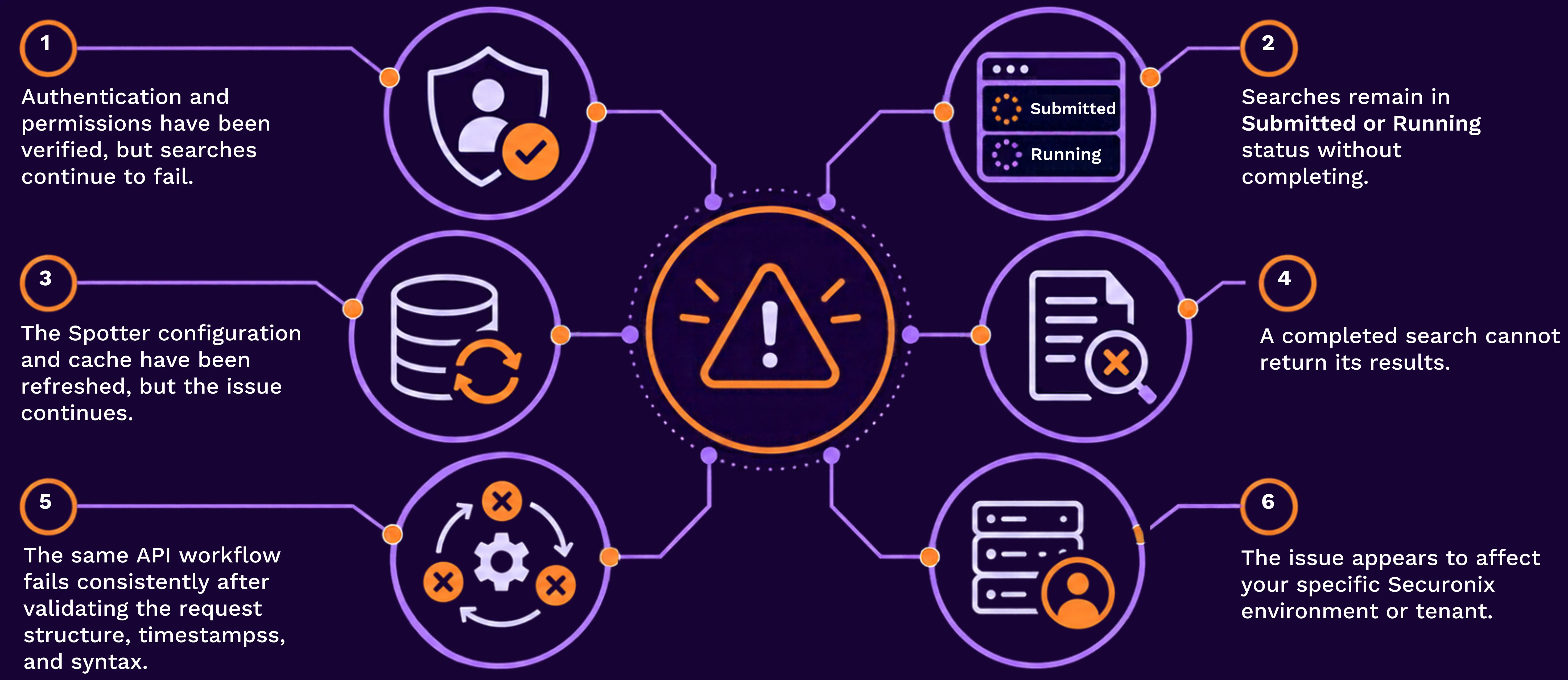
Provide the API details collected during troubleshooting so Support can determine whether the issue is related to the request, permissions, processing, or the environment.
Summary
When a Spotter API search becomes stuck or fails, first identify where the process stops:
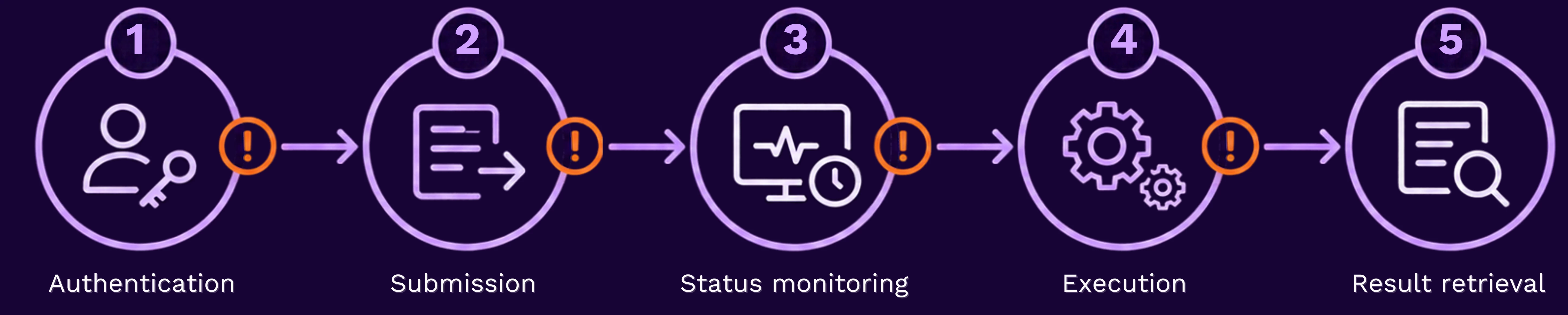
Then verify the account permissions, request structure, timestamp format, and supported query syntax. For searches that remain in progress, refresh the Spotter configuration and cache and cancel unnecessary running queries before retrying.
If the issue continues, collect the relevant request and response details and contact Securonix Support for further investigation.
Continue Learning / Next Steps
For additional Spotter guidance, use Securonix Connect to find the documentation relevant to your search or API workflow.