

Audience: Admins, Analysts, MSSPs
Product Module: Add Data > Activity / Activity Import
Last Updated: September 30, 2026
KB ID: KB-20260930-activity-import-troubleshooting
Tags: Activity Import, datasource, Spotter, Job Monitor, data ingestion, collection job, parser, Derived Fields, line filter, troubleshooting
Problem
A production Activity Import datasource is configured, but expected events are not appearing in Spotter, collection has stopped, jobs are failing or returning zero records, or collected events do not contain the expected fields.
This article provides a linear troubleshooting workflow for production Activity Import configurations.
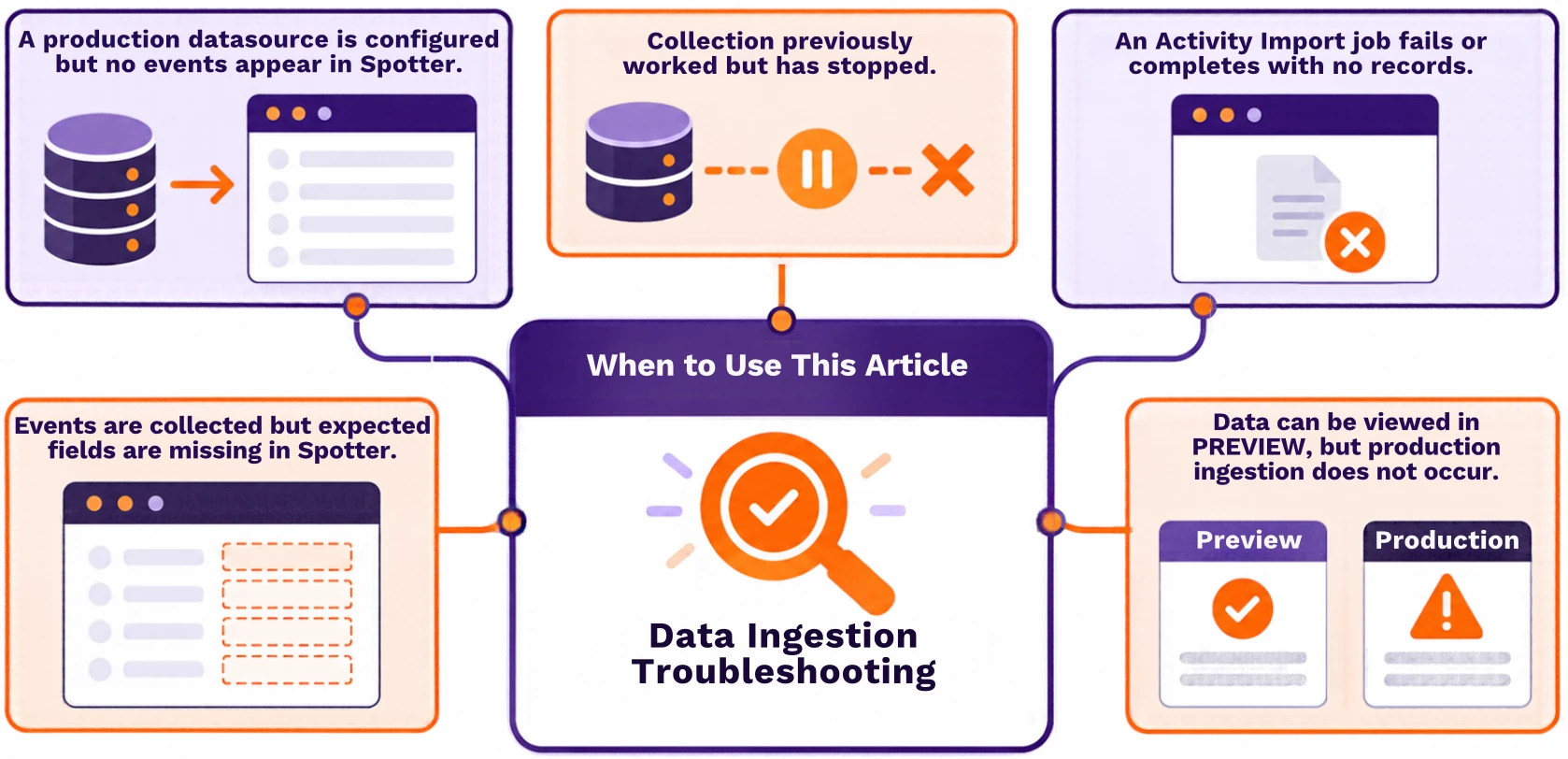
Use this article when:
Objective
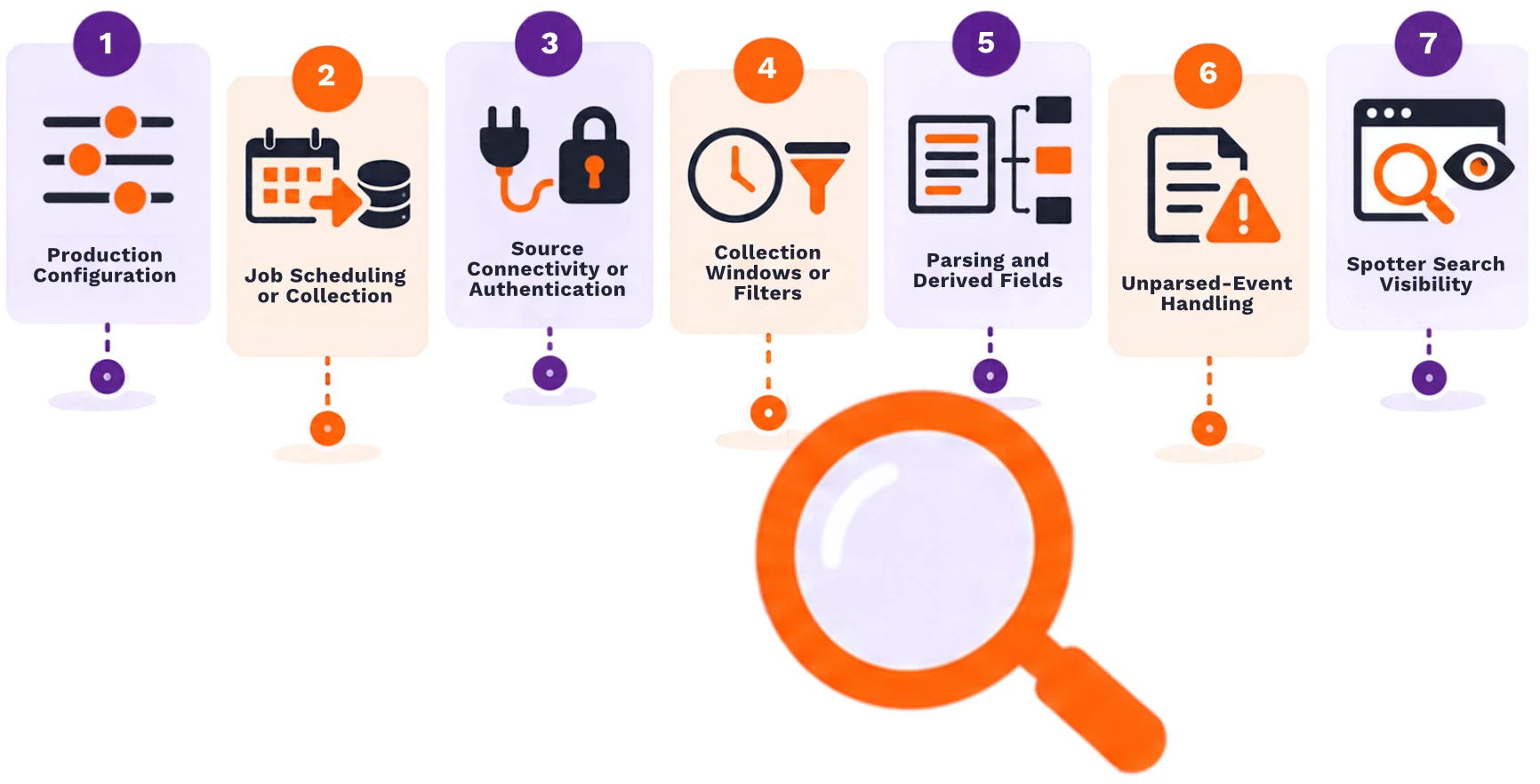
Use this article to identify where Activity Import collection is failing and determine whether the issue is related to:
Before you begin
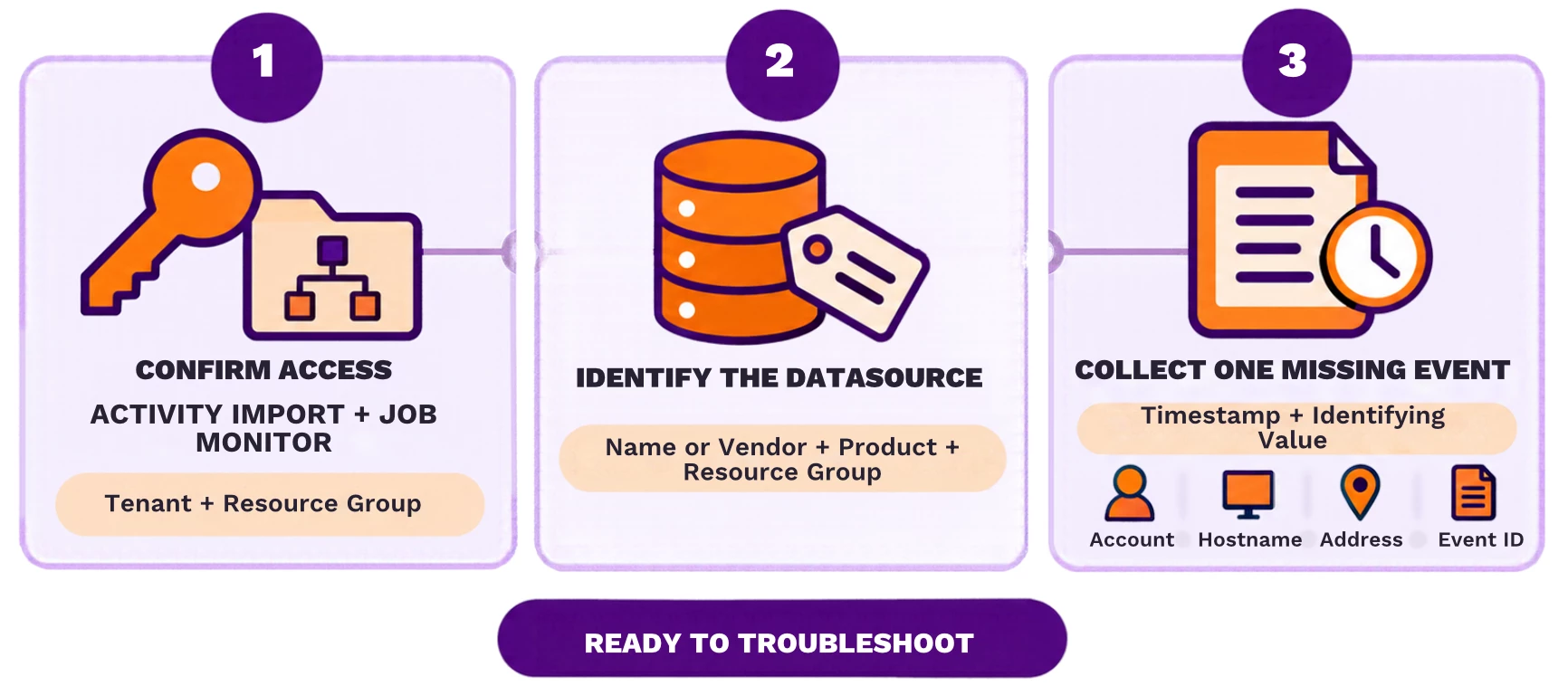
Before starting:
Important: Do not reset a checkpoint or historical start date during initial troubleshooting. Doing so can re-import historical events or create duplicates.
Step-by-Step Solution
Follow these steps in order. After checking Job Monitor in Step 3, continue only to the section that matches the job outcome.
Troubleshooting flow:
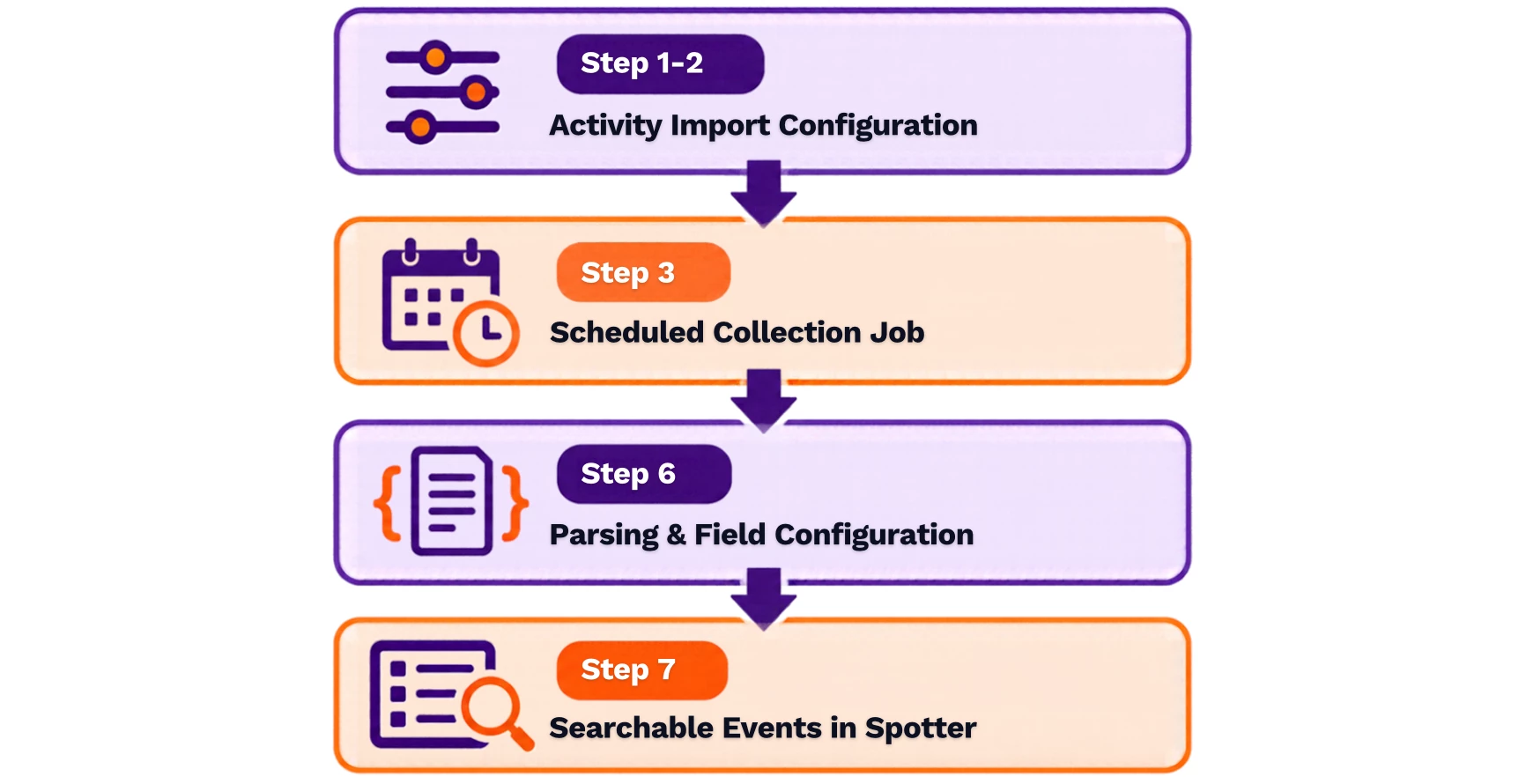
The scheduled job runs on a collection node. Depending on the deployment, the product may label that node as a Hub, RIN, or ingester. This article uses collection node for all three.
Step 1: Open the affected datasource
Navigate to:
Menu > Add Data > Activity
Use the datasource name to locate the production configuration responsible for the missing event. If the datasource name is unknown, narrow the list using the resource group, vendor, and product.
Do not change the configuration yet.
Confirm:
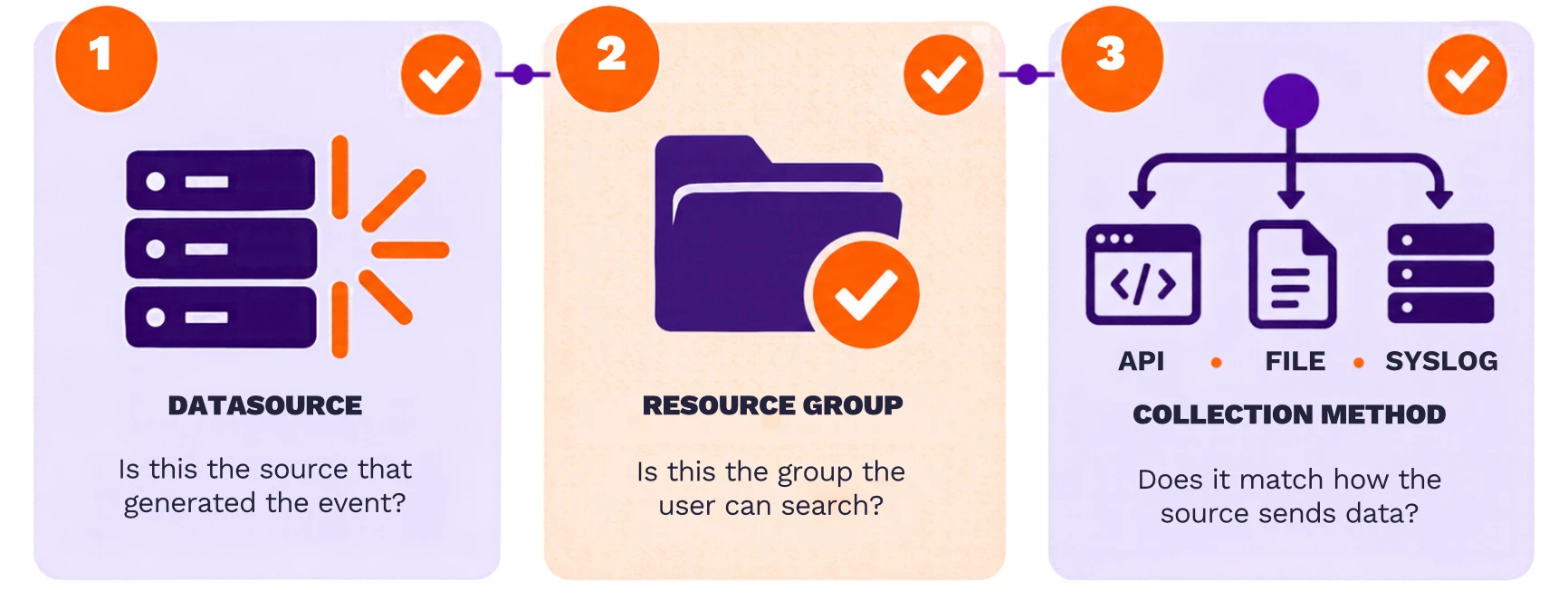
If you cannot find the datasource, confirm that you are in the correct tenant and have access to its resource group.
Do not continue until you identify the correct production configuration.
Step 2: Confirm that production collection is configured
On the affected datasource, check the following in order:
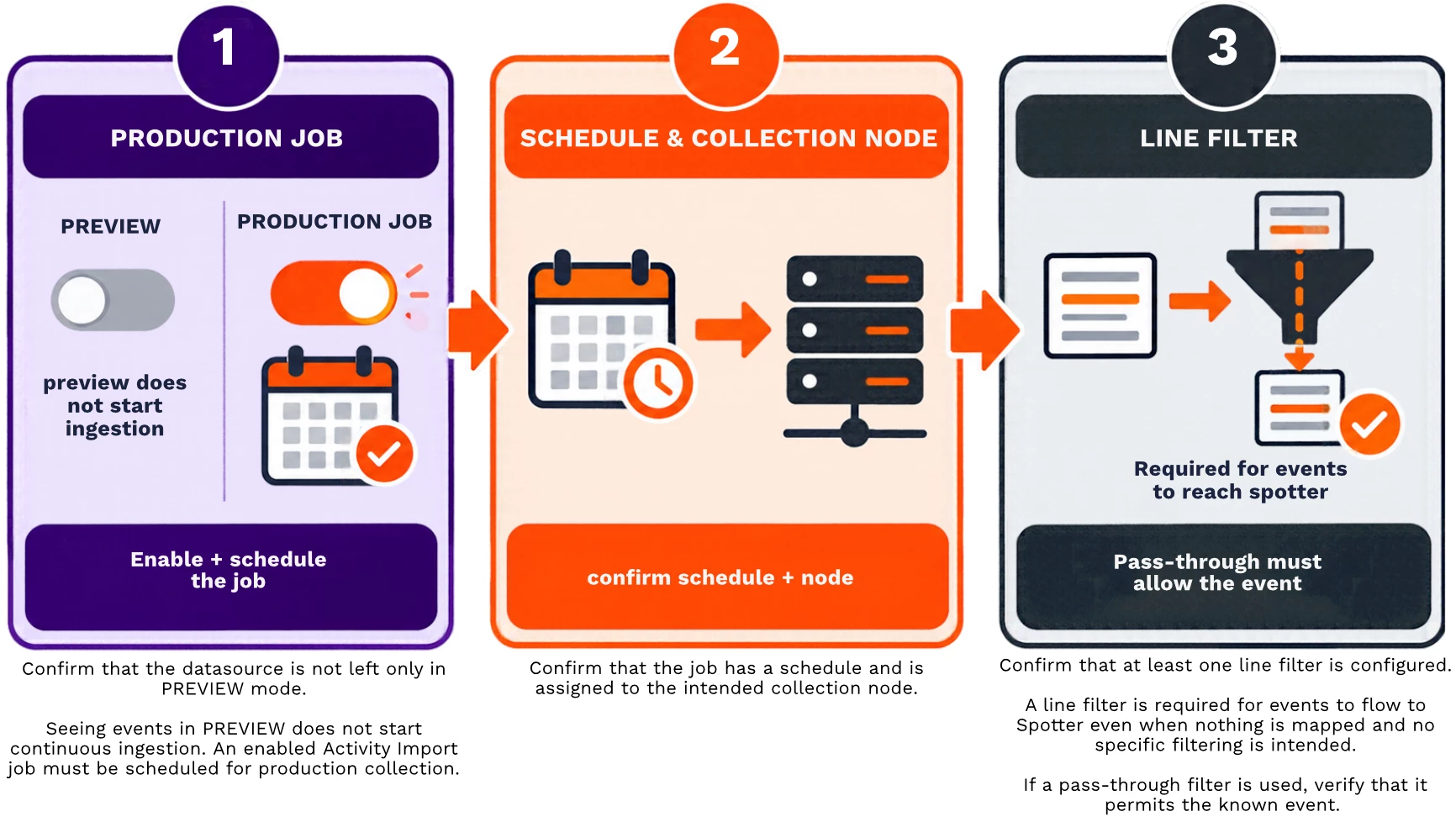
If any item is missing, correct the configuration using the applicable Activity Import Connectors instructions.
Wait for the next scheduled run, and then continue to Step 3.
Step 3: Check the collection job
Open Job Monitor and locate the most recent Activity Import job for the datasource.
Use the job outcome to determine your next step:
| Job outcome | What it means | Next action |
|---|---|---|
| No job exists | The production job was not scheduled, enabled, or saved. | Correct Step 2, then confirm that a new job appears. |
| Queued or running | Collection has not finished. | Wait for completion. If it remains in the same state beyond its normal duration, use the Job Monitor troubleshooting guidance. |
| Failed | The job attempted collection and returned an error. | Continue to Step 4. |
| Completed with zero records | The job ran but did not receive eligible events. | Continue to Step 5. |
| Completed with records | Collection worked. Determine why records are not searchable or correctly mapped. | Continue to Step 6. |
Do not repeat Steps 1 and 2 unless Job Monitor shows that no production job exists.
Step 4: Troubleshoot a failed job
Use the exact error shown in Job Monitor. Check only the condition that matches the failure.
| Error type | Check in this order |
|---|---|
| 401, 403, or authentication failure | 1. Confirm that the credential is current. 2. Confirm that the source account has the required read permissions. 3. Update the Activity Import configuration if the credential was rotated. |
| Timeout, connection refusal, or DNS failure | 1. Confirm the endpoint and port. 2. Confirm that the collection node can reach the source through the required firewall or proxy. 3. Confirm that the source service is available. |
| TLS or certificate failure | 1. Check certificate expiration. 2. Check the hostname and trust chain. 3. Check whether TLS inspection or a proxy changed the presented certificate. |
| File or path failure | 1. Confirm that a current file exists in the configured location. 2. Confirm that the collection service can read it. 3. Confirm that its name and format match the connector configuration. |
After correcting the matching condition, allow one job to run again.
- If the job completes with records, continue to Step 6.
- If the job completes with zero records, continue to Step 5.
- If the same error remains, collect the job details and follow the When to contact Support section.
Step 5: Troubleshoot a job that completed with zero records
Check these causes in order:
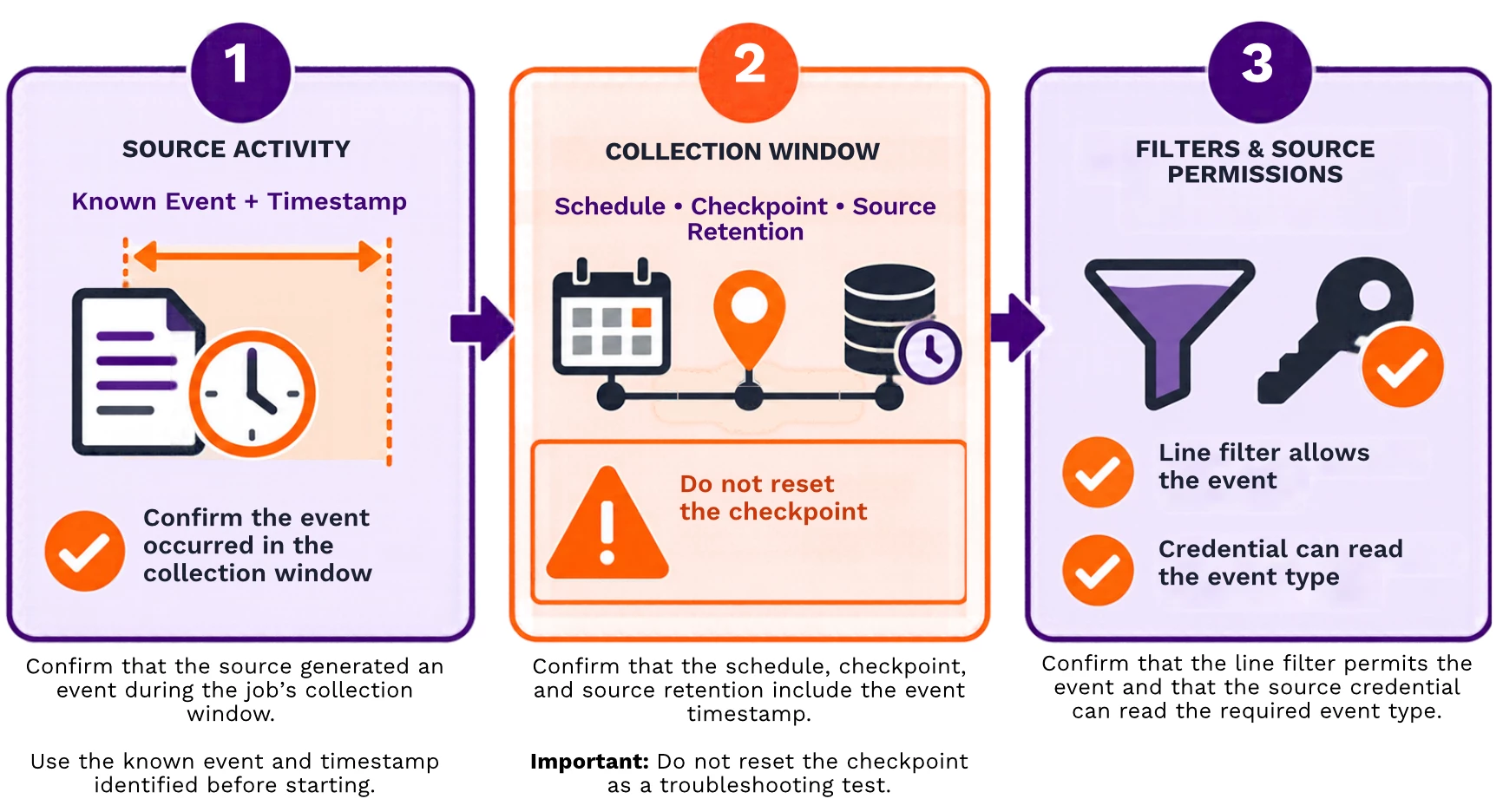
After correcting the applicable setting, allow the next scheduled job to run.
If the job still completes with zero records even though the source contains an eligible event, use the connector-specific deployment guide or contact Securonix Support with the evidence listed in the When to contact Support section.
Step 6: Troubleshoot records that are not usable in Spotter
If the Activity Import job completed with records, collection has succeeded.
Check the following Activity Import settings in order.
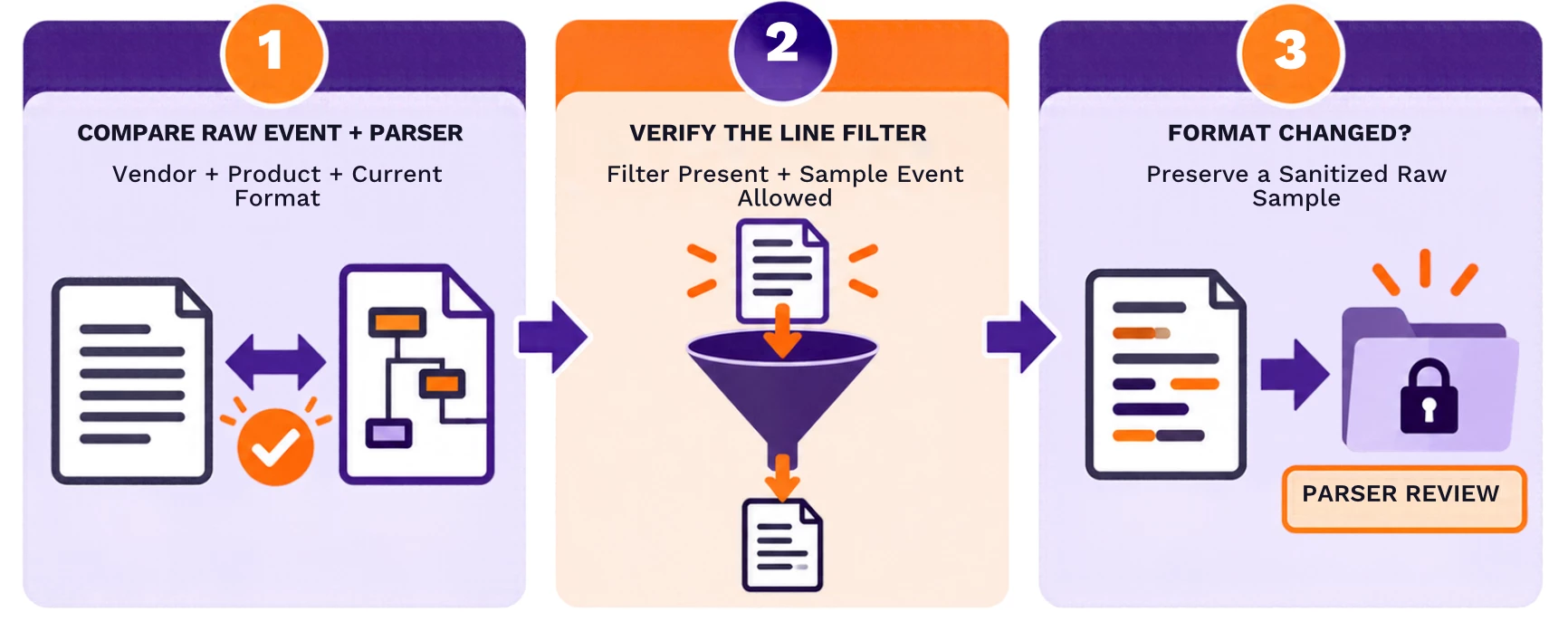
6.1 Confirm the parser and line filter
Compare one current raw event with the selected parser.
6.2 Check unparsed-event handling
Review Action Taken on Unparsed Events.
When unparsed events must be searchable for troubleshooting, select Ingest as unparsed events.
If unparsed events are saved only to HDFS, they will not appear in Spotter.
6.3 Enable the required Derived Fields
Confirm that every Derived Field required by the Spotter search is explicitly selected and enabled in the Activity Import configuration.
Mapping a value in the parser is not sufficient by itself. A Derived Field that is not selected and enabled will not surface in Spotter even when it is mapped.
After making the applicable correction, allow the next Activity Import job to complete with records.
Then continue to Step 7.
Step 7: Validate the event in Spotter
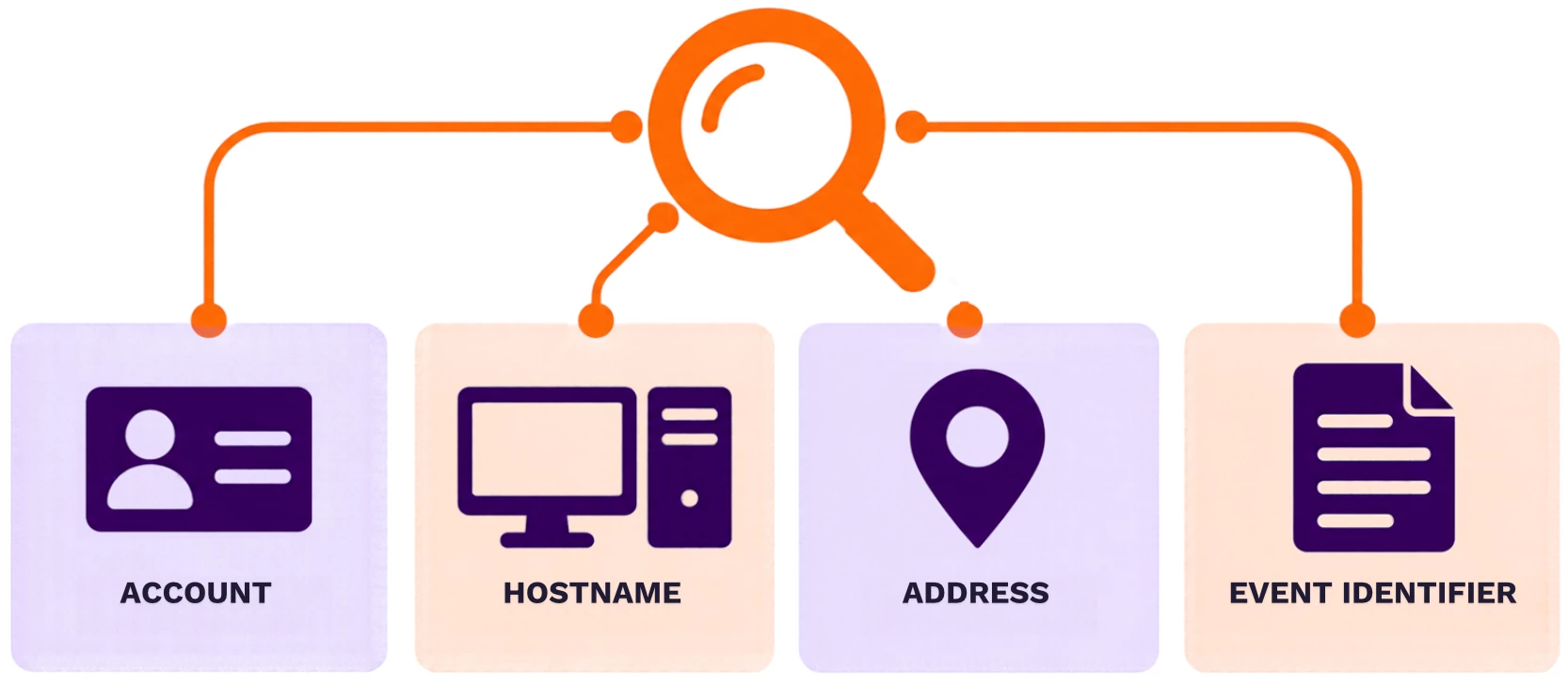
Search for the known event over a narrow time range around its source timestamp.
Use an exact identifying value, such as:
If the event does not appear:
- Click the down arrow in the Spotter search bar.
- Select Refresh Config.
- Click the down arrow again.
- Select Update Cache.
- Rerun the same narrow search.
If the event still does not appear, confirm:
- The search time range and tenant time zone include the event.
- The user has access to the datasource’s resource group.
Tip: Avoid immediately expanding the query to an all-time search. A broad search can introduce a separate performance issue without resolving the ingestion problem.
Verification checklist
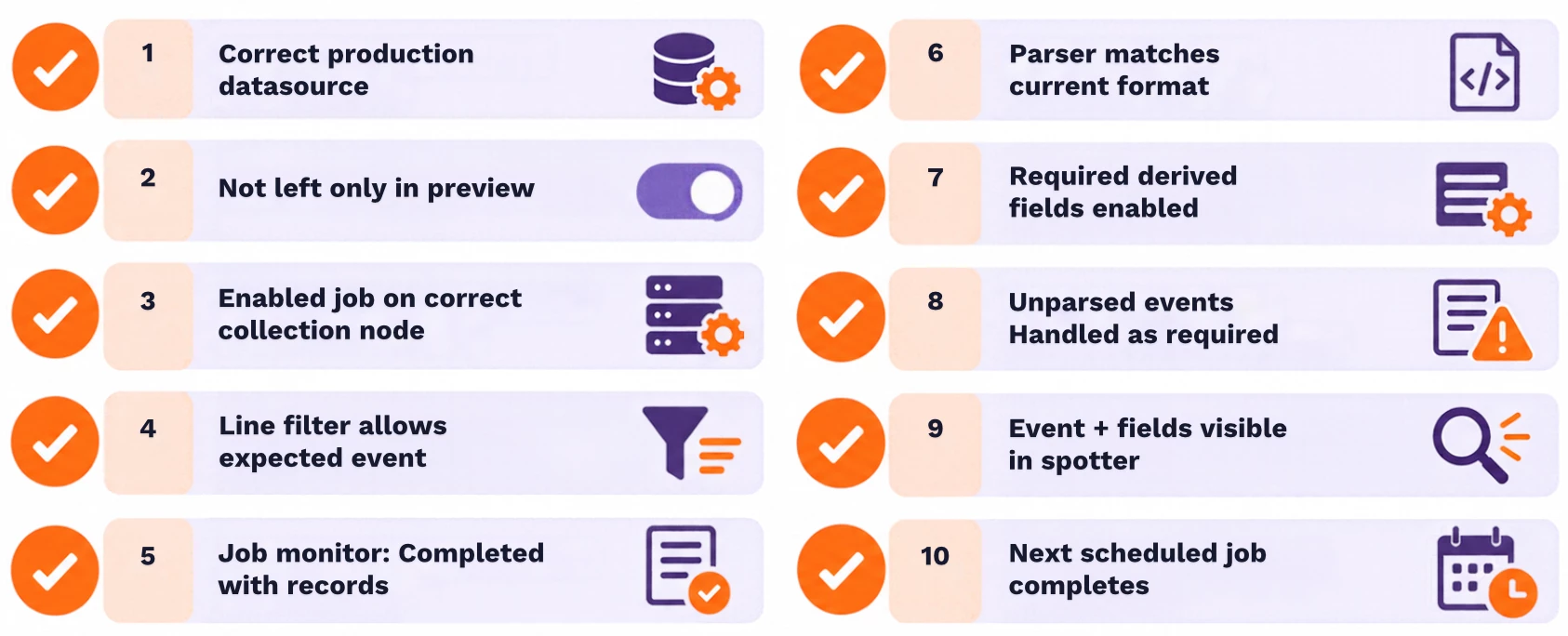
The issue is resolved when all of the following are true:
When to contact Support
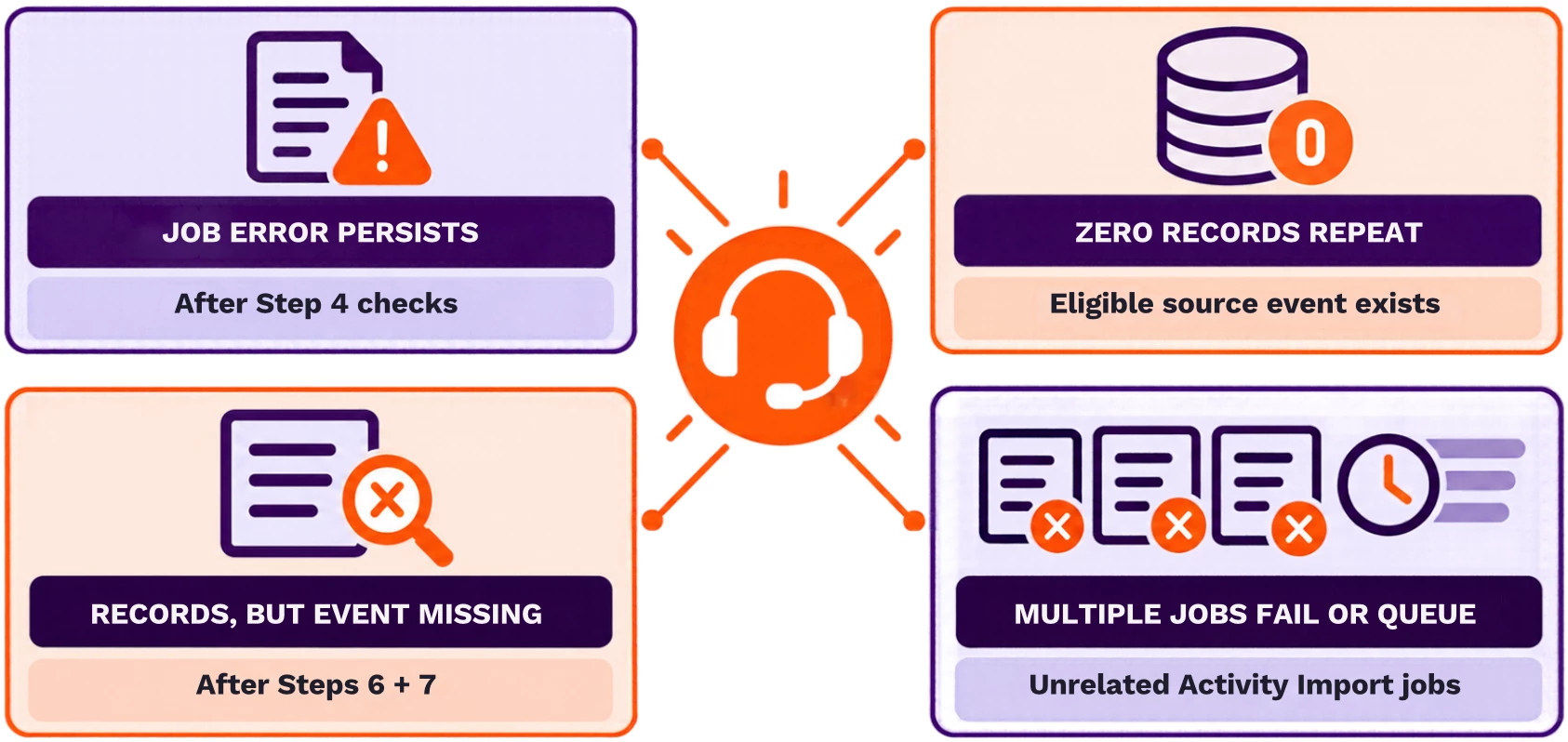
Contact Securonix Support when:
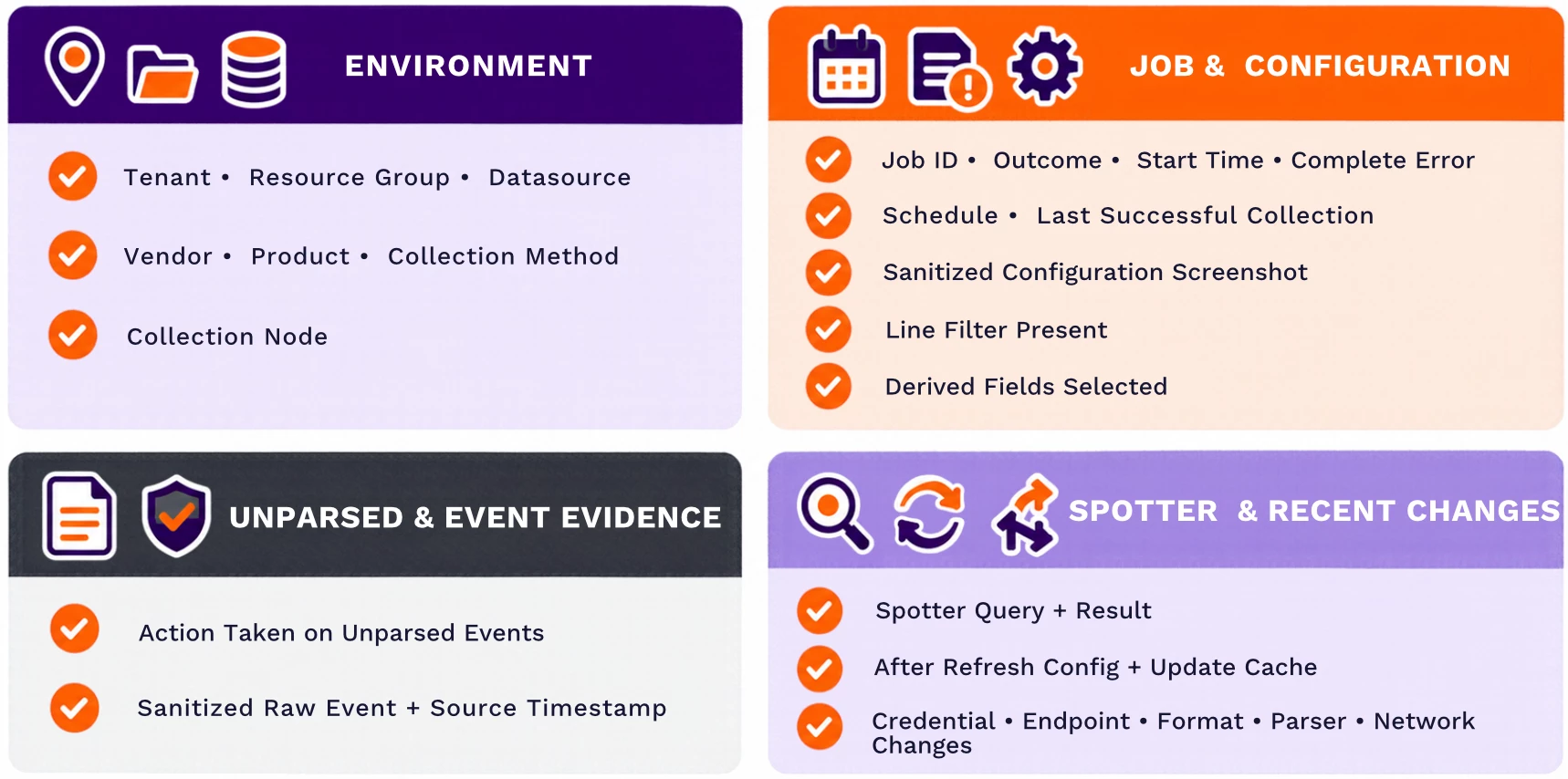
When opening a Support case, include:
Security reminder: Never include passwords, client secrets, API keys, tokens, private keys, or other credentials in a Support case.
Related documentation
Call to action
If these steps resolve the issue, confirm that the next scheduled Activity Import job also completes successfully. If the issue continues, contact Securonix Support with the troubleshooting evidence listed above.