

Audience: Securonix Administrators, Security Analysts, SOC Engineers, and Integration Developers
Product Module: Securonix REST API / Activity Data
Tags: REST API, Activity Data, API Troubleshooting, Integration, Authentication, Automation
Overview
The Securonix REST API can retrieve Activity Data for use in investigations, reporting, automation, and integrations with external tools. When an Activity Data request fails or returns incomplete results, the cause is usually authentication, an incorrect request format, a time-range mismatch, insufficient permissions, or an overly broad query.
This guide provides a repeatable method for testing an Activity Data request and isolating common issues before escalating.
When to use this guide
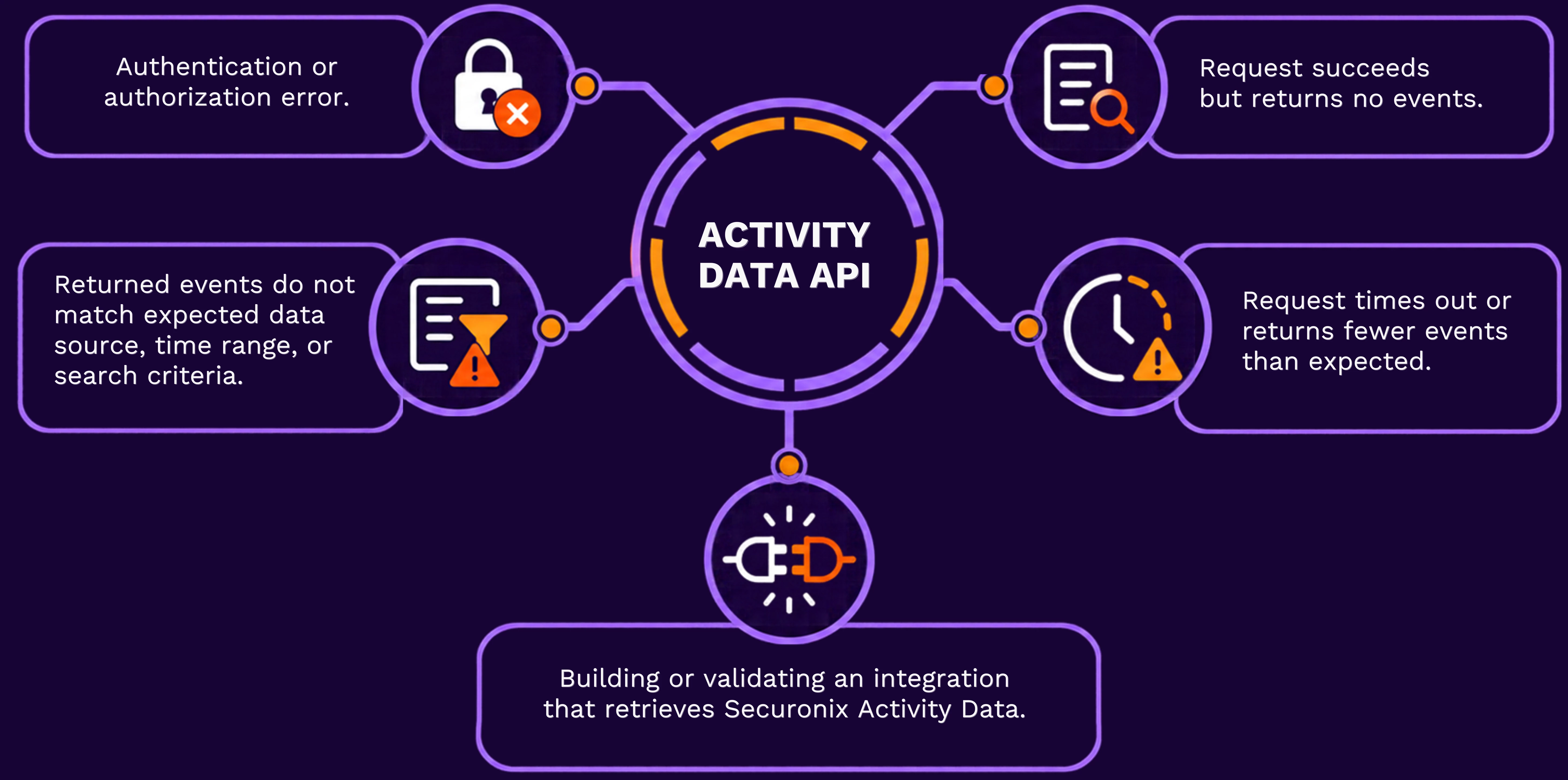
Use this guide when:
Quick diagnosis
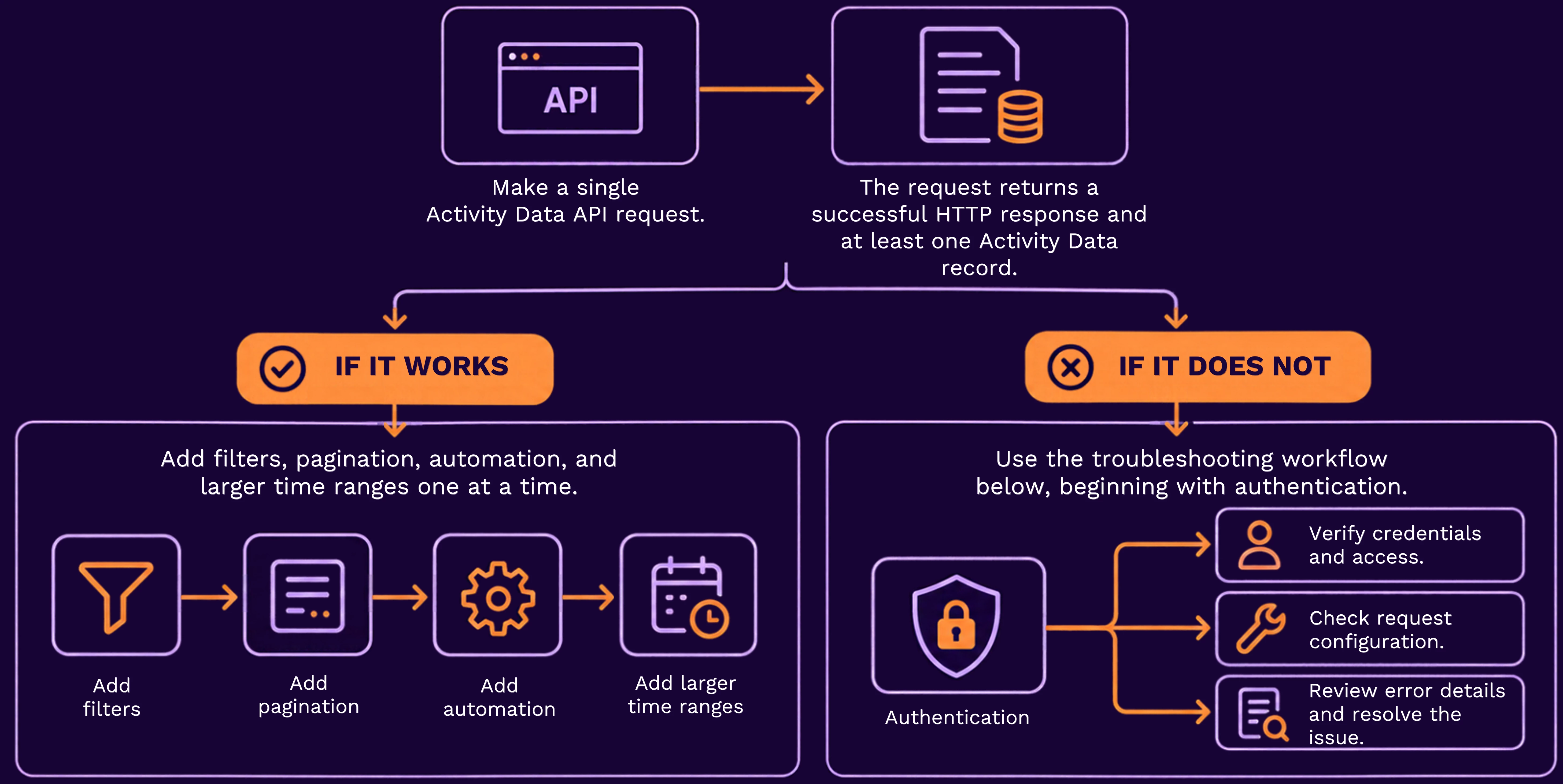
Before troubleshooting a complex integration, make one small API request that uses:
-
A valid API token.
-
The Activity Data endpoint documented for your Securonix version.
-
A short time range that contains known events.
-
One known data source or other specific filter, when supported.
Step 1 – Confirm authentication before testing Activity Data
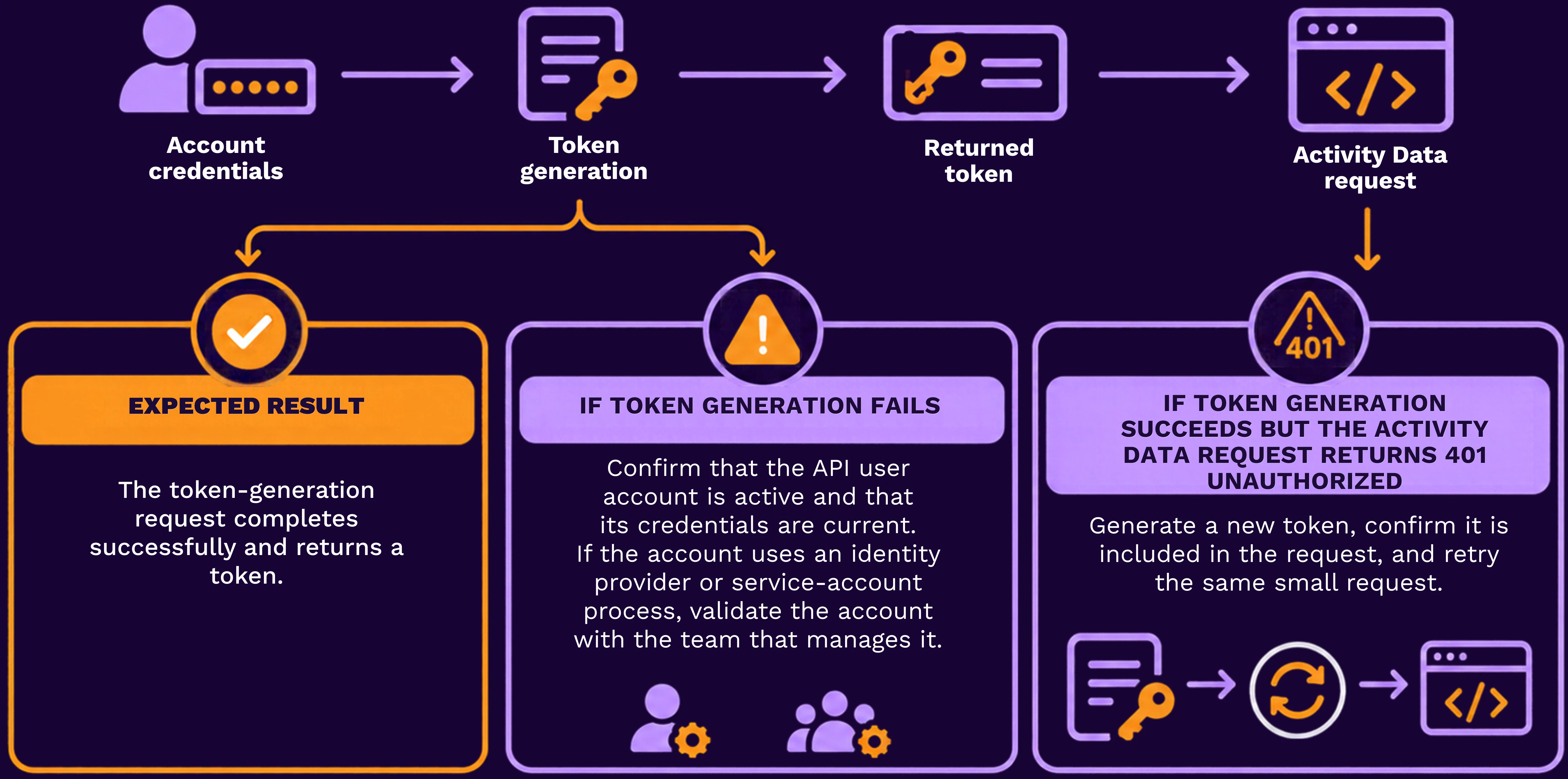
Generate a token by using the authentication method documented for your Securonix environment. Store the token securely and include it in the Activity Data request exactly as the API reference specifies.
Do not include passwords, tokens, or authorization headers in screenshots, source control, Community posts, or Support ticket comments.
Step 2 – Validate the base URL, endpoint, and method
Use the base URL, Activity Data endpoint path, and HTTP method from the REST API documentation that matches your Securonix version.
In Postman or your API client, create a request with the following components:
Base URL: <your-Securonix-base-URL>
Endpoint: <Activity-Data-endpoint-for-your-version>
Method: <documented-HTTP-method>
Authentication: <documented-token-header-or-authentication-method> 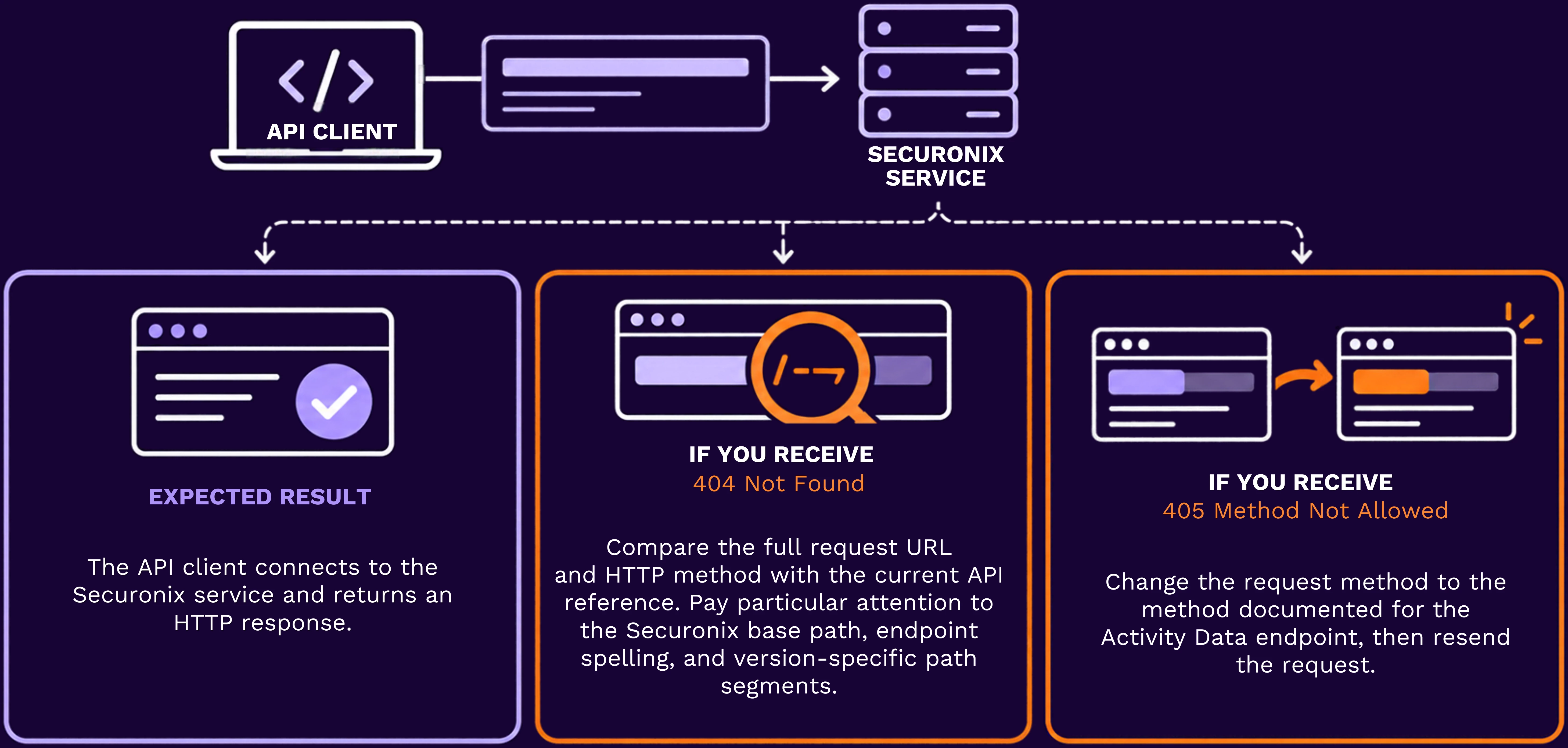
Step 3 – Test a known, narrow time range
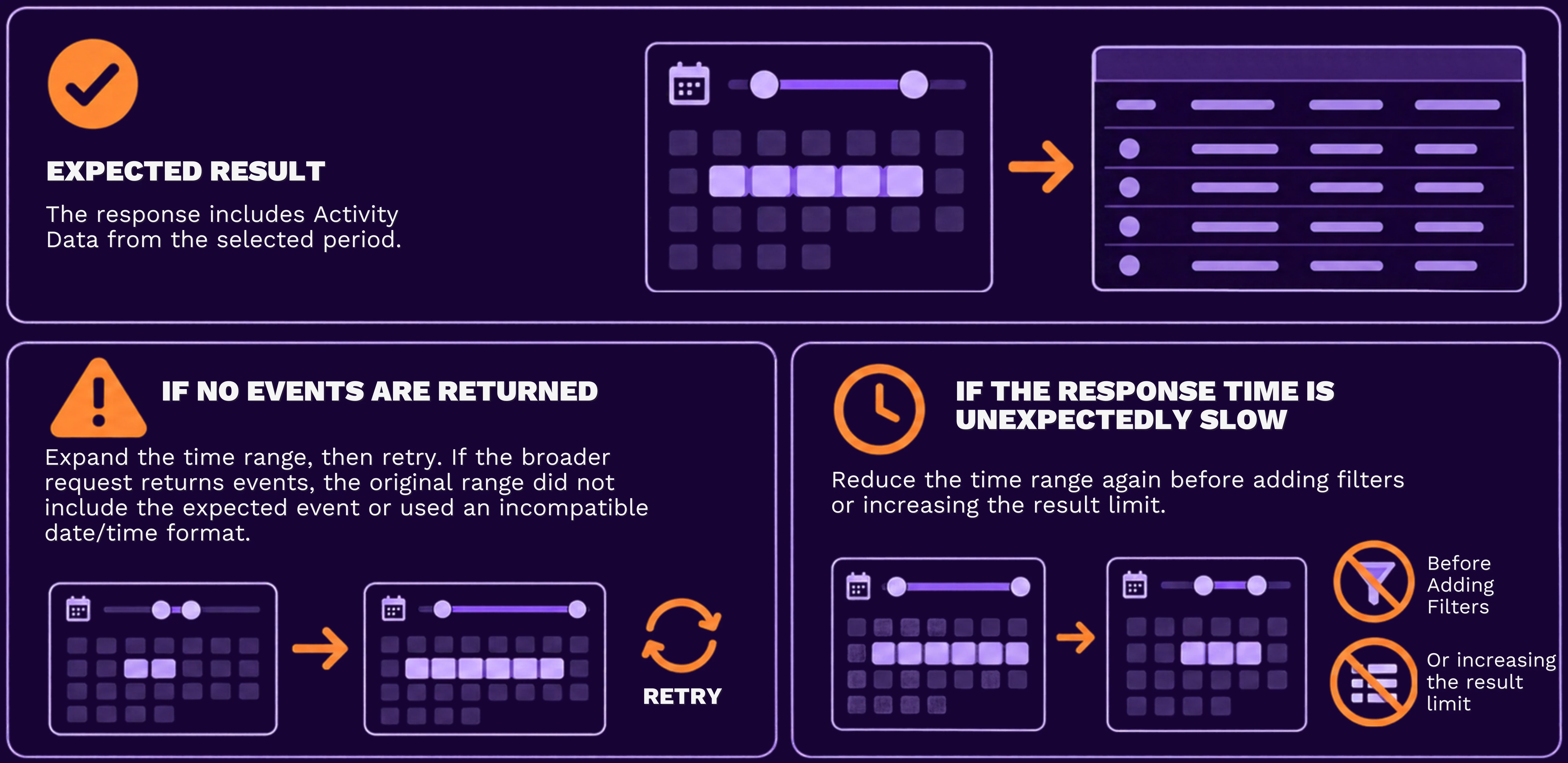
Use a short time range that contains a known event. Start with a small interval around an event that you can already find in Spotter or another Securonix view.
Enter the time values in the format and time zone required by the API documentation for your deployment.
Step 4 – Add one filter at a time
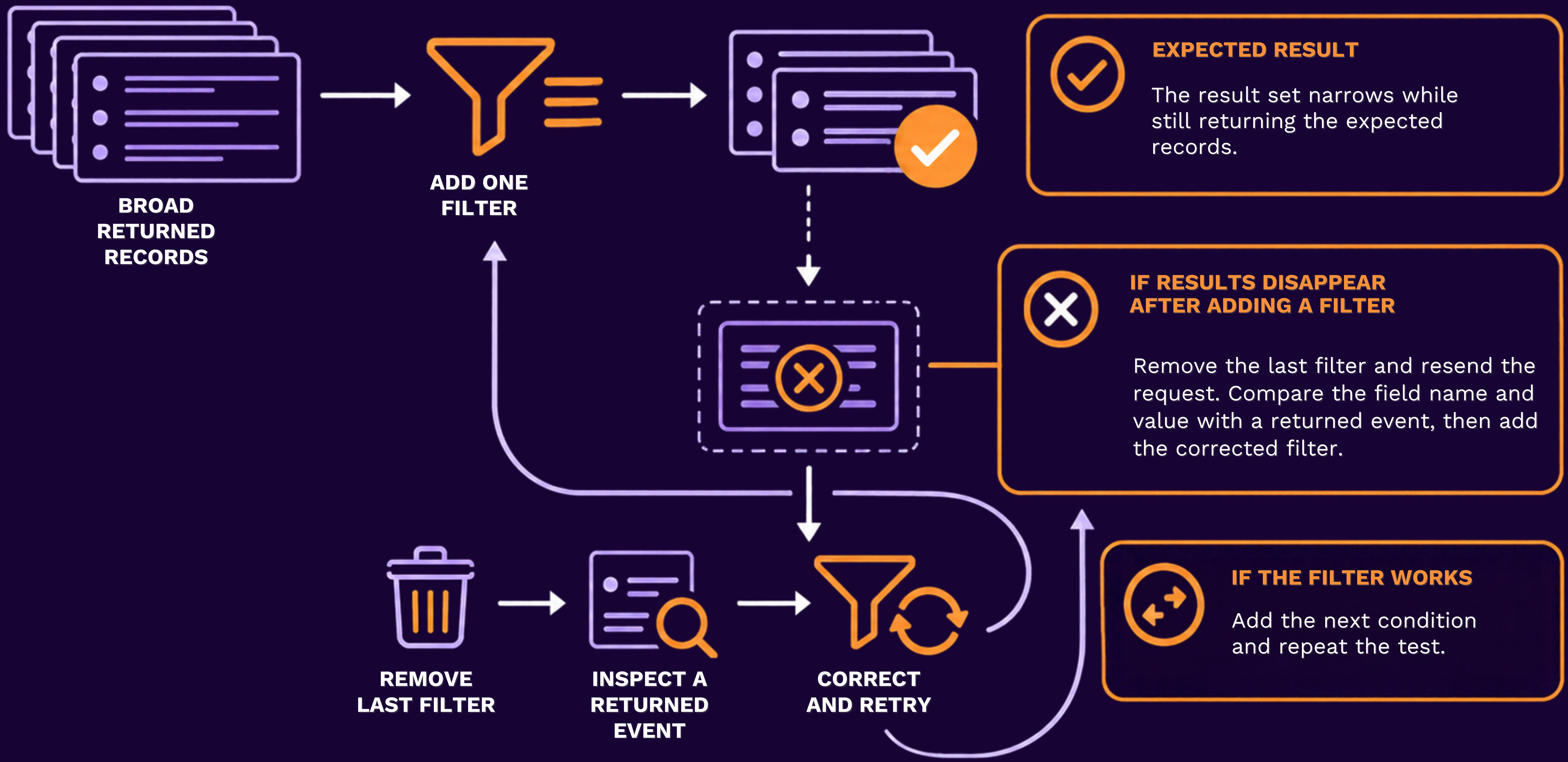
After the small time-range request succeeds, add only one documented filter or query condition. For example, begin with a known data source, account, host, or IP address.
Use values copied from a known event whenever possible. This avoids mismatches caused by spaces, punctuation, field names, or unexpected value formats.
Step 5 – Interpret common API responses
Response or symptom | What to do |
| 400 Bad Request | Compare request parameters, required fields, date format, and query syntax with the Activity Data API reference. Correct one item and resend the request. |
| 401 Unauthorized | Generate a new token, confirm it is passed as documented, and retry immediately. |
| 403 Forbidden | Confirm that the API user has access to the Activity Data API and the data it is attempting to retrieve. Request the required permission from the Securonix administrator if needed. |
| 404 Not Found | Confirm the base URL, endpoint path, and API version for the target deployment. |
| 429 Too Many Requests or throttling behavior | Reduce request frequency, retrieve smaller batches, and add backoff handling in the integration. |
| Timeout or slow response | Narrow the time range, use a more specific filter, reduce the requested result size, and test again. |
| Successful response with no data | Expand the time range, remove filters, and confirm that the expected data source and events are available in Securonix. |
Step 6 – Handle large result sets safely
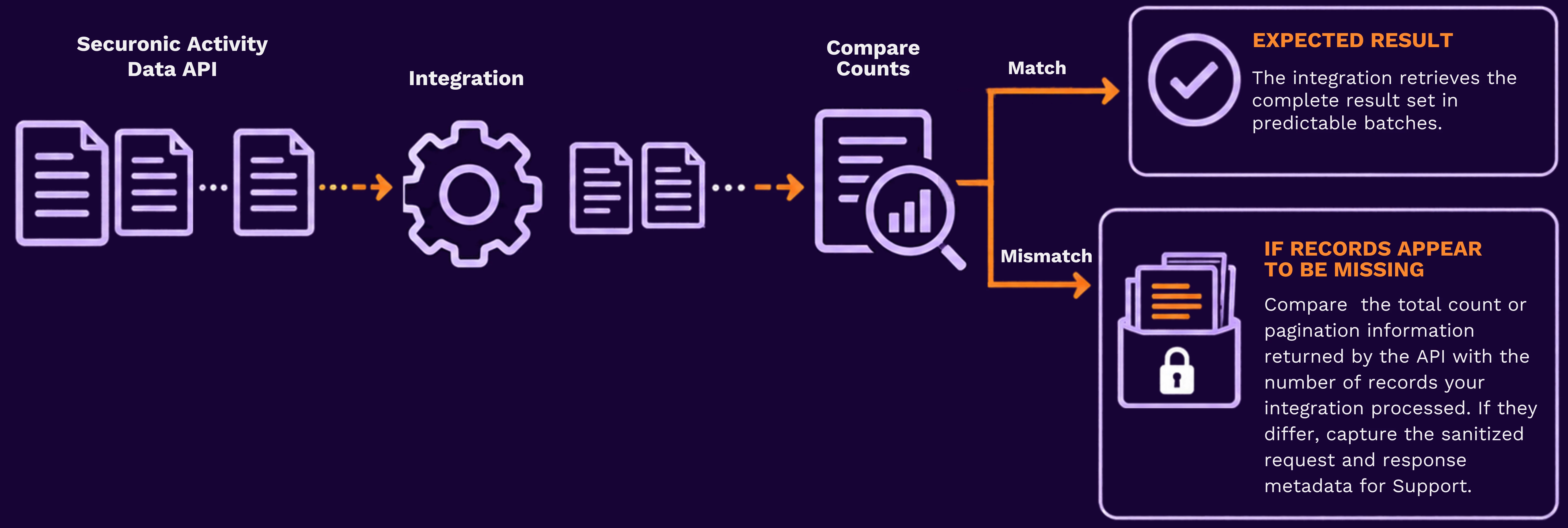
Do not begin with a request for all Activity Data across a large time range. Start with a narrow window and retrieve results in manageable batches.
If the API response includes a pagination indicator, query identifier, continuation token, page number, or cursor:
- Save the value returned in the response.
- Use it only as described in the API reference for your version.
- Retrieve the next page.
- Continue until all required pages are processed.
- Record the number of records retrieved from each page.
Common mistakes to avoid
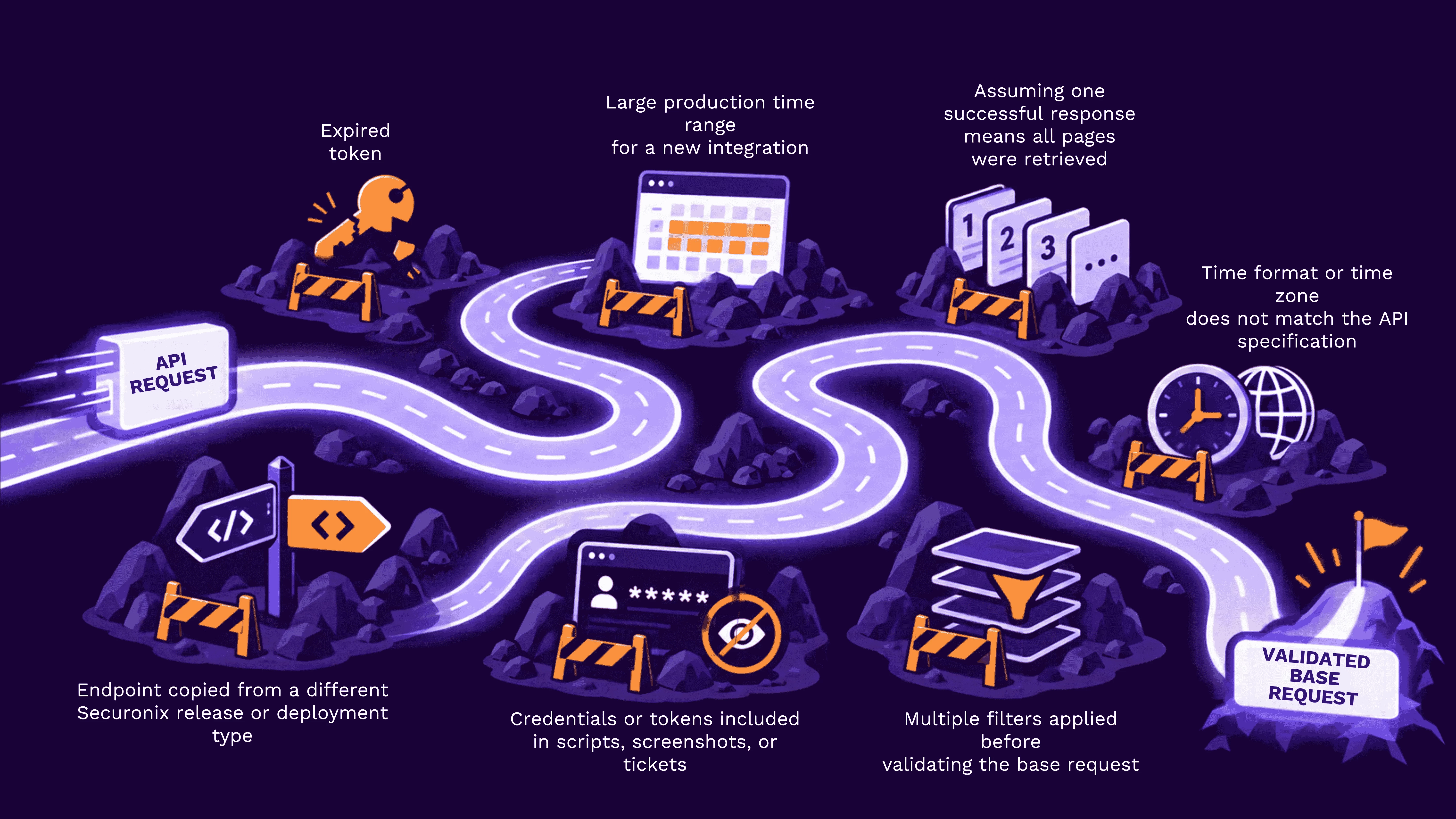
Information to collect before opening a Support ticket
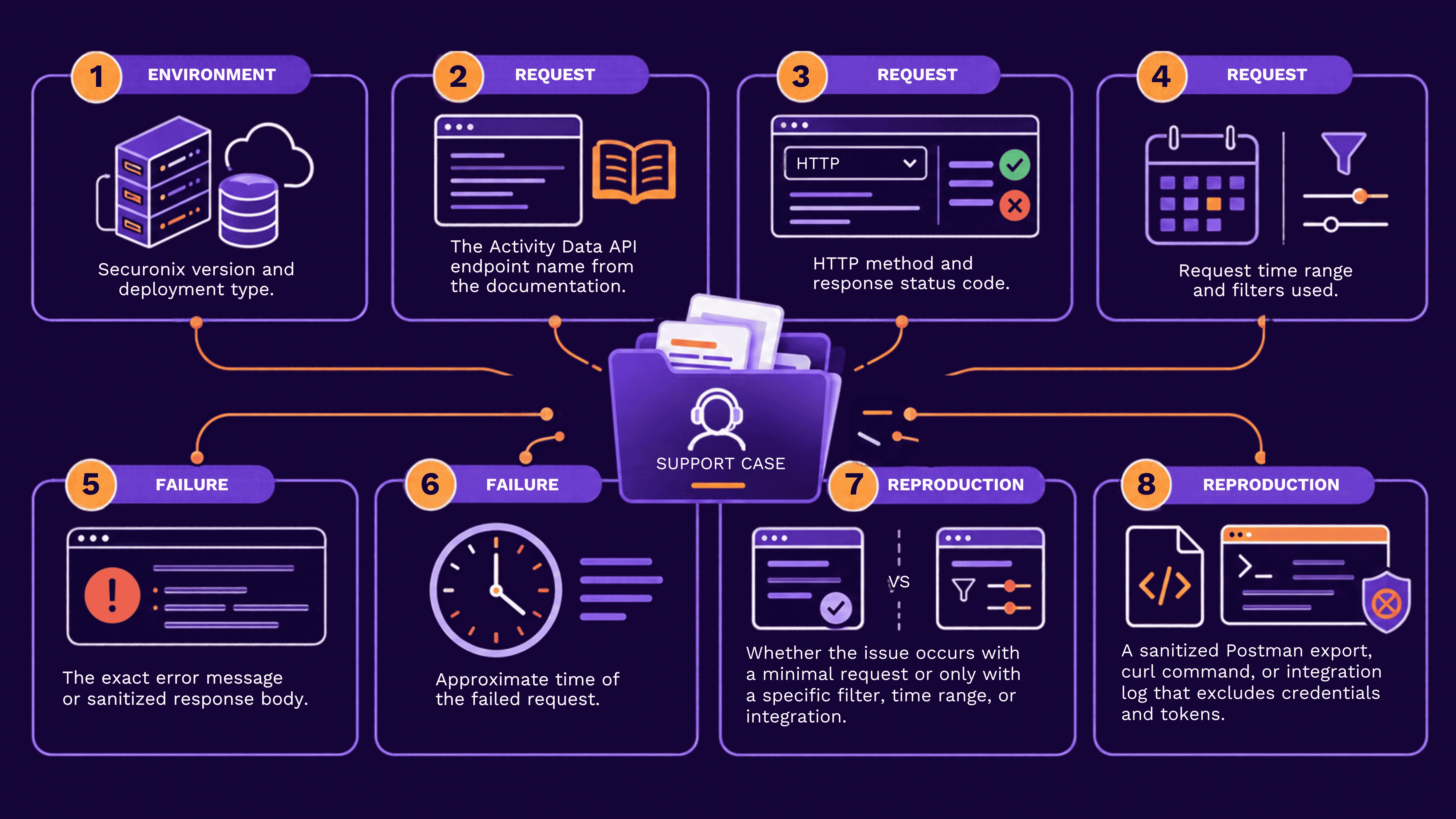
If the issue persists, provide:
Related resources
Have a reliable approach for paging, filtering, or integrating Activity Data with another tool? Share it in the Community, your example may help another team build a more dependable integration.
If the request is specific to your tenant, continues to fail after these steps, or requires investigation of permissions, API behavior, or backend processing, open a Securonix Support ticket so the team can investigate with you.