
How to Resolve the “We’ve Detected You Have Multiple Accounts” Message in Securonix Academy
Audience: Securonix Academy Learners
Product Module: Securonix Academy (Learning Management System)
Last Updated: February 19, 2026
KB ID: KB-20260219-academy-multiple-accounts
Tags: Securonix Academy, multiple accounts, account linking, password reset, lost access, legacy accounts, login issue
Problem
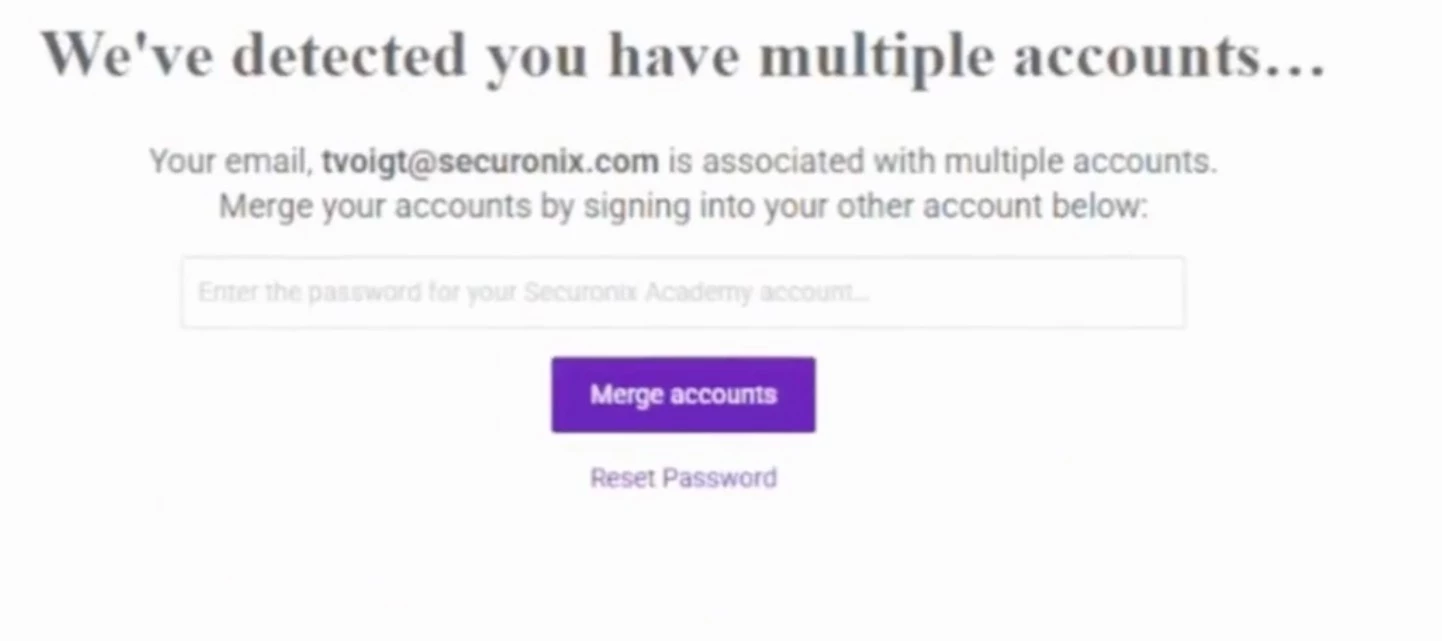
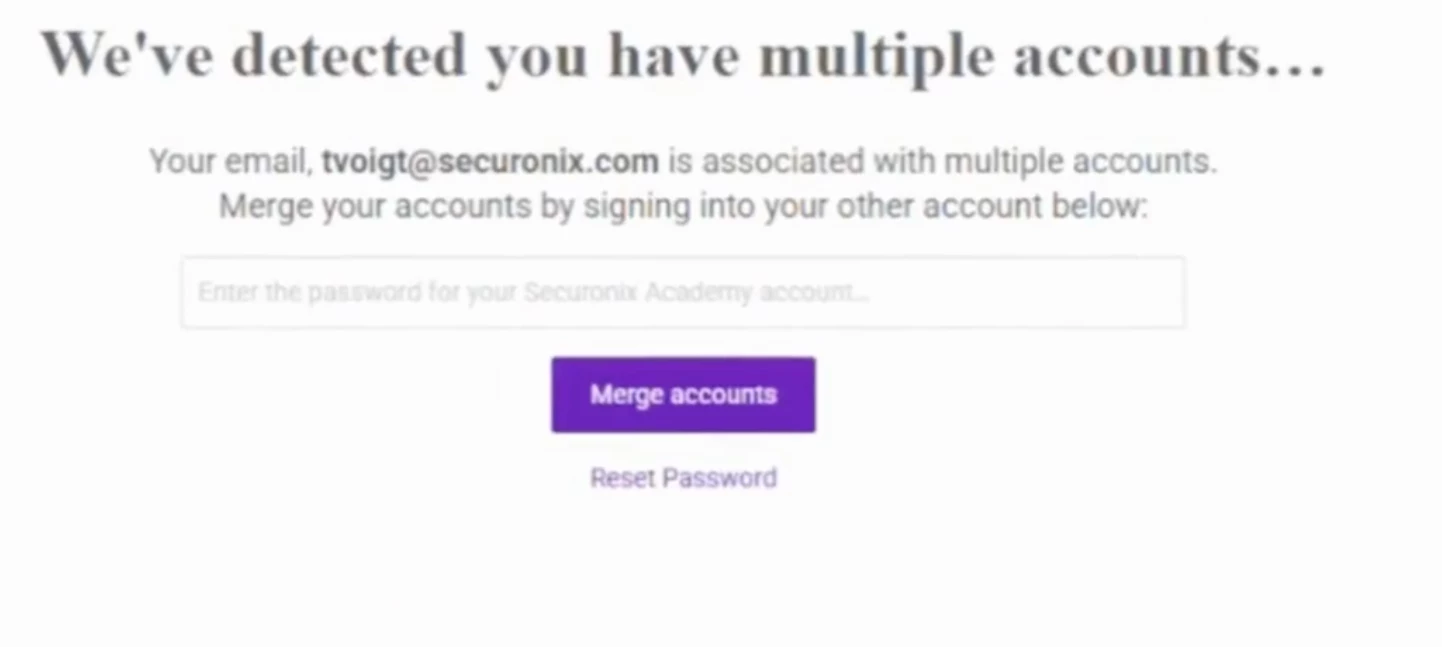
When logging into Securonix Academy, some users see the message:
“We’ve detected you have multiple accounts.”
This message impacts learners whose Academy accounts were originally created prior to October 14, 2025.
Objective
This article explains:
-
Why the message appears
-
How to successfully link accounts
-
What to do if the previous Academy password is not known
Background
As part of an Academy platform identity transition completed in October 2025, learners who had existing accounts created prior to October 14, 2025 were required to link their legacy Academy profile to the updated system.
Securonix communicated this process to impacted users at the time of transition.
The “multiple accounts” message is expected behavior for legacy accounts and is not an error.
Step-by-Step Solution
Scenario 1: You Know Your Previous Academy Password (Recommended)
-
Attempt to log in to Securonix Academy.
-
When prompted with “We’ve detected you have multiple accounts,” enter your previous Securonix Academy password.
-
Complete the account linking process by clicking Merge accounts.
Expected Result:
Your legacy Academy profile will be successfully linked, and you will retain access to:
-
Course completions
-
Learning paths
-
Badges
-
Certificates of completion
Scenario 2: You Do NOT Know Your Previous Academy Password
If you do not know the password to your legacy Academy account, two options are available.
Option 1: Delete the Prior Account (Faster Resolution – ~48 Business Hours)
Securonix Training can delete the legacy Academy account so you may proceed with creating a new learner profile.
Important:
This action will permanently remove access to:
-
Prior course completion data
-
Learning path progress
-
Badges
-
Certificates of completion
Estimated Response Time:
~48 business hours
Option 2: Vendor Password Reset (Maintain Prior Completion Data)
If you wish to retain access to your historical completion records, a password reset can be requested through the LMS vendor.
Important:
-
The reset must be performed by the LMS vendor following the platform transition.
-
Processing may take up to 2 weeks.
How to Request Either Option
To request account deletion or a vendor password reset, contact:
📧 training@securonix.com
Please include:
-
Your full name
-
Email address used for Academy access
-
Organization name
-
Indicate whether you are requesting Option 1 (Account Deletion) or Option 2 (Password Reset)
Verification Checklist
After resolution:
-
You can log in without seeing the multiple account message
-
Your courses and completions are visible (if Option 2 selected)
-
You can enroll in new training
Questions?
If you have questions about the account linking process or are unsure which option is right for you, please contact the Securonix Training team at training@securonix.com or let us know in this article.
We’re happy to help ensure you regain access to Academy as quickly as possible.
Securonix Training Team