


Audience: Securonix Administrators, Security Analysts, MSSPs
Product Module: Activity Import, Job Monitor, Activity Monitor, Ingester and Datasource Monitor, Spotter
Last Updated: October 15, 2026
Article Type: Troubleshooting Guide
Tags: Collection Failure, Data Ingestion, Job Monitor, Activity Monitor, Datasource, Connector Troubleshooting, Spotter, Securonix Hub
Overview
When expected events are missing or delayed in Spotter, first determine whether collection stopped, processing is delayed, or the search is excluding the event. Follow one known source event through the available monitoring evidence to find the first stage where progress is unexplained.
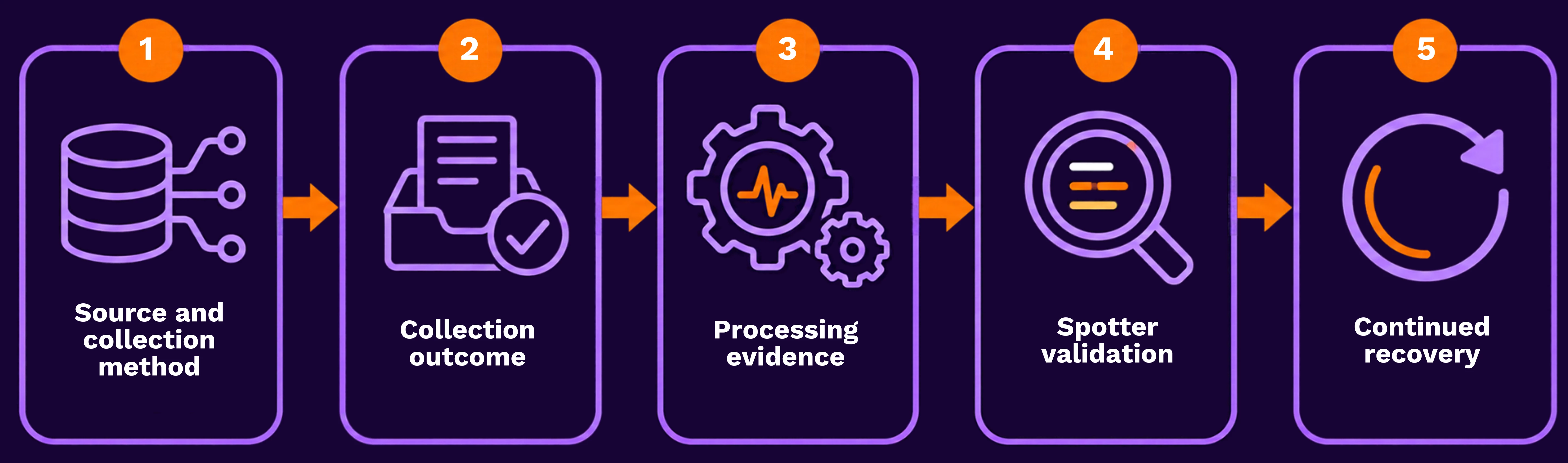
The main workflow uses customer-visible SaaS controls. Administrators of on-prem environments or customer-managed Hubs and RINs can collect additional evidence in the optional infrastructure section.
When to use this guide
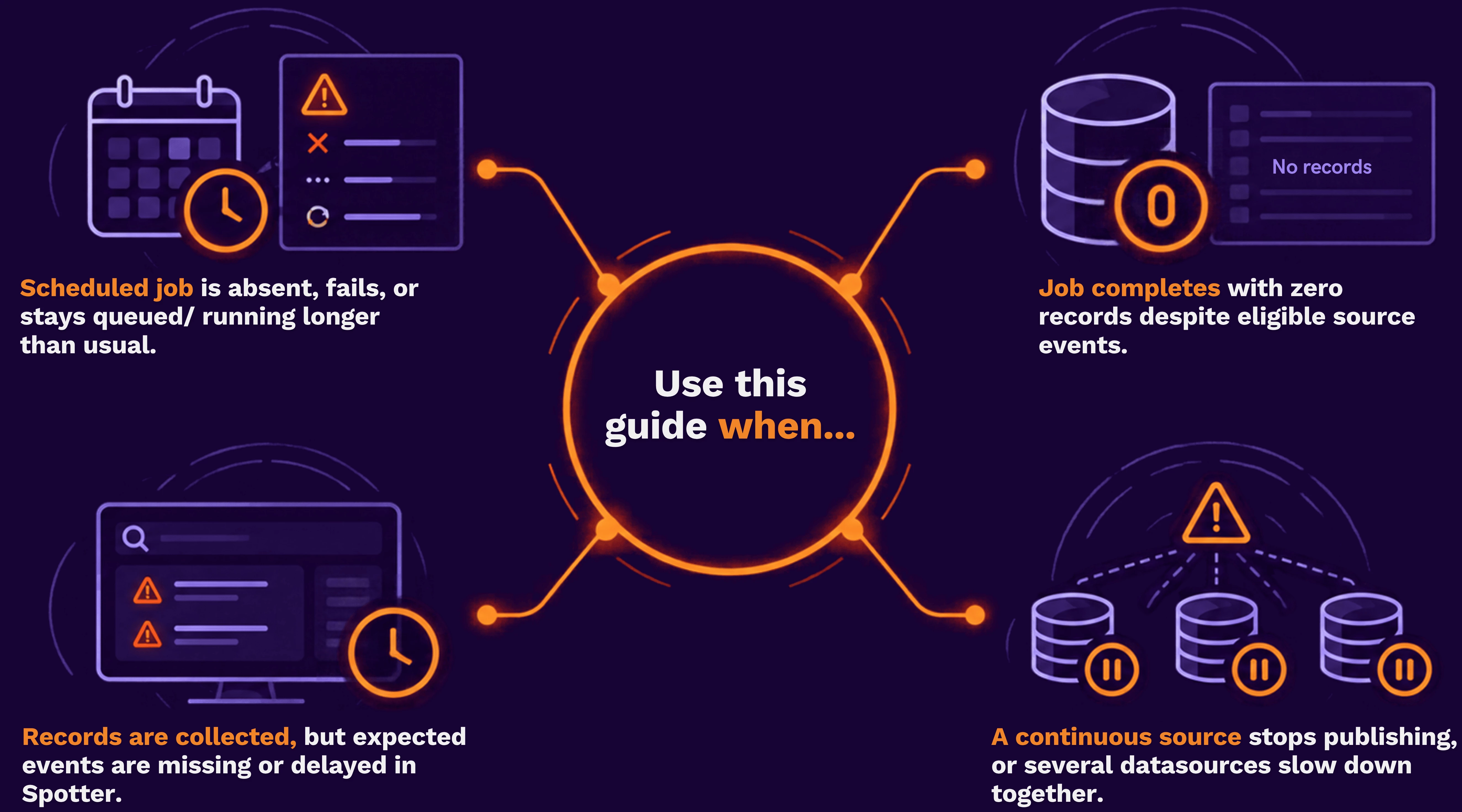
Choose the right monitor
| View | Question it helps answer | Limit of the evidence |
|---|---|---|
| Job Monitor | Did the job run, what error occurred, and which available counters changed? | Success or a published count does not prove that a particular event is searchable. |
| Activity Monitor | How does volume or pipeline distribution compare with the normal pattern? | Aggregated trends do not prove immediate arrival or event completeness. |
| Ingester and Datasource Monitor | Is the collector or datasource reporting an operational problem? | Healthy status alone does not prove delivery of the expected event. |
| Spotter | Can you find the event with the expected timestamp, datasource, and fields? | A missing result can also involve time range, access, or search conditions. |
Look for the monitoring views under Menu → Operations Center. Names and available details can vary by release and tenant access. If a view or counter is unavailable, record that limitation and ask your administrator to confirm access; do not treat missing visibility as a zero value.
Before you begin
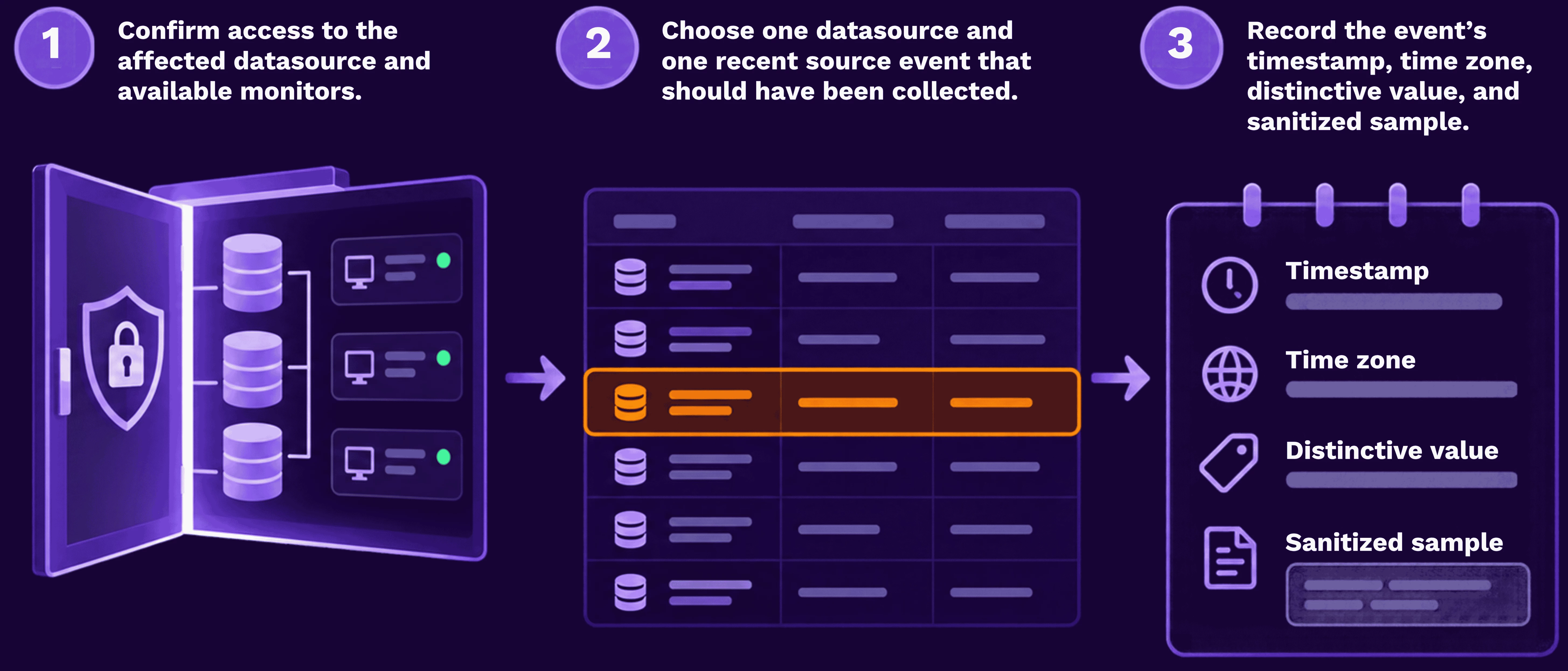
Use Menu → Add Data → Activity to identify the production datasource and whether it uses scheduled retrieval or continuously received data. You will gather schedule, error, volume, and configuration details in the relevant steps below.
For example, an API datasource named Cloud_Audit may have an eligible source event that is absent from Spotter. Use that same event and interval throughout the investigation. Replace the illustrative datasource name with your actual value.
Preserve the current configuration. Avoid resetting checkpoints or historical start dates, starting overlapping executions, or restarting services as exploratory steps.
Step 1 Establish the collection outcome
Open Job Monitor and locate the datasource in the intended tenant. Confirm its assigned collector and choose the path for its collection method.
-
Scheduled collection
A scheduled collection job runs at configured times to retrieve data from a source. Each attempt is a run, also called an execution in some views. You are looking for the run that was expected to retrieve the missing data—not an individual event in Spotter.
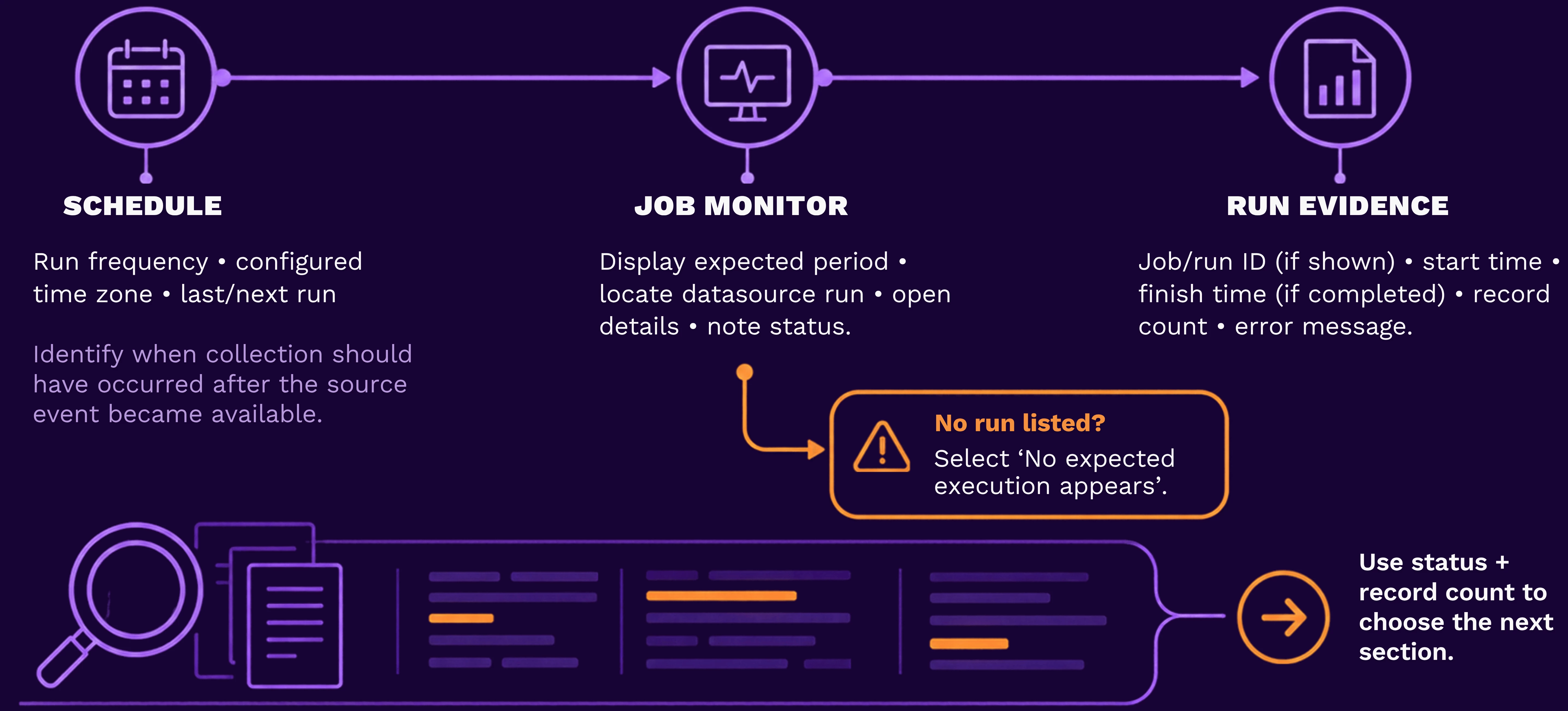
Example: Cloud_Audit runs every hour. A source event occurred at 10:15 UTC and was available for retrieval before the 11:00 UTC collection. In Job Monitor, look for that datasource's run around 11:00 UTC. If it shows Failed with a credential error, open that run, copy the full message, and follow Step 2B. If no 11:00 run is listed, follow Step 2A.
The times are illustrative. A run's start time is not necessarily the beginning of the event period it retrieves; connector delays, collection windows, and checkpoints can affect which run is expected to collect an event. If that relationship is unclear, use the run's available collection-window details or the connector guide.
| Observation | Continue to |
|---|---|
| No expected execution appears | Step 2A — Missing execution |
| Execution failed | Step 2B — Reported failure |
| Execution is queued or unusually long-running | Step 2C — Delayed execution |
| Execution completed with zero records | Step 2D — Zero records |
| Execution reports collected or published records | Step 3 — Processing evidence |
-
Continuous sources
Do not expect a separate job for every syslog message. Review the datasource's available publishing or run statistics at two observation times while expected traffic is being generated.
- If publishing progresses, continue to Step 3.
- If publishing is not established, follow the integration's delivery procedure. For syslog, use Syslog Is Configured, but Logs Aren’t Appearing in Securonix.
- If the datasource or statistics are unavailable, ask your administrator or Support to confirm its collector and production configuration.
Step 2 Investigate the collection outcome
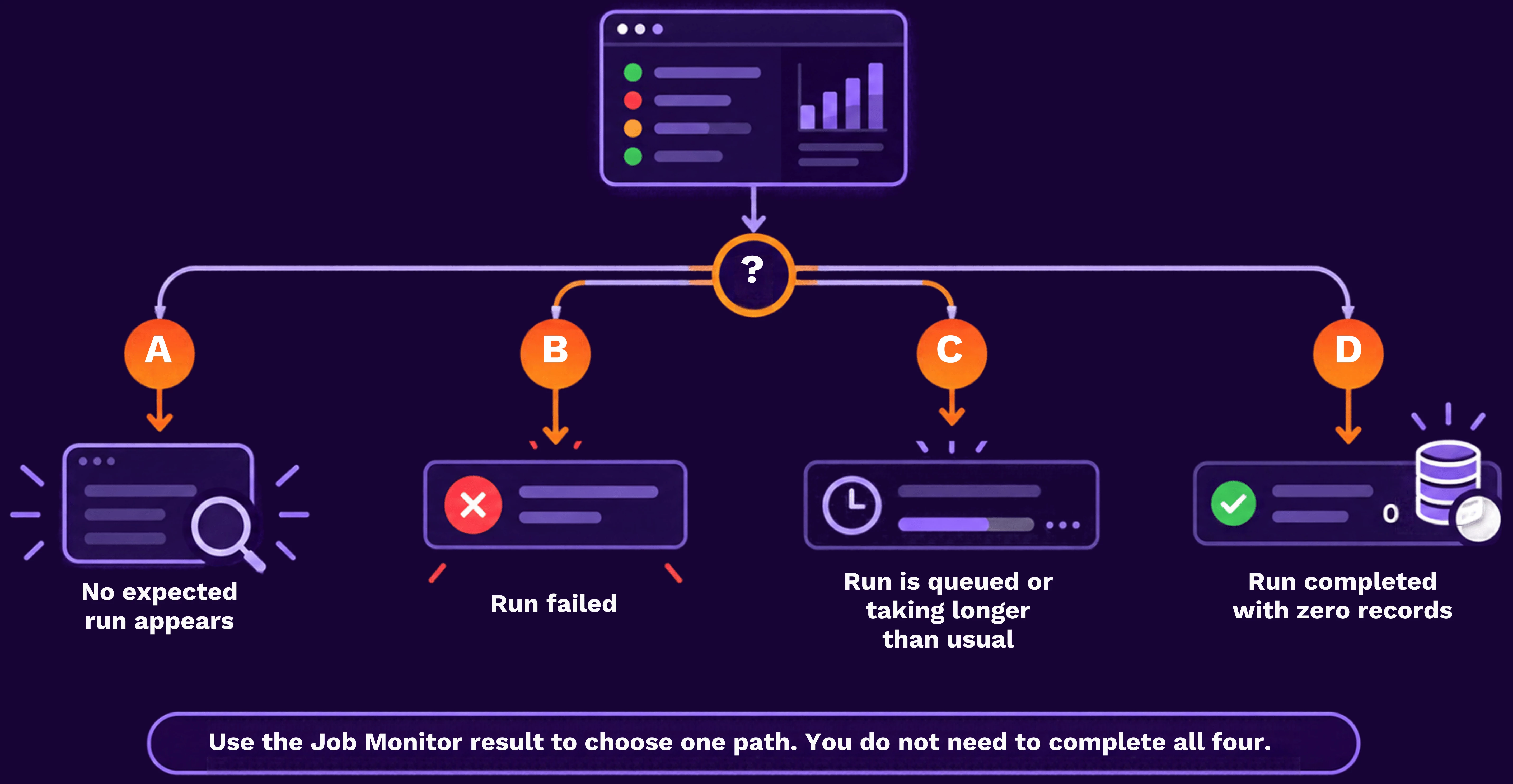
If the run already reports collected or published records, skip Step 2 and continue directly to Step 3.
After making a correction in A, B, or D: Wait for the next scheduled collection attempt, then open that new run in Job Monitor. If it reports records, continue to Step 3. If the same problem remains, follow the escalation guidance in that subsection. For a queued or running job in C, first check whether the existing run is progressing rather than starting another run.
A. No expected execution appears
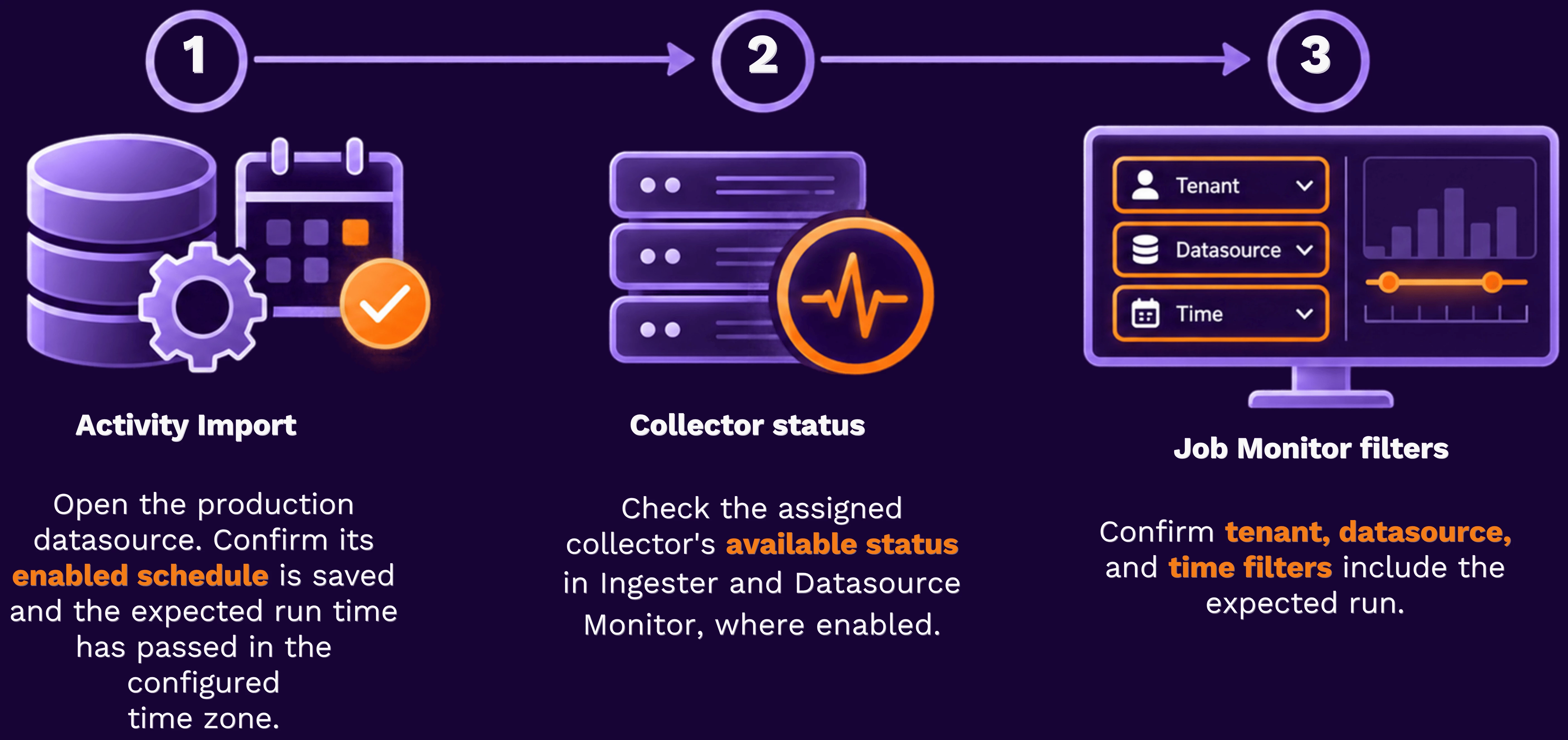
PREVIEW success does not establish production scheduling. If no production schedule exists, configure it using the connector deployment guide. If a valid schedule exists but the execution remains absent, preserve the configuration and monitor views for Support rather than repeatedly rescheduling.
B. The execution failed
Read the complete error and apply only the matching checks. Use the connector deployment guide for exact configuration and save procedures.
| Error category | Checks in priority order |
|---|---|
| Authentication or authorization | 1. Confirm credential validity. 2. Confirm required read permissions or API scopes. 3. Update a rotated credential in the datasource and save. |
| DNS, connection refusal, or timeout | 1. Verify the endpoint and port. 2. Have the collector owner test the actual route. 3. Confirm source availability during the failure interval. |
| TLS or certificate | 1. Check certificate expiry and hostname. 2. Check the trust chain. 3. Review recent proxy or TLS inspection changes. |
| File or path access | 1. Locate the expected file on the system hosting the configured path. 2. Check its name and timestamp. 3. Verify the collection service's read access. |
| Rate limit or quota | 1. Preserve the response and retry guidance. 2. Check overlapping API consumers. 3. Compare collection settings with supported source limits. |
| Format or parsing | 1. Preserve a current raw sample and error. 2. Check the assigned format/parser. 3. Test the sample using the Activity Import preview procedure. |
A connection from your laptop does not establish connectivity from the collector. For Securonix-managed infrastructure, request that test through Support. After the correction, allow the next documented collection attempt. Escalate a persistent or unfamiliar error with its full text.
C. The execution is queued or unusually long-running
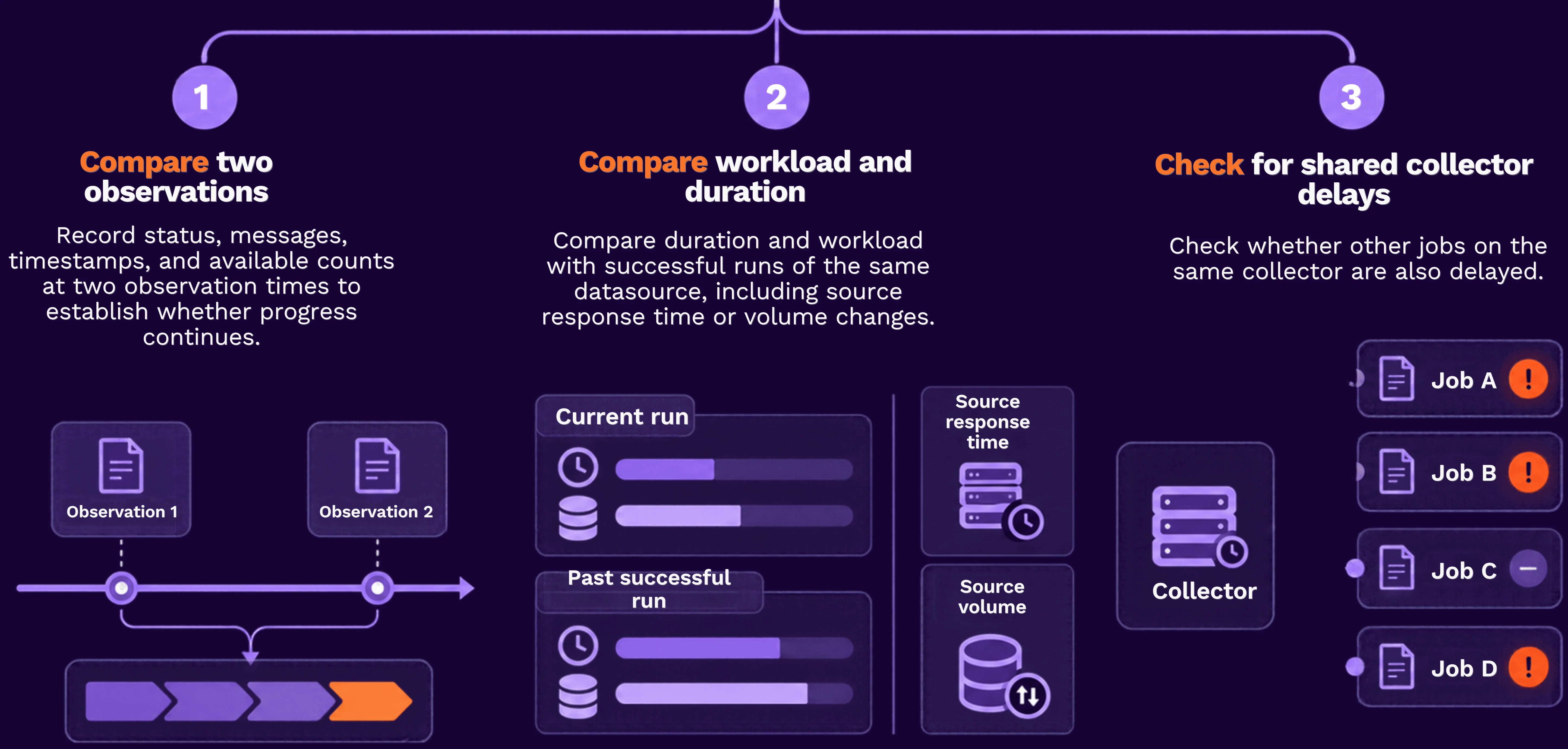
Allow a progressing run to finish. If progress remains unexplained beyond its normal duration, or several jobs are affected, escalate with the comparison. A queued state alone does not identify a scheduler or infrastructure defect.
D. The execution completed with zero records
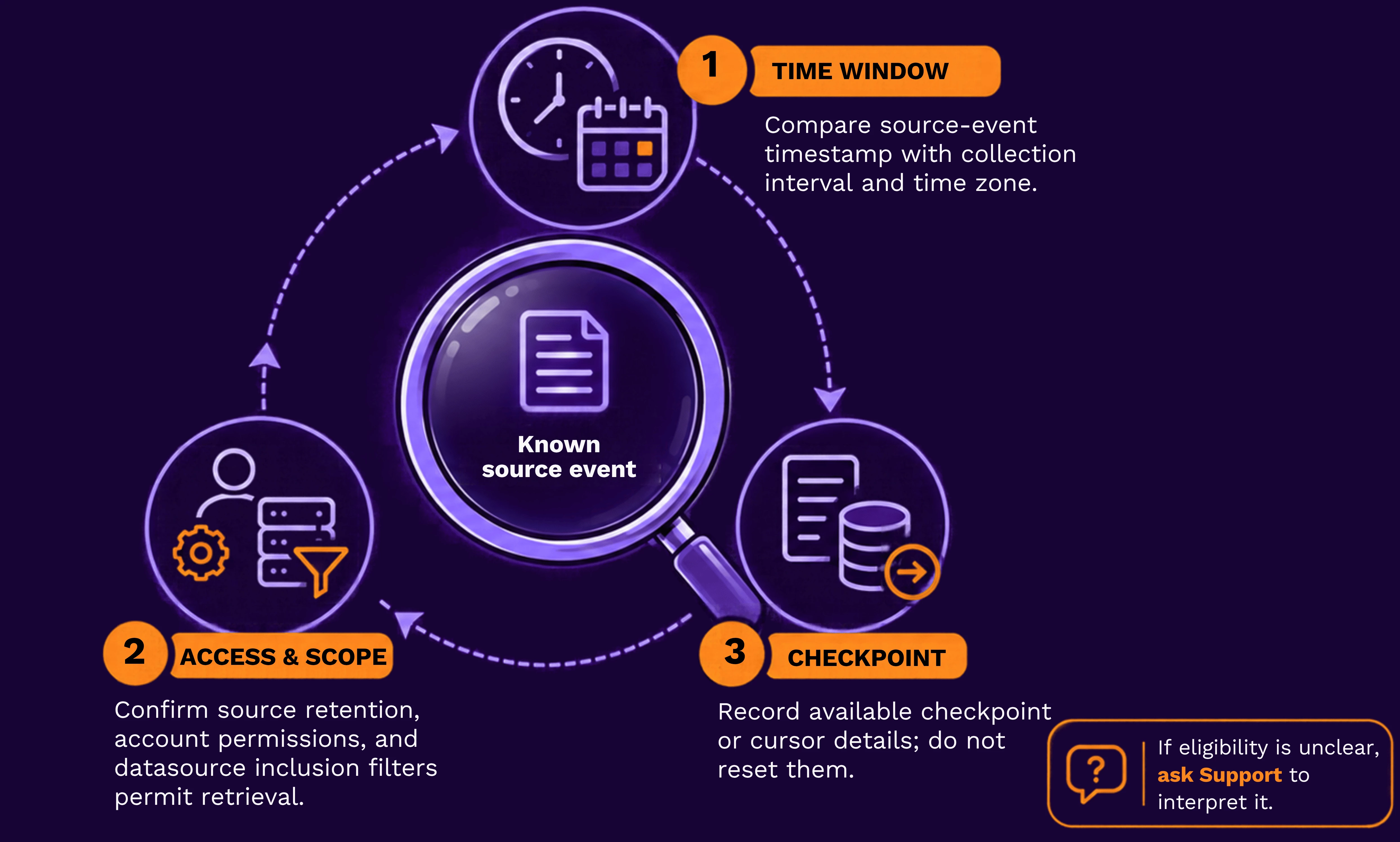
Zero records can be expected when no new eligible events exist. If an eligible event remains uncollected across repeated normal runs, escalate with the sample and collection interval.
Step 3 Find the first unexplained processing stage
Once collection reports records, inspect processing progress before assuming the events are searchable.
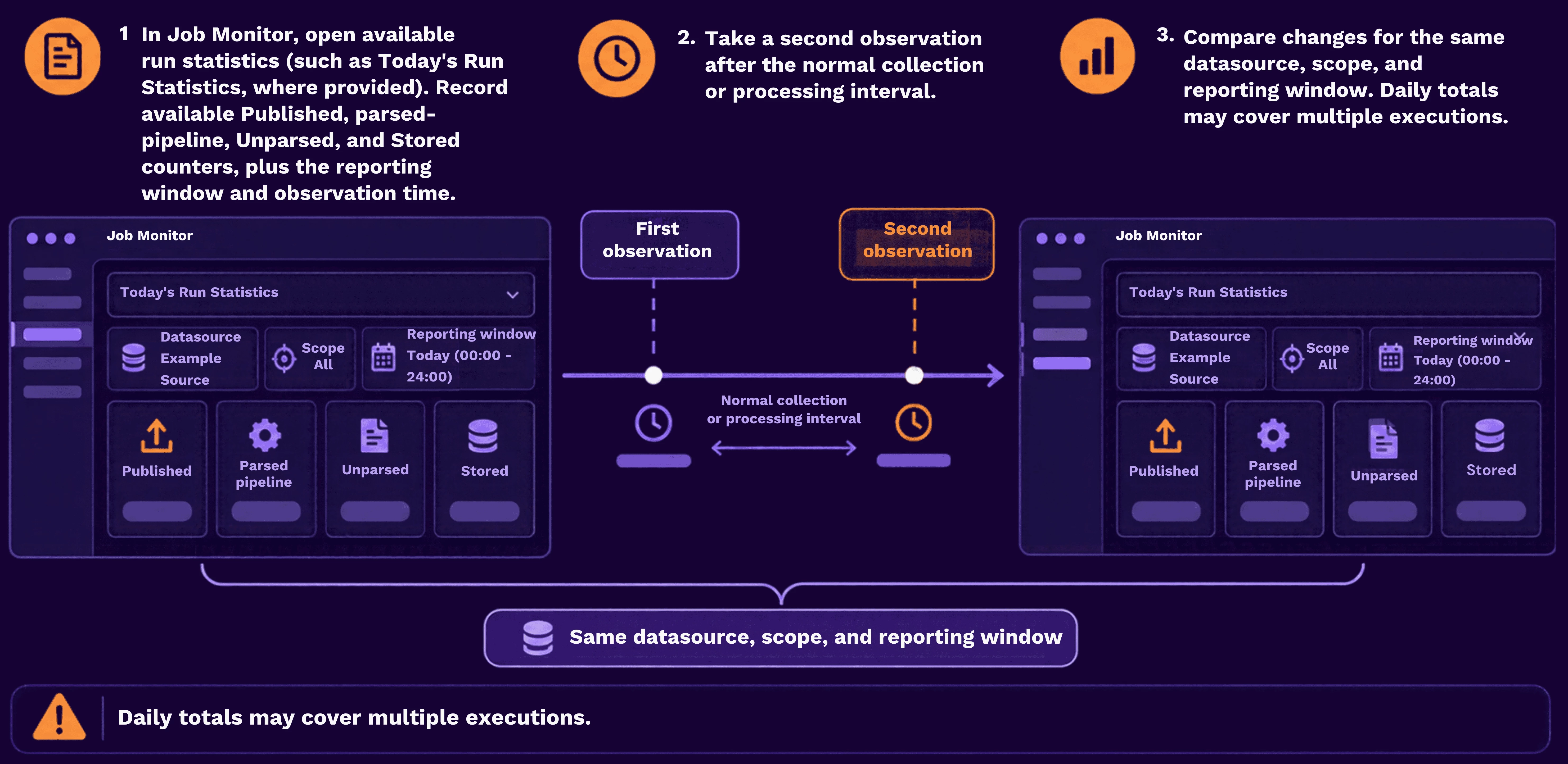
| Observation | Next action |
|---|---|
| Published does not progress during expected traffic | Return to collection or collector-delivery evidence in Step 1. |
| Unparsed increases | Test a current raw sample and review unparsed-event handling in the Activity Import companion guide. |
| Published increases but downstream progress is unexplained | Preserve both observations. Ask Support to check processing, routing/filtering, and reporting freshness. |
| Stored or downstream activity is reported, but the event is missing | Continue to Step 5; a count does not prove that event is searchable. |
| Spotter shows new events while monitor statistics are unchanged | Preserve the discrepancy for investigation of reporting freshness. |
Counter values need not be equal: reporting windows, routing, filtering, and processing timing can differ. Treat a gap as an investigation lead.
For parser, unparsed-event, or Derived Field checks, follow Understanding and Troubleshooting the Activity Import Screen. Apply the relevant correction using the datasource's procedure, then test a fresh event.
If the event remains missing, continue to Step 5. Use Step 4 when you need to establish whether the volume change affects one datasource or several.
Step 4 Compare volume and trends when needed
Use Activity Monitor to establish the scope of a volume change. This comparison supplements the known-event investigation.
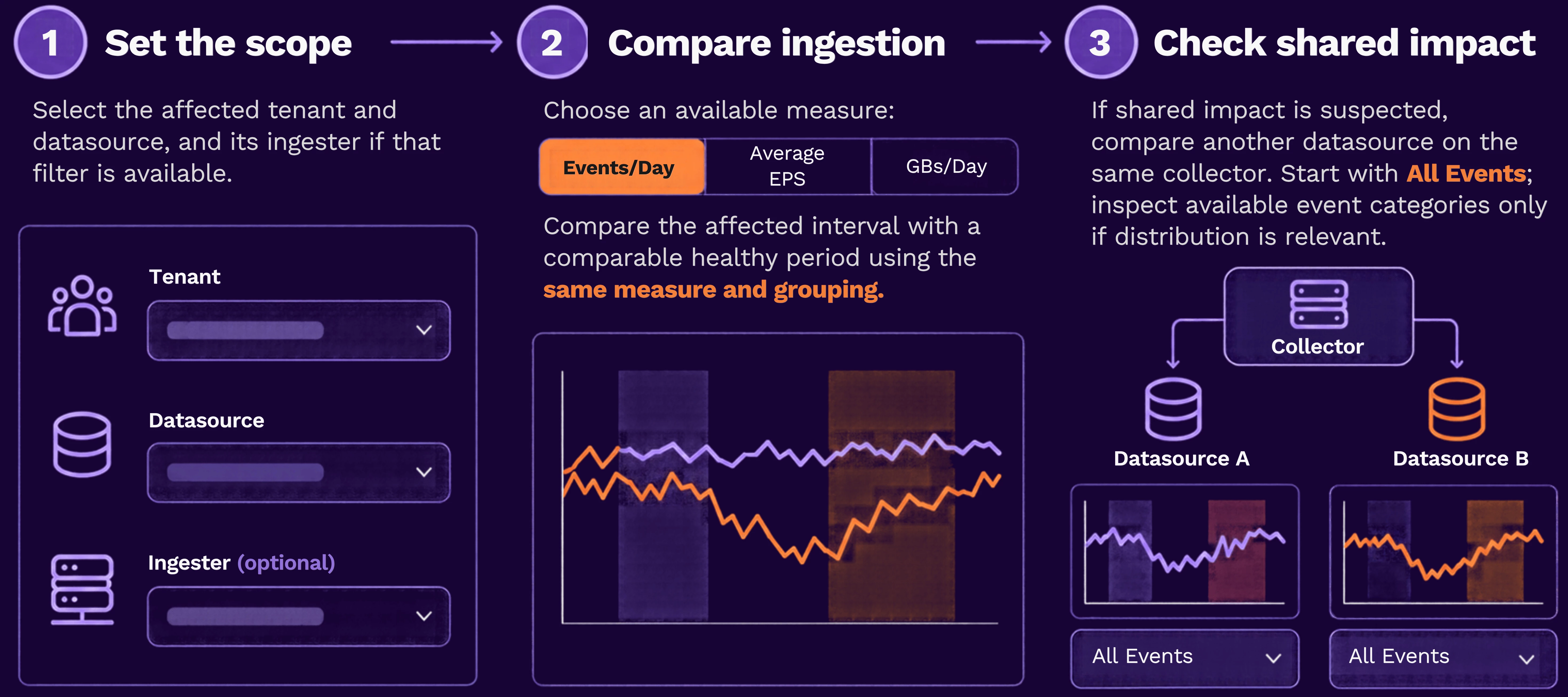
A drop isolated to one datasource supports a focused source or connector investigation. A drop across several sources on one collector supports investigation of their shared path. Record category-distribution changes before altering routing rules.
Account for the reporting window and update time. Recent gaps in an aggregated chart alone do not prove an outage, and billing or entitlement calculations do not establish individual-event arrival. Continue to Step 5 to validate the actual event.
Step 5 Validate the known event in Spotter
index = activity
AND resourcegroupname = "Cloud_Audit"
If the event is missing, verify the tenant/resource-group access, raw and parsed timestamps, and query conditions. If the distinctive-value search is empty, remove that condition and inspect events in the same narrow group search; the value may not be exposed in searchable content.
When collection and processing evidence exist, use the Spotter search-menu actions Refresh Config, followed by Update Cache, and rerun once. Record the outcome.
If the event remains absent, give Support the last stage with evidence of progress and the first unexplained stage. A nonzero Stored counter alone does not establish an indexing failure or prove arrival of this event.
Optional evidence from customer-managed infrastructure
Use this section only for systems you administer, such as an on-prem host or customer-managed Hub/RIN. For Securonix-managed SaaS infrastructure, request equivalent diagnostics through Support. Other readers can continue to Verify continued recovery.
-
Filesystem and memory availability
On the affected Linux host, an administrator can record:
df -h
free -h
Preserve the output with its hostname and observation time. Compare available space and memory with the deployment's normal baseline; a single usage percentage does not establish the cause.
-
Collector files and logs
Use the integration guide to confirm the installation directory, resource-group ID, and diagnostic log path. If the collector uses the following incoming-directory layout, replace RGID with the confirmed ID:
ls -lh /Securonix/Ingester/import/in/RGID/Take two observations and compare file names, sizes, and timestamps with the test interval. Accumulating files may indicate delayed pickup or processing. An empty directory may mean files were processed or that the integration uses another path.
Collect the documented log entries for the same interval and datasource. Follow the deployment procedure for service status or connectivity tests. Provide the evidence to Support without deleting files, resetting checkpoints, or restarting services as a trial.
Verify continued recovery
| Checkpoint | Evidence of recovery |
|---|---|
| Scheduled collection | The next expected run completes without the previous error and retrieves eligible data. |
| Continuous source | Available publishing evidence progresses while expected traffic is generated. |
| Processing | Available statistics and sample results support the intended processing path. |
| Search visibility | The known event appears in Spotter with the expected datasource, timestamp, and fields. |
| Continued operation | A later normal event or subsequent expected execution also succeeds. |
Record the correction and its outcome. Confirm continued collection and usable events beyond a single successful preview or green status.
When to contact Securonix Support
Escalate an absent execution despite a saved production schedule, a persistent collection failure, eligible events repeatedly left uncollected, stalled jobs, unexplained processing progress, or shared impact across datasources.
| Evidence | What to include |
|---|---|
| Datasource and deployment | Tenant, resource group, datasource, connector, collection method, and collector ownership |
| Timeline | Last success, first failure, normal duration, affected interval, and time zone |
| Execution | Identifier, status, schedule details, available counts, and complete error |
| Monitor observations | Reporting windows, filters, observation times, and before/after statistics or trend screenshots |
| Known event | Sanitized sample, source timestamp, and retrieval-eligibility evidence |
| Actions and outcome | Configuration changes, documented tests, and subsequent run or event outcome |
| Spotter | Query, interval, result, and metadata-refresh outcome |
| Infrastructure evidence | Relevant logs and read-only checks from systems you administer, if applicable |
State what is proven and what remains unexplained. Remove credentials, tokens, and sensitive event content before sharing attachments.
Related resources
- Job Monitor — reference for available job status, execution details, and monitoring controls.
- Securonix documentation portal — find release-specific Job Monitoring and Activity Monitor instructions for reviewing runs, statistics, and ingestion trends.
- Activity Import Connectors — verify connector prerequisites, collection settings, and source-specific configuration.
- Understanding and Troubleshooting the Activity Import Screen — check production scheduling, line filters, parsing, unparsed-event handling, and Derived Fields.
- Syslog Is Configured, but Logs Aren’t Appearing in Securonix — trace a syslog message from source forwarding through Hub receipt and Spotter visibility.
Share what helped you find the failure
Share the observation and correction that helped in the Securonix Community comments, with sensitive details removed. For an unresolved environment-specific issue, open a Support case with the evidence collected above.