


Audience: Administrators, MSSPs
Product Module: Threat Intelligence (ThreatQ) > Dynamo Feed Processing
Last Updated: July 17, 2026
KB ID: KB-20260717-dynamo-pod-restart
Tags: ThreatQ, Threat Intelligence, Dynamo, Feed Processing, Kubernetes, Redis, Scheduler, Worker, Consumer, Troubleshooting
Table of Contents
Problem
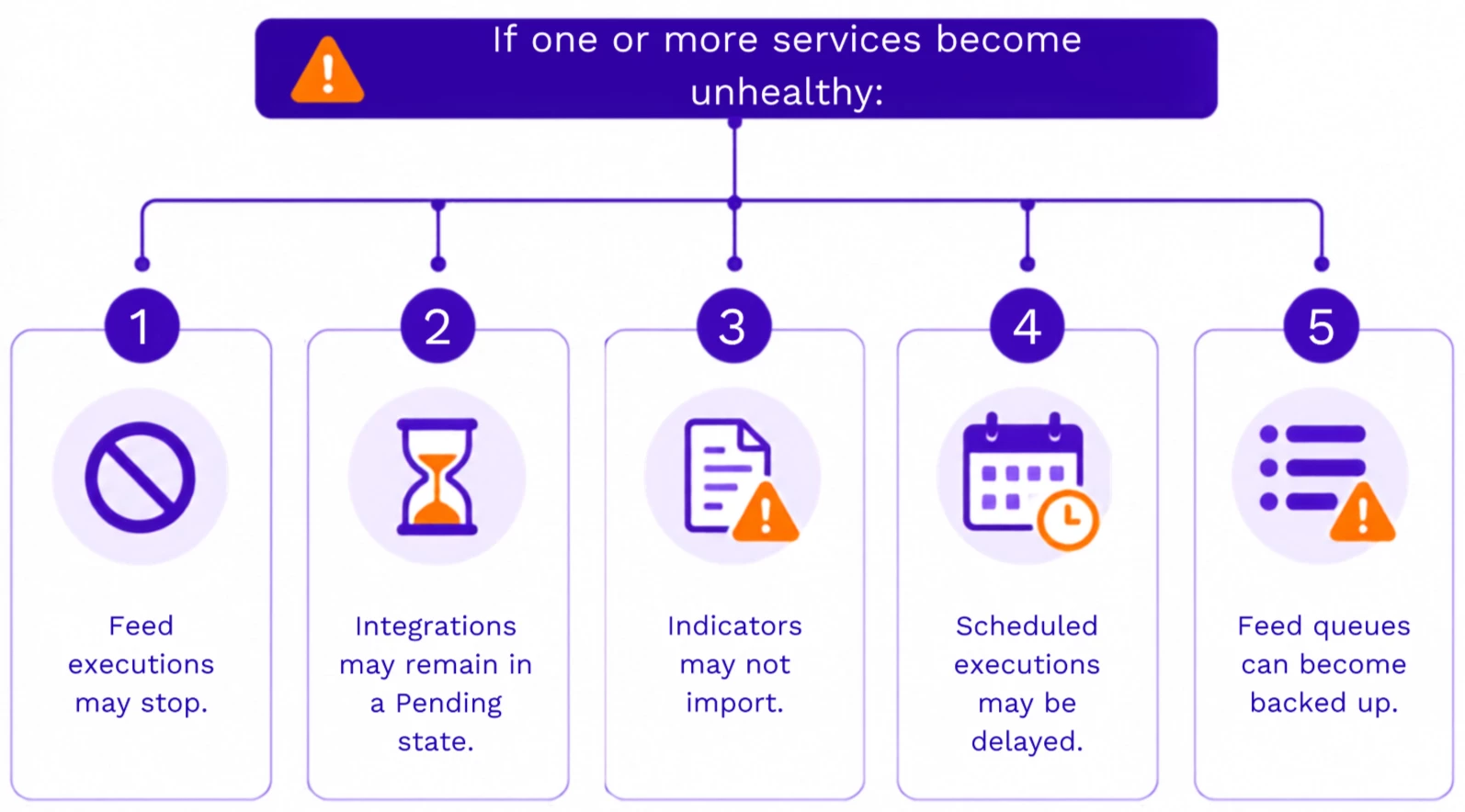
Threat intelligence feeds may stop processing correctly due to unhealthy Dynamo services. As a result, feeds can remain in a Pending state, integrations may appear to hang, or indicators may fail to import into ThreatQ.
Objective
This article explains:
- The purpose of each Dynamo component
- When restarting Dynamo services is appropriate
- How to safely restart the required services
- What Hosted (SaaS) and On-Premises customers should do if the issue persists
Before You Begin
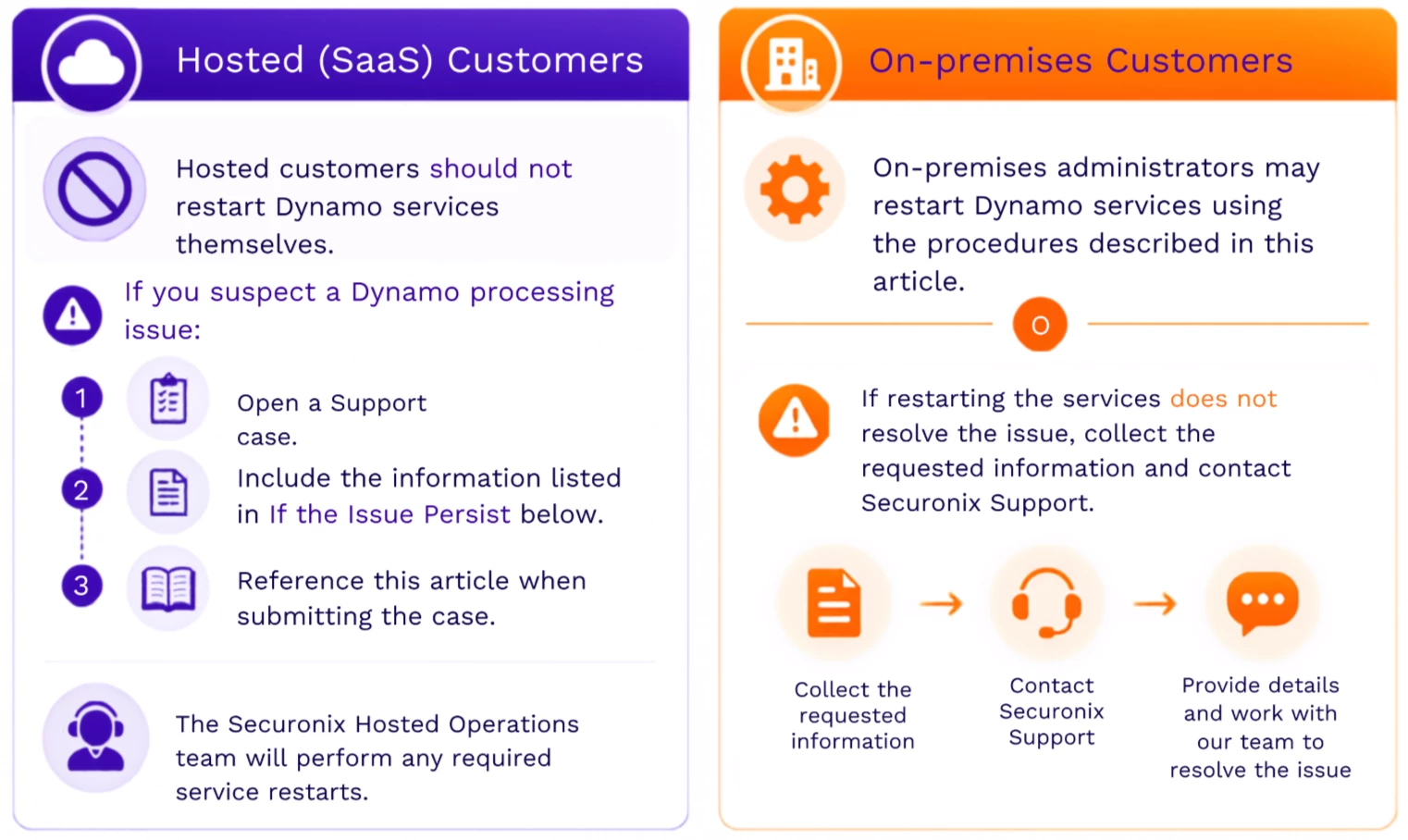
The actions you should take depend on your deployment type.
Understanding the Dynamo Architecture
Dynamo is the feed processing engine within ThreatQ (Securonix Threat Intelligence). It orchestrates threat intelligence feeds, processes collected data, and imports indicators into ThreatQ.
Beginning with ThreatQ 6.11, Dynamo was separated into multiple Kubernetes services to improve scalability, fault isolation, and performance.
Each service performs a dedicated function.
| Service | Purpose |
|---|---|
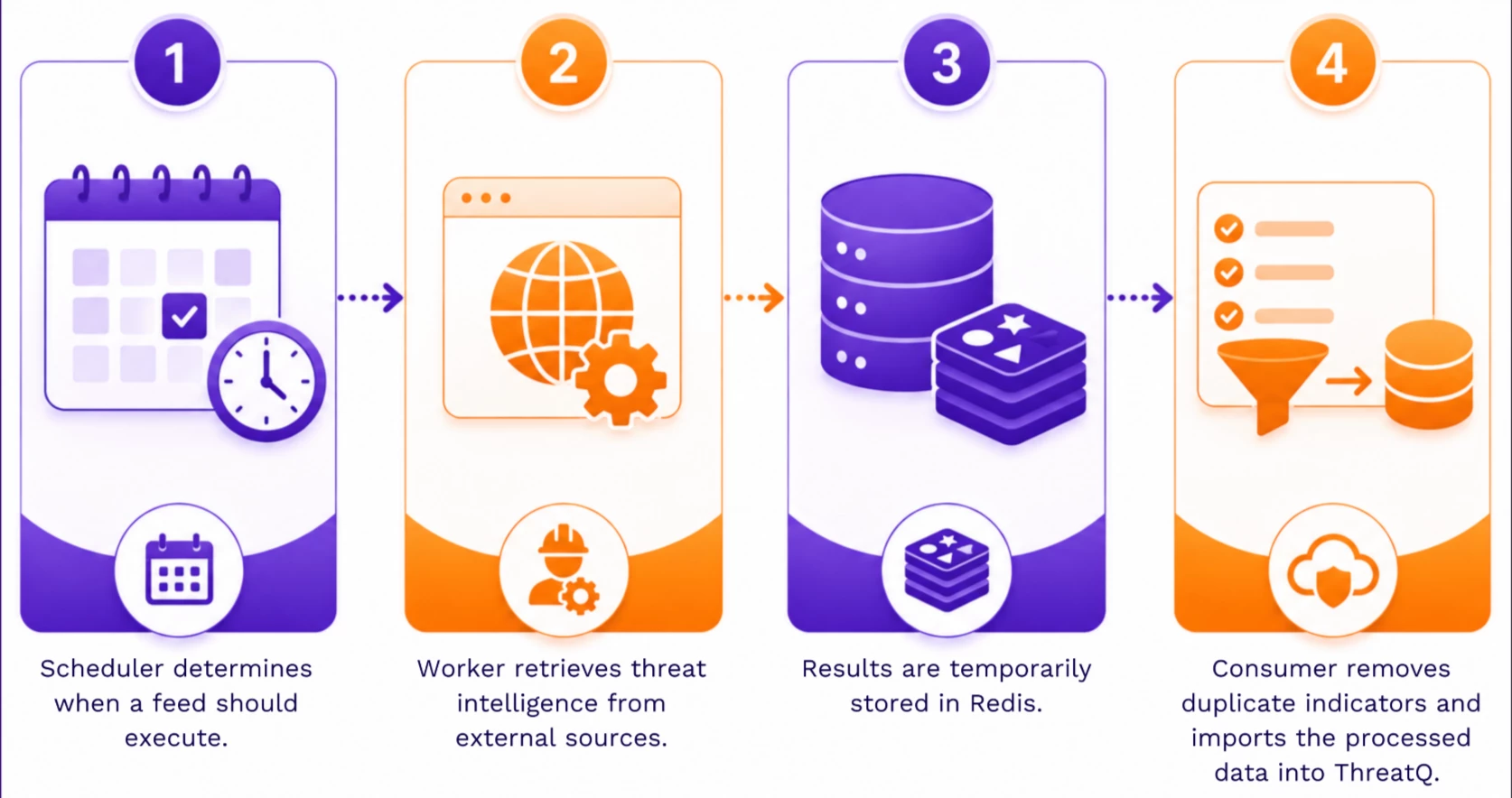
| dynamo-scheduler | Schedules feed executions, distributes work through RabbitMQ, manages cancellations, and handles proxy configuration. |
| dynamo-worker | Executes feed jobs, retrieves threat intelligence from external sources, stores processed data in Redis, and reports execution errors to the ThreatQ API. |
| dynamo-consumer | Reads processed data from Redis, removes duplicate indicators, manages back-pressure, and imports indicators into ThreatQ. |
| dynamo-scoring | Performs indicator scoring independently of feed processing. |
How Dynamo Processes Threat Intelligence
The feed processing workflow follows these stages:
When to Restart Dynamo Services
Before restarting Dynamo services, verify that the issue is affecting the feed processing pipeline.
→ Check Feed Activity (All Environments)
- In ThreatQ, navigate to Integrations and select the Feed Run Activity tab.
- Verify whether any of the following conditions exist:
- Feed runs remain in Pending, In Progress, or Running indefinitely.
- Next Run At is no longer updating and remains in the past.
- Integration cards display a Red status instead of Green.
If feed runs complete successfully, the Next Run At timestamp continues to update, and active integrations display a Green status, the Dynamo services are operating normally and a restart is not required.
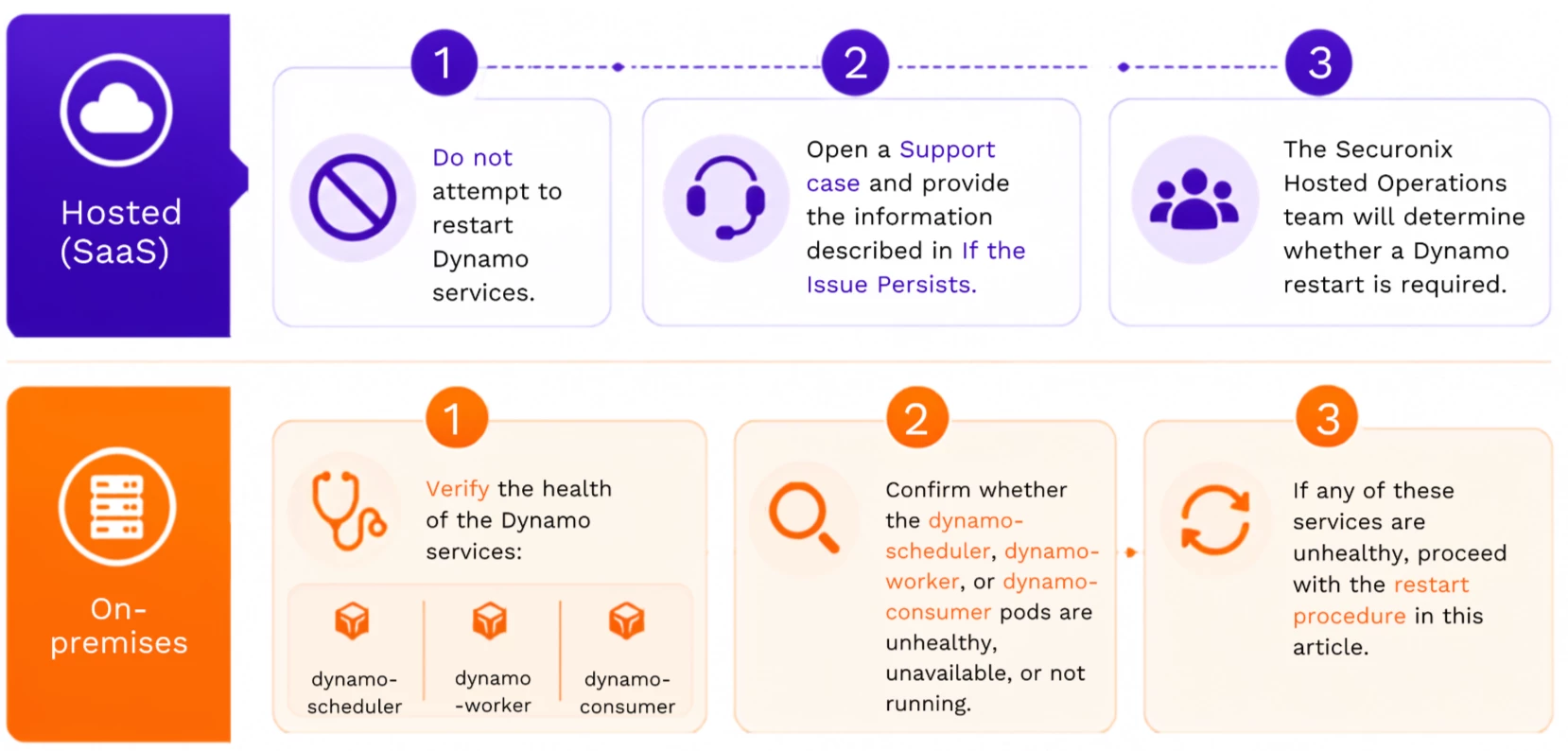
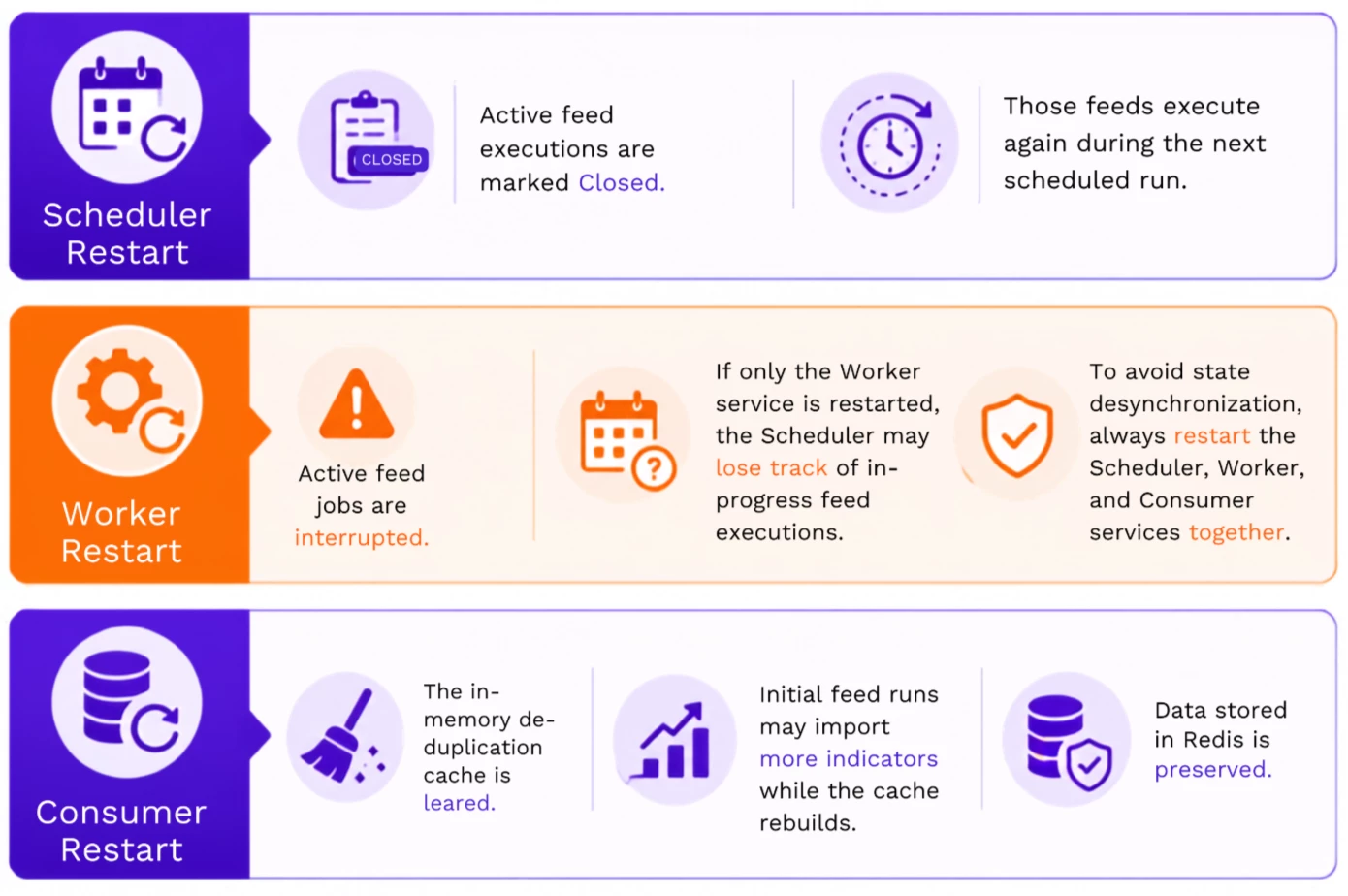
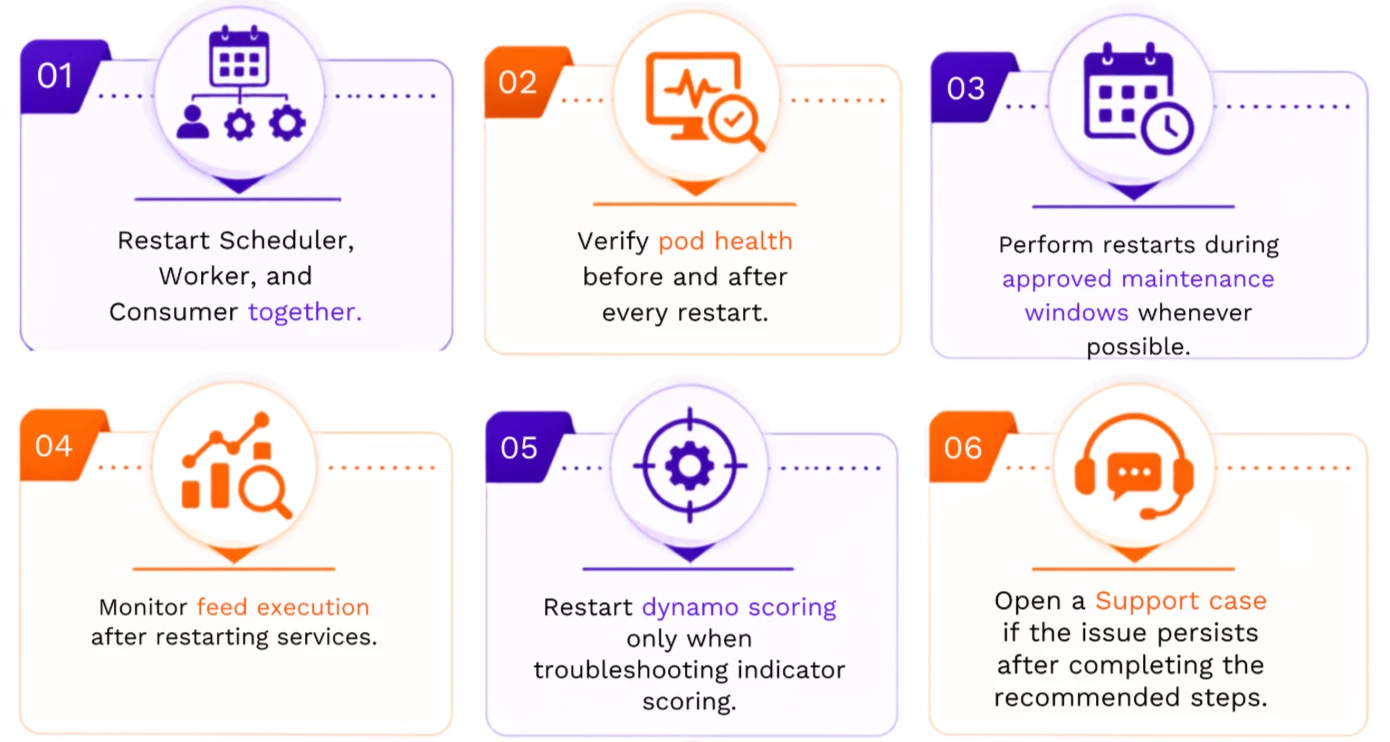
Important: Always restart dynamo-scheduler, dynamo-worker, and dynamo-consumer together. Restarting individual services can cause state desynchronization and prevent subsequent feed executions.
Important Points to Remember
Always restart these services together:
- dynamo-scheduler
- dynamo-worker
- dynamo-consumer
Restarting only one or two services can leave the processing pipeline out of sync and may result in delayed or failed feed execution.
The dynamo-scoring service operates independently and should only be restarted when troubleshooting indicator scoring issues.
Restart Procedures
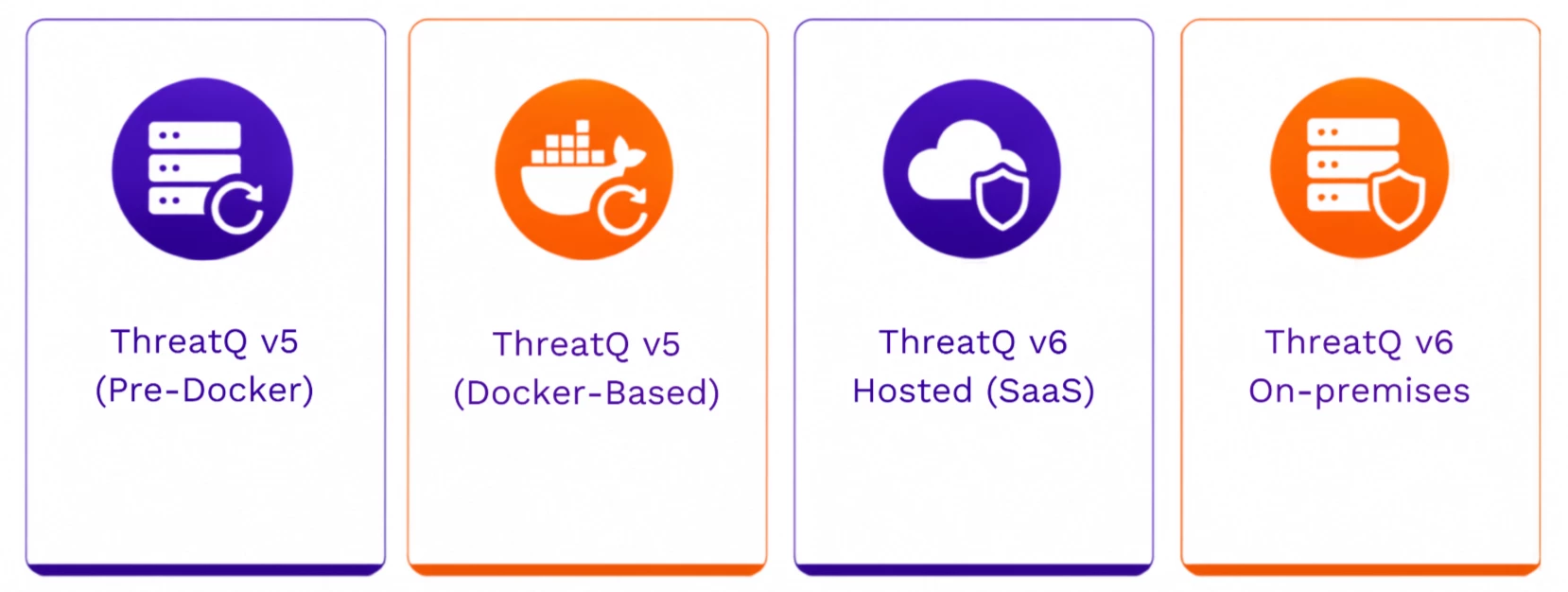
Select the procedure appropriate for your deployment.
ThreatQ v5 (Pre-Docker)
Restart the Dynamo service.
systemctl restart threatq-dynamoThreatQ v5 (Docker-Based)
Restart the Docker container.
docker restart threatq-dynamoThreatQ v6 Hosted (SaaS)
Hosted customers should not perform Kubernetes restarts.
If a Dynamo issue is suspected:
- Open a Support case.
- Provide the information listed in If the Issue Persists.
- The Hosted Operations team will perform any required service restart.
ThreatQ v6 On-Premises
Restart the Scheduler, Worker, and Consumer services within the ThreatQ namespace.
kubectl rollout restart -n threatq deploy/dynamo-scheduler sts/dynamo-worker deploy/dynamo-consumerStep-by-Step Solution
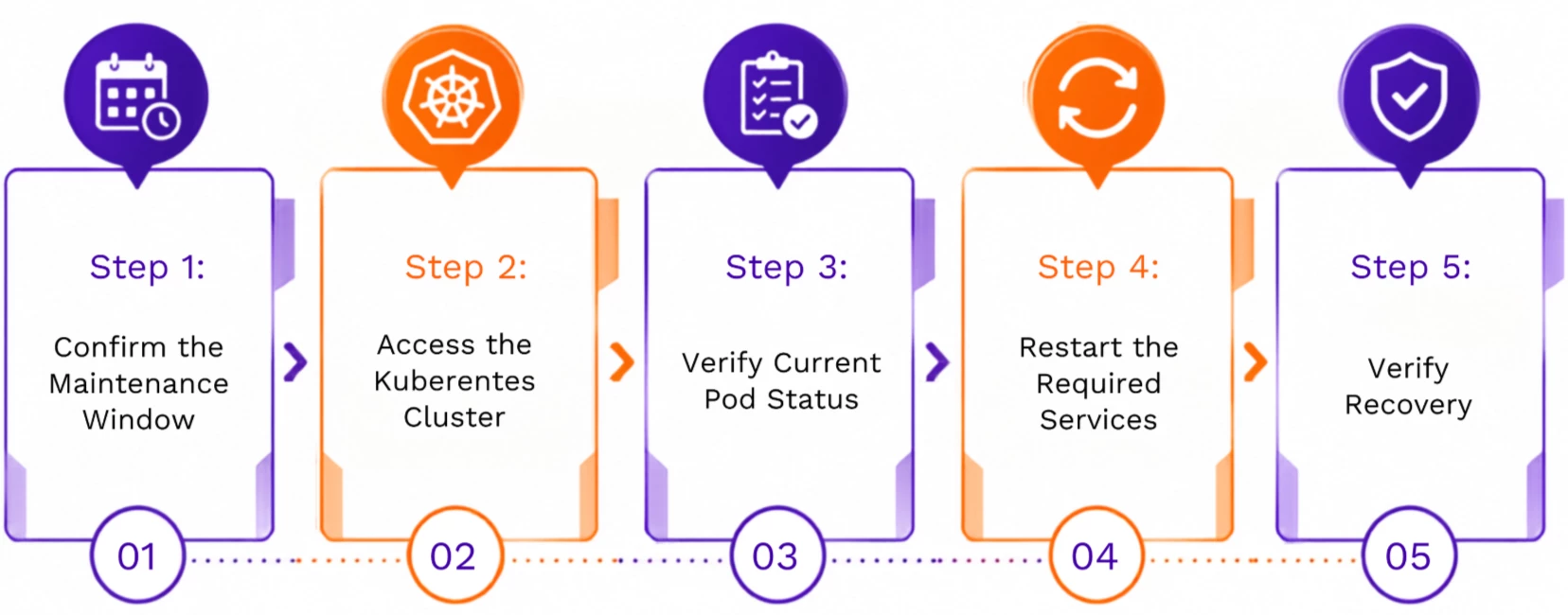
Step 1: Confirm the Maintenance Window
Before restarting services:
- Verify the affected environment.
- Obtain any required maintenance approval.
- Notify users if required by your organization’s change management process.
Step 2: Access the Kubernetes Cluster
Connect to your Kubernetes environment and configure the appropriate Kubernetes context.
For Hosted environments, the following commands illustrate a typical Hosted Operations bastion host configuration:
On-Premises administrators should use the kubeconfig file and directory appropriate for their Kubernetes deployment.
ssh <username>@<bastion_host>

cd /opt/eks_deployments/kubeconfigs

export KUBECONFIG=kubeconfig_<Customer>-<cluster>
Step 3: Verify Current Pod Status
Confirm the Dynamo services are present and review their health.
kubectl get pods -n threatq | grep dynamokubectl get pods | grep dynamoStep 4: Restart the Required Services
Execute the restart command appropriate for your deployment.
Step 5: Verify Recovery
After the rollout completes:
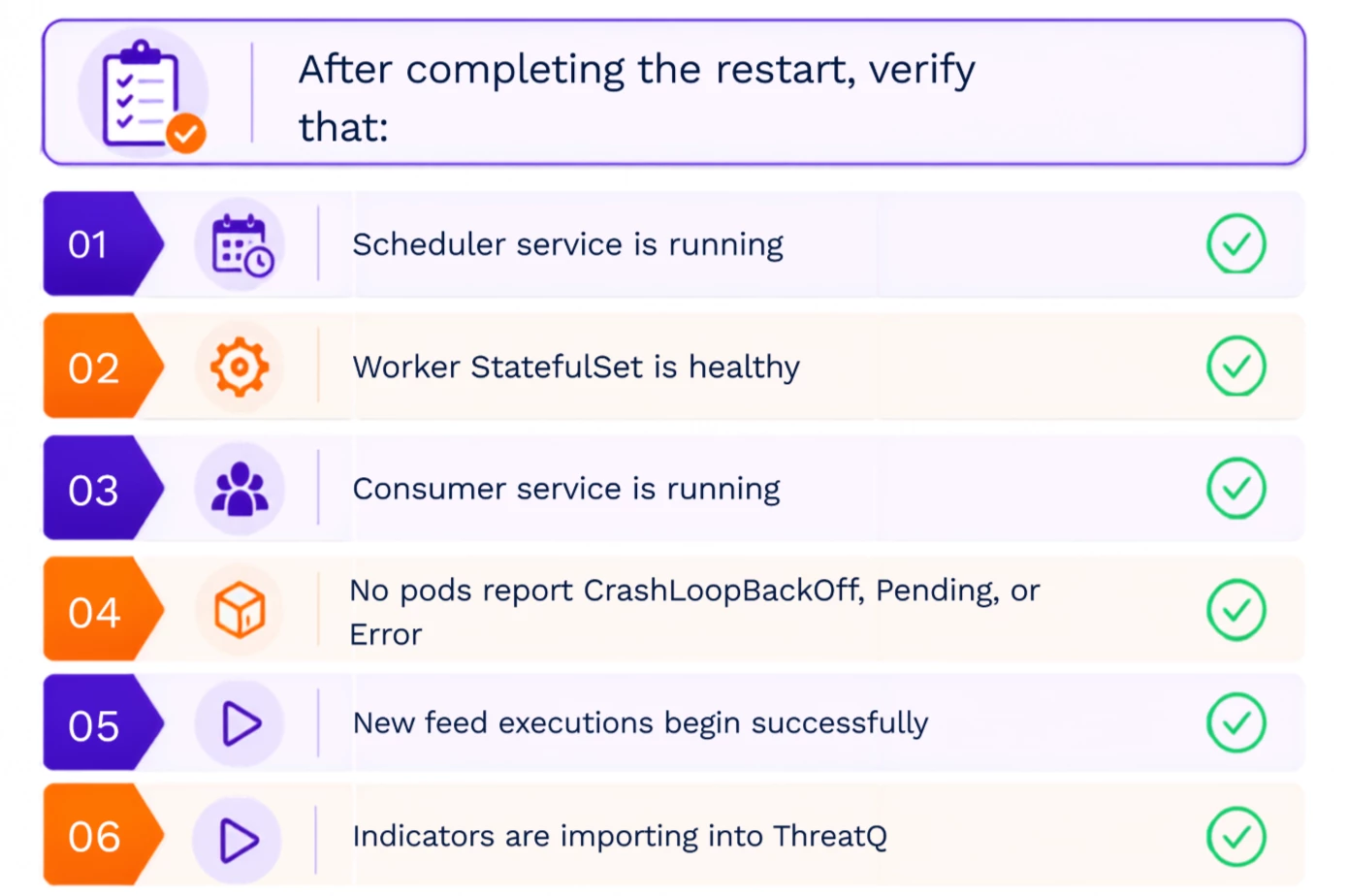
kubectl get pods | grep dynamokubectl get pods -n threatq | grep dynamoConfirm that:
- Scheduler is Running
- Worker StatefulSet is healthy
- Consumer is Running
- No pod reports:
- Pending
- CrashLoopBackOff
- Error
Verify that new feed executions begin processing successfully.
Expected Behavior After Restart
If the Issue Persists
-
Hosted (SaaS) Customers
If feed processing problems continue, open a Support case.
Include the following information:
- Tenant or customer name
- Environment (Production, Staging, etc.)
- Approximate time the issue began
- Affected feed(s) or integration(s)
- Screenshots of any errors
- Recent infrastructure or maintenance events (if known)
- Relevant log files, if available
For guidance, see How to Create an Effective Support Case.
-
On-Premises Customers
If restarting the services does not resolve the issue:
- Verify that all Dynamo services are healthy.
- Confirm Redis and RabbitMQ are operational.
- Review Dynamo logs for recurring errors.
- Open a Support case.
Include:
- ThreatQ version
- Deployment type
- Kubernetes version
- Output of:
kubectl get pods OR
kubectl get pods -n threatq | grep dynamo
kubectl describe pod <pod-name>
kubectl logs <pod-name>Also provide:
- Affected feed names
- Time the issue started
- Screenshots or error messages
- Any recent infrastructure or configuration changes
Verification Checklist
Best Practices
Let us know if this this content helped you!
If this article helped resolve your issue, please leave feedback or share your experience with the Community. If the issue continues after following the guidance in this article, contact Securonix Support and include the recommended troubleshooting information to help expedite your case.