


Audience: Securonix Administrators, Identity Administrators, MSSPs
Product Module: Administration → Settings → SAML Settings
Last Updated: February 27, 2026
KB ID: KB-20260227-uds-sso-login-failures
Tags: SAML, SSO, Azure AD, Okta, Authentication, Redirect Loop, Certificate Expired, Invalid Audience, Role Mapping
Table of Contents
Problem
Users are unable to log in to UDS using SAML SSO. Common symptoms include:
-
Redirect loop after login
-
“Invalid SAML response”
-
“Invalid audience”
-
“Signature validation failed”
-
Azure error AADSTS700016 (application not found)
-
“User not assigned to application”
-
“Certificate expired”
-
Local login works, but SSO fails
Objective
This article helps administrators quickly identify and resolve common SAML SSO configuration issues between UDS and their Identity Provider (IdP) such as Azure AD or Okta.
Step-by-Step Solution
🔎 Start Here – Identify the Symptom
Before making changes, determine what users are experiencing and follow the section that matches the symptom.
| If You See… | Go To |
| Invalid SAML response / Invalid audience / Redirect loop | Step 2 – Metadata & URL Alignment |
| Signature validation failed / Certificate expired / SSO suddenly stopped working | Step 3 – Signing Certificate Validation |
| Authentication fails with no clear UI error | Step 4 – Time Synchronization (Clock Skew) |
| Only certain users fail / “User not assigned” / Access denied after login | Step 5 – User Assignment & Role Mapping |
| Local login works but SSO fails | Step 6 – Isolate SAML Configuration |
📌 You do not need to complete every step. Perform Step 1 first, then follow the section that matches your symptom.
Step 1 – Perform a 60-Second Configuration Validation (Always Do This First)
🔐 Log in to UDS as an administrator.
➡️ Navigate to: Menu → Administration → Settings → SAML Settings
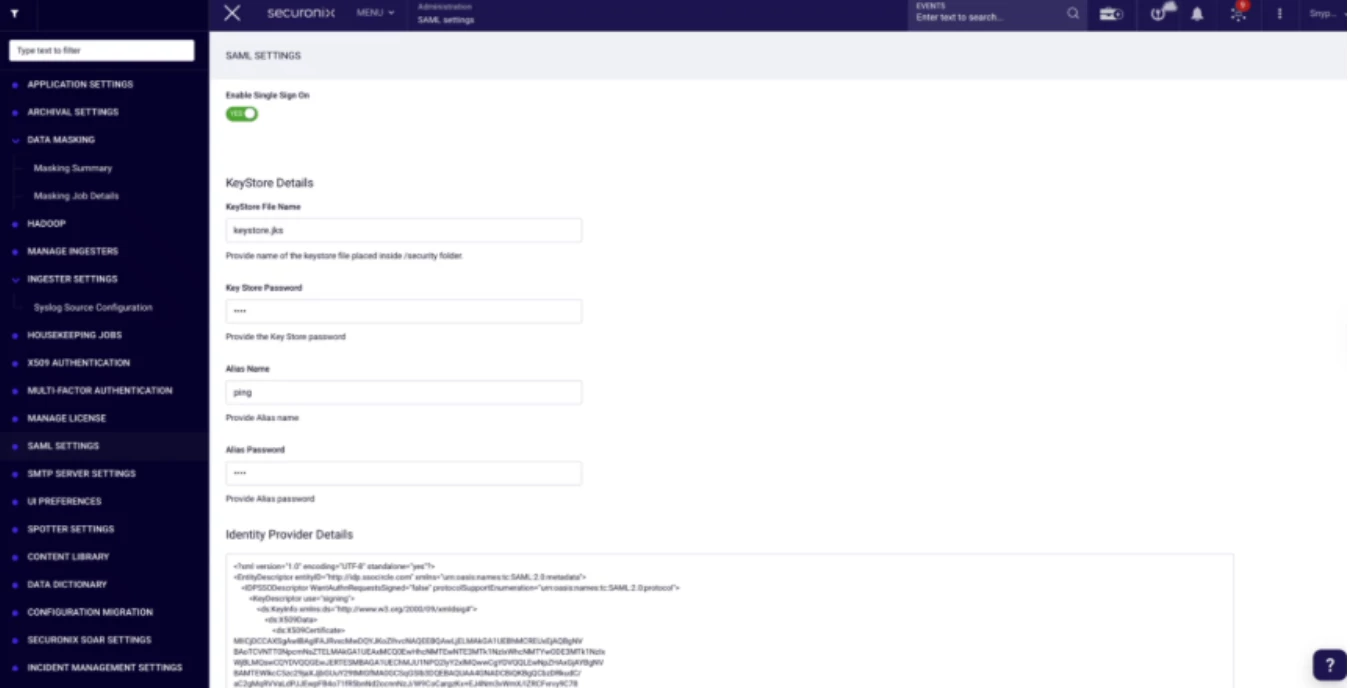
🔎 Verify the following fields:
- SSO is enabled
- Entity ID
- Entity Base URL
- ACS (Assertion Consumer Service) URL
- Entity Alias
These values must exactly match what is configured in your Identity Provider (IdP).
🔍 Check carefully for:
- Extra or missing trailing slashes
- http vs https mismatch
- Incorrect alias value
- Case differences
- Typographical errors
Even small differences can cause login failures.
🛠️ If values do not match, correct them and test SSO again before continuing.
➡️ If values match and SSO still fails, continue to the section below that matches your symptom.
Step 2 – Validate Metadata and URL Alignment
(If users see “Invalid audience,” “Invalid SAML response,” or experience a redirect loop)
⚠️ Typical Symptoms
- “Invalid SAML response”
- “Invalid audience”
- Infinite redirect loop between IdP and UDS
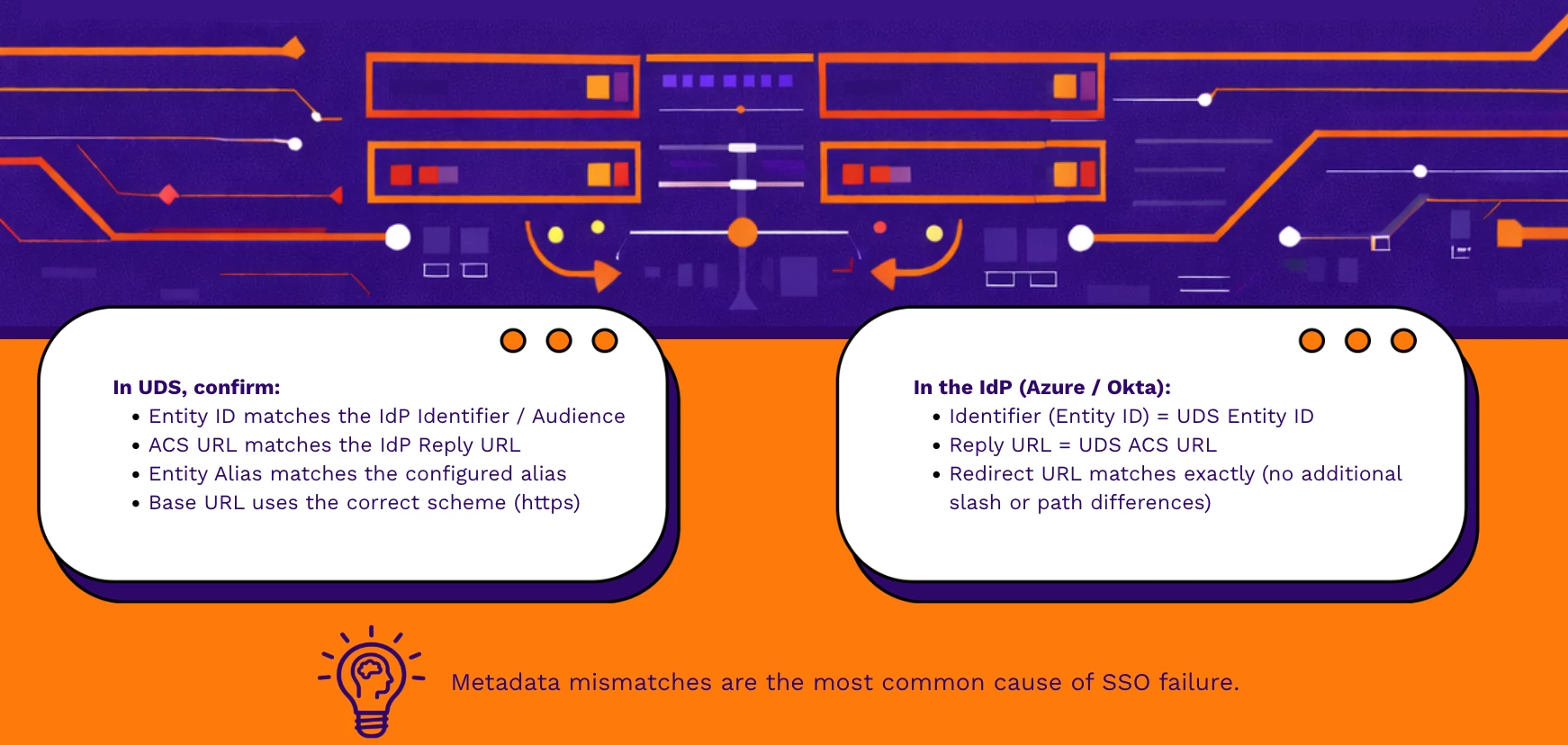
💾 After correction, save the configuration and test SSO again.
Step 3 – Validate the Signing Certificate
(If you see signature validation errors or SSO stopped working suddenly)
⚠️ Typical Symptoms
- “Signature validation failed”
- “Certificate expired”
- SSO worked previously and suddenly stopped
🔎 Check the Following:
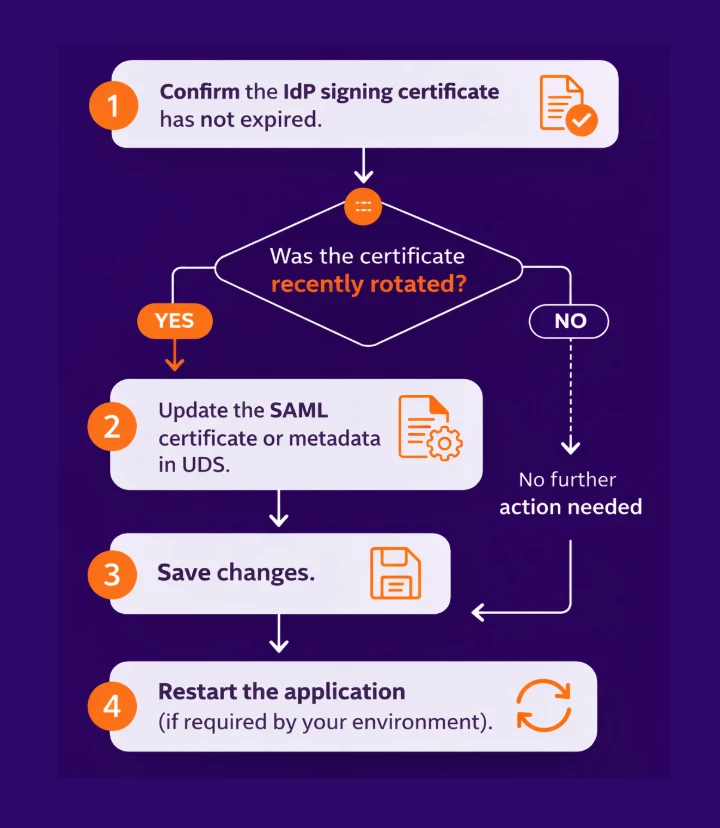
⚠️ SSO will fail immediately if the certificate configured in UDS does not match the IdP’s active signing certificate.
🔎 After updating, retest SSO.
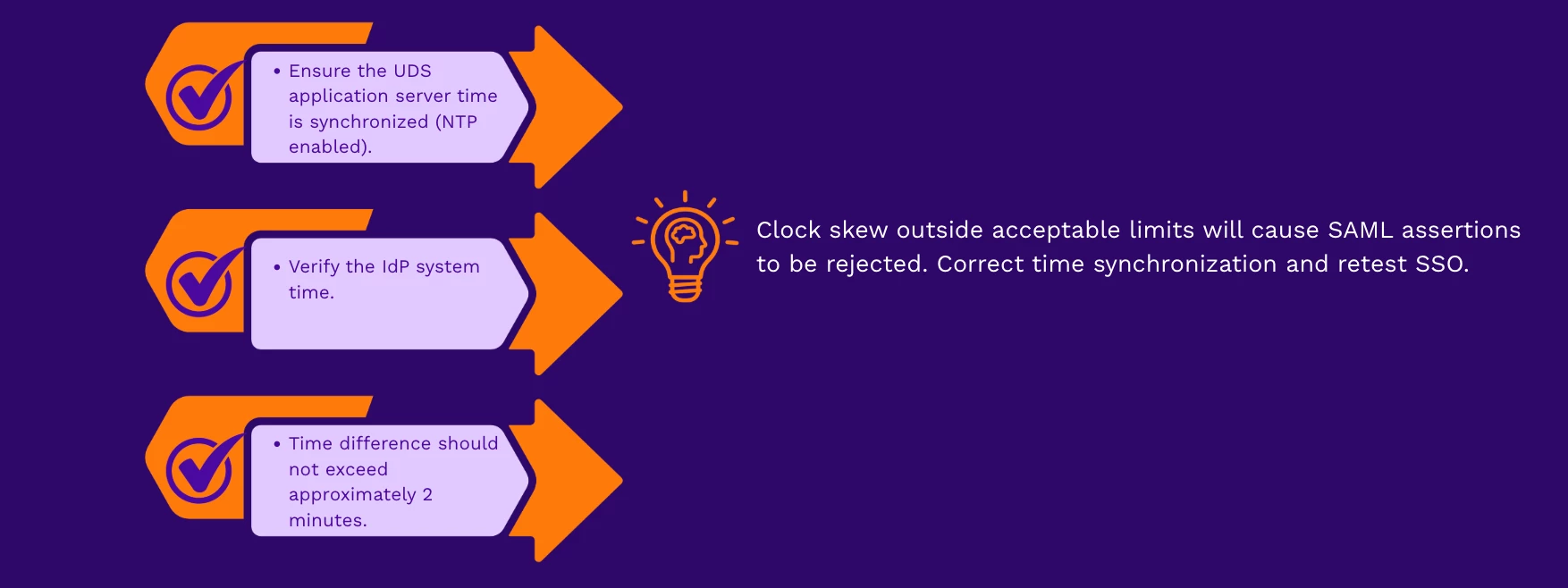
Step 4 – Validate Time Synchronization (Clock Skew)
(If authentication fails with no clear error message)
⚠️ Typical Symptoms
- SAML response appears valid
- Authentication fails without a clear UI error
- Intermittent login failures
🔎 Check:
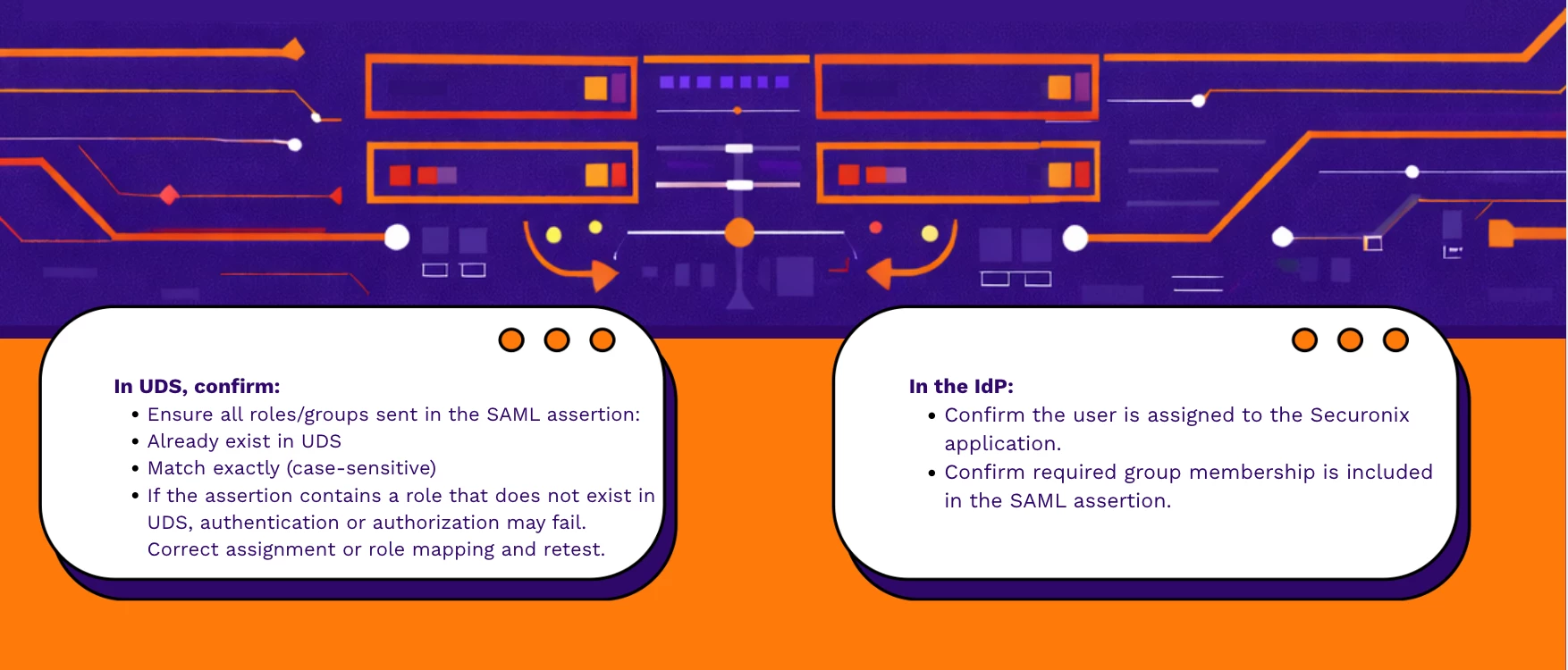
Step 5 – Validate User Assignment and Role Mapping
(If only certain users fail or receive access denied)
⚠️ Typical Symptoms
- “User not assigned to application”
- Access denied after successful authentication
- Only specific users or groups are affected
Step 6 – Validate Local Login (Isolation Test)
(If local login is available)
🔎 Typical Scenario
- Local login works
- SSO login fails

Final Notes
Most SSO failures are caused by:
- Metadata mismatches
- Certificate rotation
- Role mapping errors
- URL formatting inconsistencies
🔎 Always validate configuration values character-by-character.
🔁 After each correction, test SSO before proceeding to another step.
When to Contact Support
If the issue persists after completing all steps, gather the following before opening a Support case:

Providing these details will significantly reduce troubleshooting time.
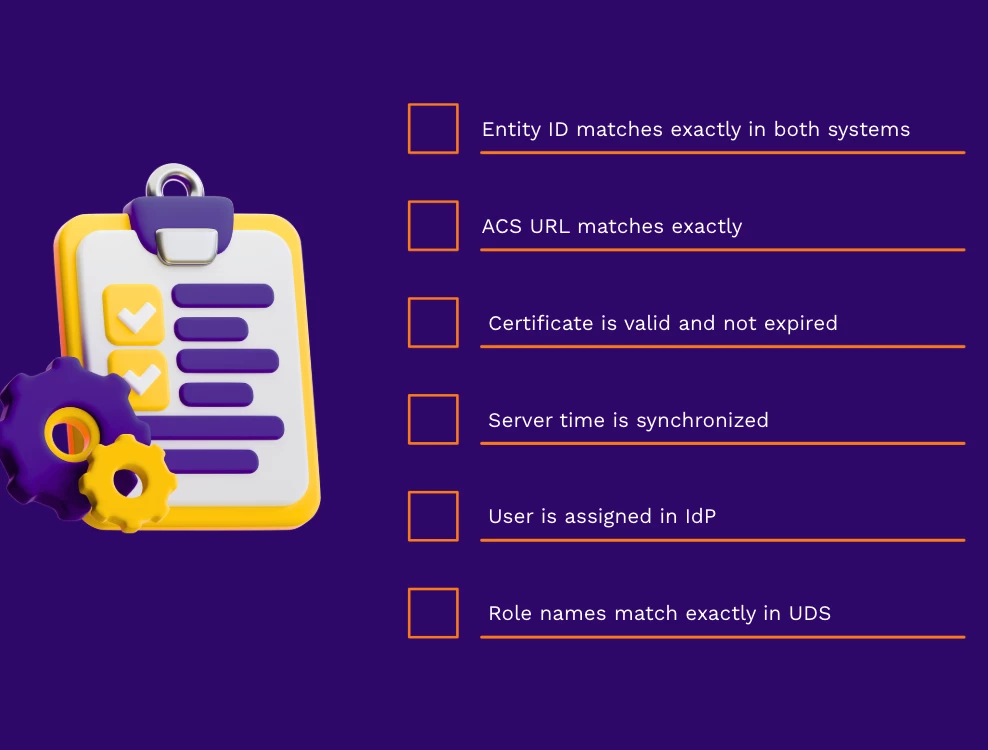
Verification Checklist
Confirm the following before retesting:
Need Additional Help?
If you have completed these checks and are still experiencing issues, open a Support case with the collected details or comment below with your scenario (excluding sensitive configuration details).