

Audience: Admins, Analysts, MSSPs
Product Module: Integrations (ThreatQ Platform)
Last Updated: March 2, 2026
KB ID: KB-20260227-threatq-integration-sync
Tags: ThreatQ, Integrations, TAXII, CDF, Exports, SSL, API Key, Data Retention, Job Management, Troubleshooting
Table of Contents
Problem
ThreatQ integrations (CDF feeds, TAXII feeds, Operations, and Exports) may fail to sync, ingest, or send data.
Common symptoms include:
- Integration runs but no data appears
- Authentication errors (401/403)
- SSL or certificate failures
- Timeout or connection errors
- Successful runs showing 0 objects processed
Objective
Provide a structured troubleshooting workflow that:
- Identifies the failure category
- Directs you to the correct corrective action
- Eliminates unnecessary troubleshooting steps
- Helps analysts quickly determine root cause
Step-by-Step Solution
There are four primary failure categories:
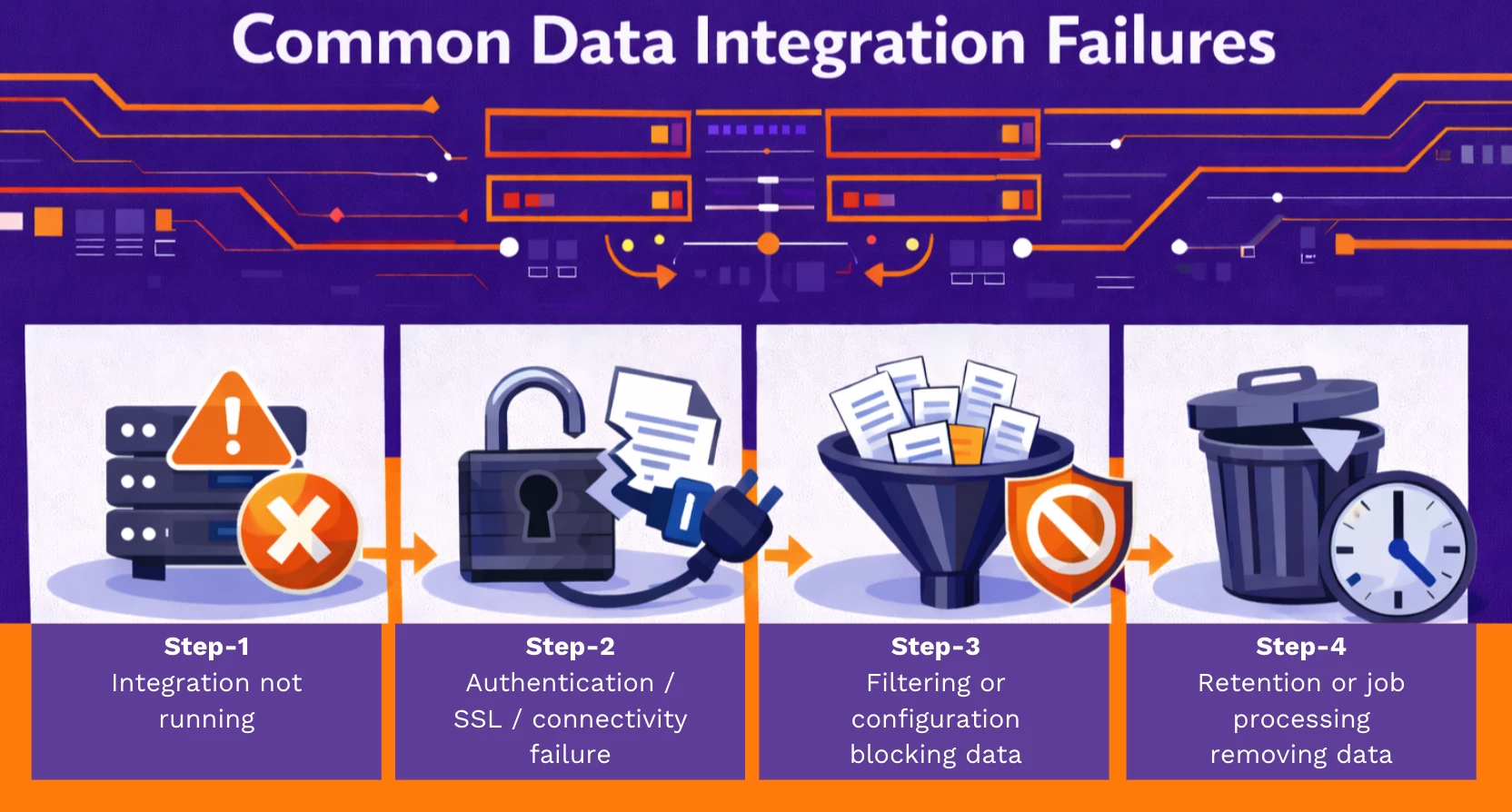
Follow the workflow below in order.
Step 1 – Confirm the Integration Is Running
📍 Navigate to: Integrations → My Integrations

🔍 Verify:
-
Integration is installed
-
Integration toggle is ON
-
Run Frequency is configured

⚙️ If the integration is disabled:
-
Enable it.
-
Wait for the next scheduled run or trigger a Manual Run.
➡️ If enabled, proceed to Step 2.
Step 2 – Review the Most Recent Run (Activity Log)
📂 Open the integration and select:
-
Activity Log
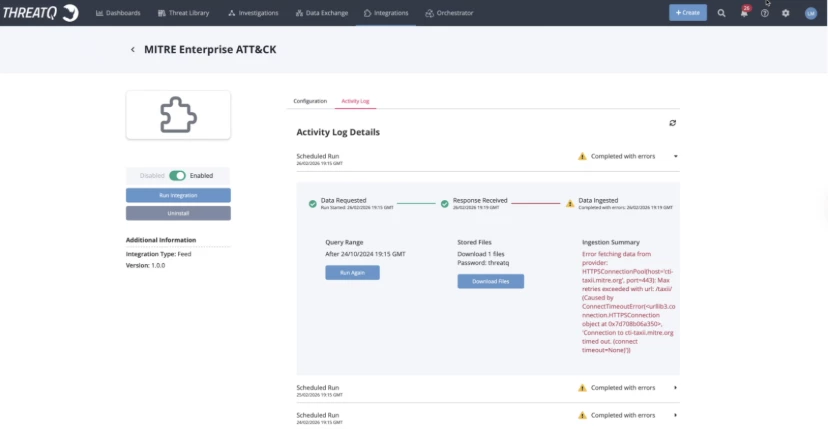
🔎 Expand the most recent run.
🎯 You are looking for one of three outcomes:
Outcome A – No Recent Runs
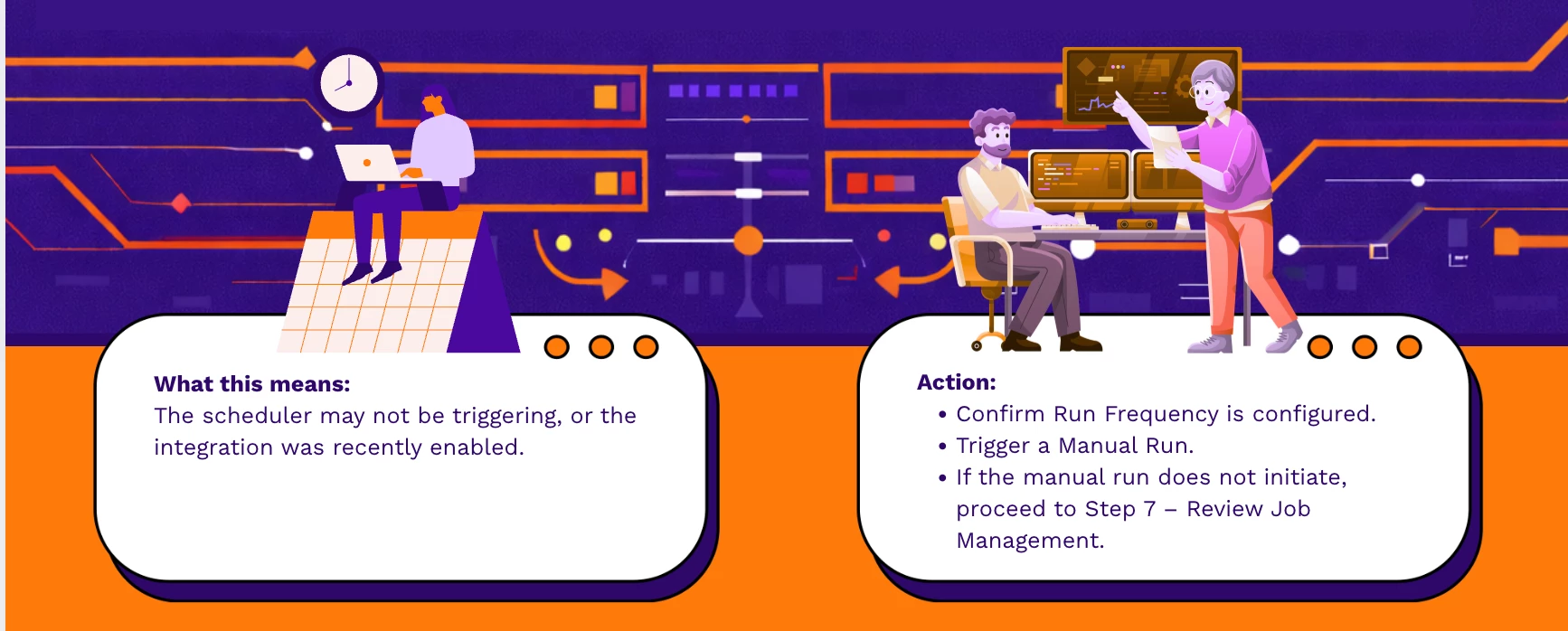
Outcome B – Run Failed with Error
🔎 Review the exact error message and match it below:
| ⚠️ Error Message | 💡 What It Indicates | ➡️ Next Step |
|---|---|---|
| Invalid API key | Credential revoked or rotated | Step 3 |
| 401 Unauthorized | Authentication failure | Step 3 |
| 403 Forbidden | Permission removed | Step 3 |
| SSL handshake failed | Certificate expired or untrusted | Step 4 |
| Failed to validate certificate | Hostname or CA mismatch | Step 4 |
| Connection refused | Port blocked or service unavailable | Step 5 |
| Timeout | Network routing or firewall issue | Step 5 |
➡️ If the error does not match the above or appears inconsistent, proceed to Step 10 – Escalation.
Outcome C – Run Successful but 0 Objects Processed
ℹ️ What this means:
-
Connectivity and authentication are working.
-
The issue is likely filtering, retention, or export criteria.
➡️ Proceed to Step 6.
Step 3 – Validate Credentials (Authentication Errors)
🔐 Use this step if you observed:
-
Invalid API key
-
401 Unauthorized
-
403 Forbidden
🛠️ Actions:
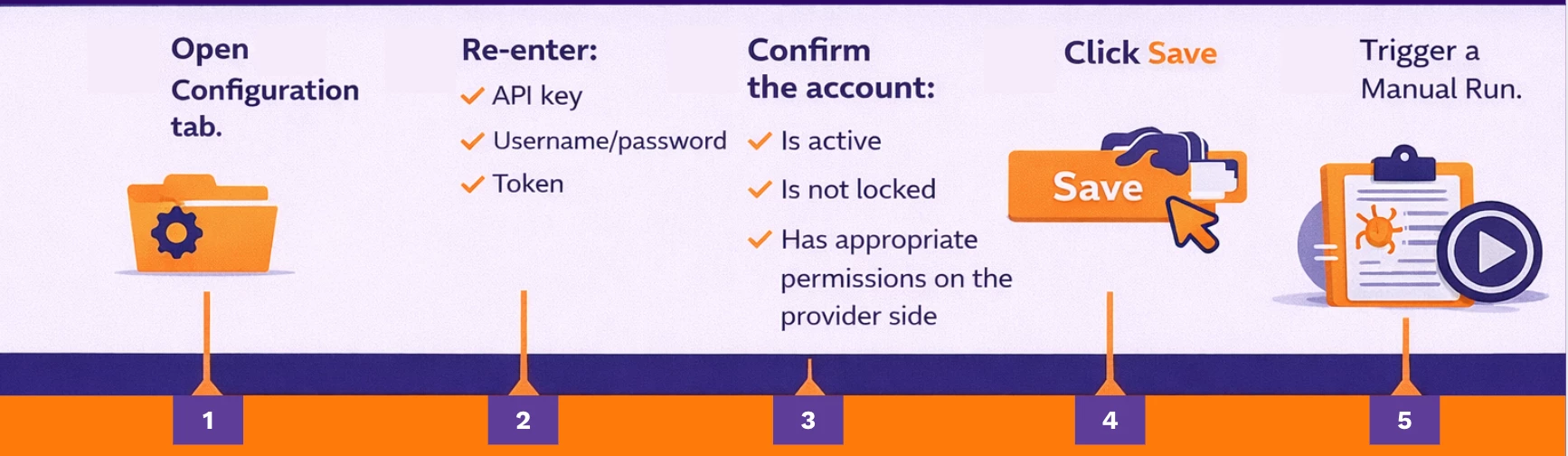
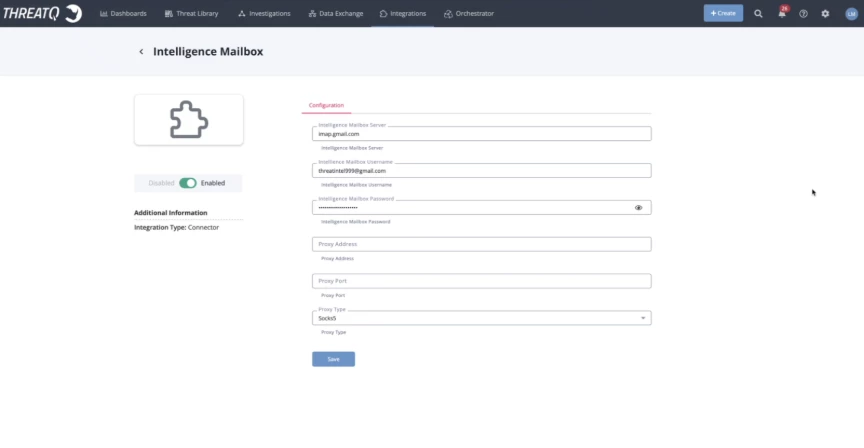
➡️ If authentication errors persist, confirm with the data provider that API access settings have not changed.
Step 4 – Validate SSL / Certificate Settings
🔒 Use this step if you observed:
-
SSL handshake failed
-
Failed to validate certificate
🔍 Verify:
-
Certificate is not expired
-
Certificate chain is trusted
-
Hostname matches CN/SAN
-
SSL verification settings (especially for TAXII feeds)
-
Proxy configuration (if required in your environment)
➡️ If the provider recently rotated certificates, update trust settings and re-test.
Step 5 – Validate Endpoint & Network Connectivity
🌐 Use this step if you observed:
-
Connection refused
-
Timeout
🔍 Confirm:
-
Correct hostname
-
Correct port
-
Correct TAXII Discovery URL
-
Correct Poll URL
-
Proxy configuration (if required)
🖥️ From the ThreatQ server, verify:
-
DNS resolution works
-
Endpoint is reachable
-
Firewall allows outbound traffic
-
Proxy routing is correct
➡️ If connectivity fails, escalate to your infrastructure or network team.
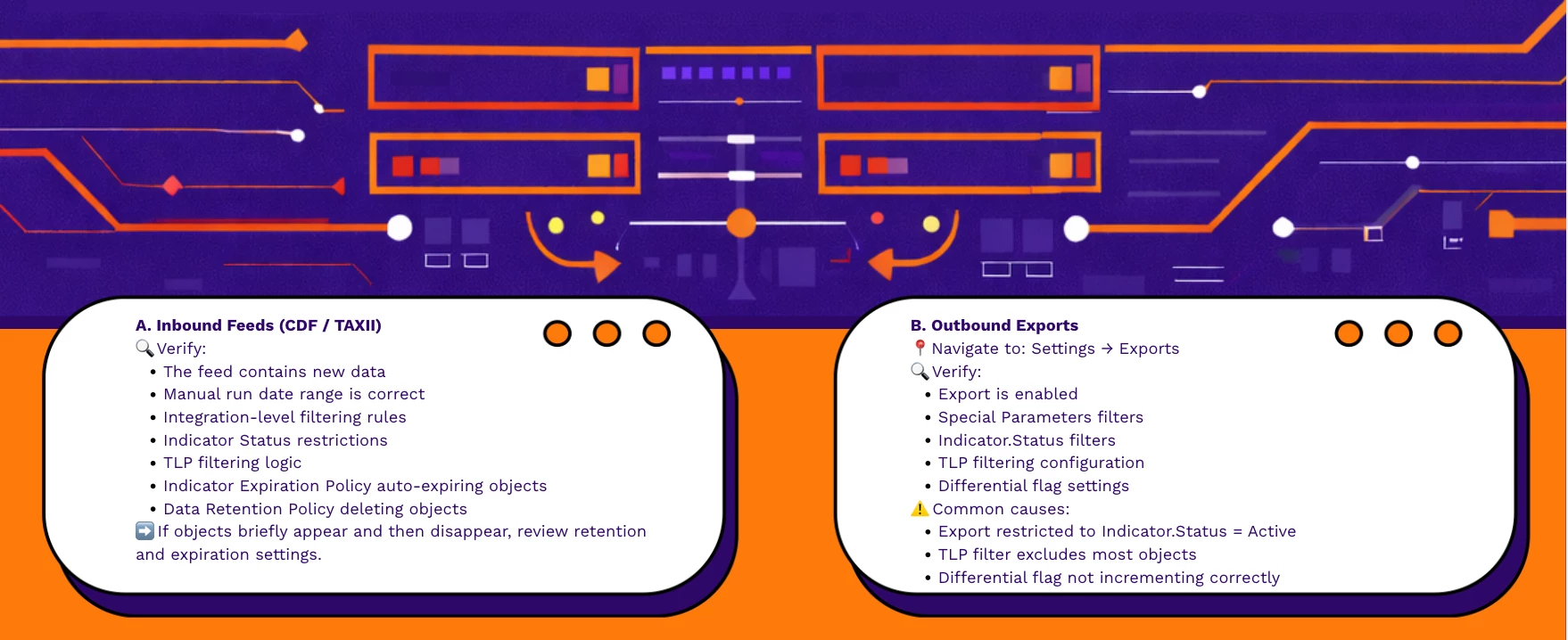
Step 6 – If Sync Succeeds but No Data Moves
This applies when the Activity Log shows Success but 0 objects processed.
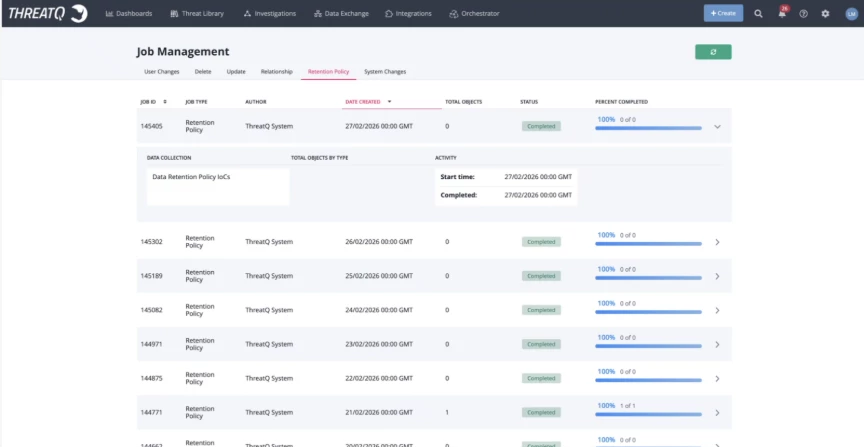
Step 7 – Review Job Management
📍 Navigate to: Settings → Job Management

🔍 Check:
-
Job status
-
Percent completed
-
Errors
-
Retention policy jobs
⚠️ If jobs are stuck or failing, ingestion or export may not complete even if the feed shows Success.
Step 8 – Check Retention & Expiration Policies
⚠️ Indicators may be:
-
Automatically expired
-
Deleted by retention policy
-
Status overridden
🔍 Verify:
-
Expiration settings
-
Retention time window
-
Policy job execution status
Step 9 – Review Feed Health Notifications
🔔 Check:
-
Email feed alerts
-
In-app notifications
-
Repeated failure warnings
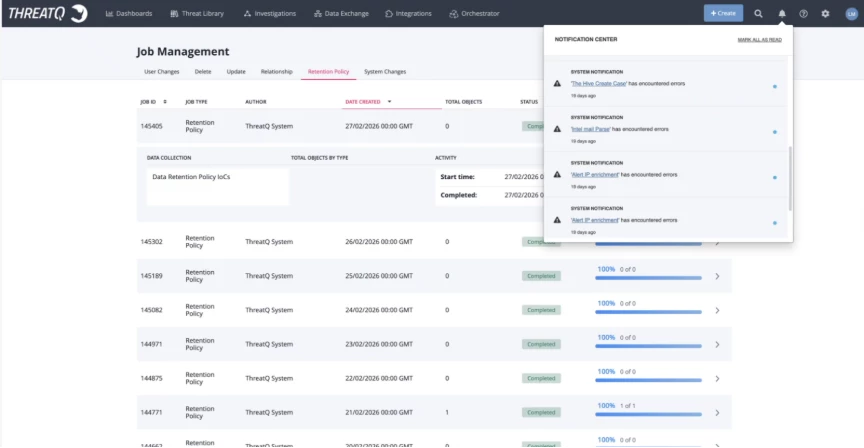
ℹ️ These alerts help identify recurring synchronization failures and pattern-based issues.
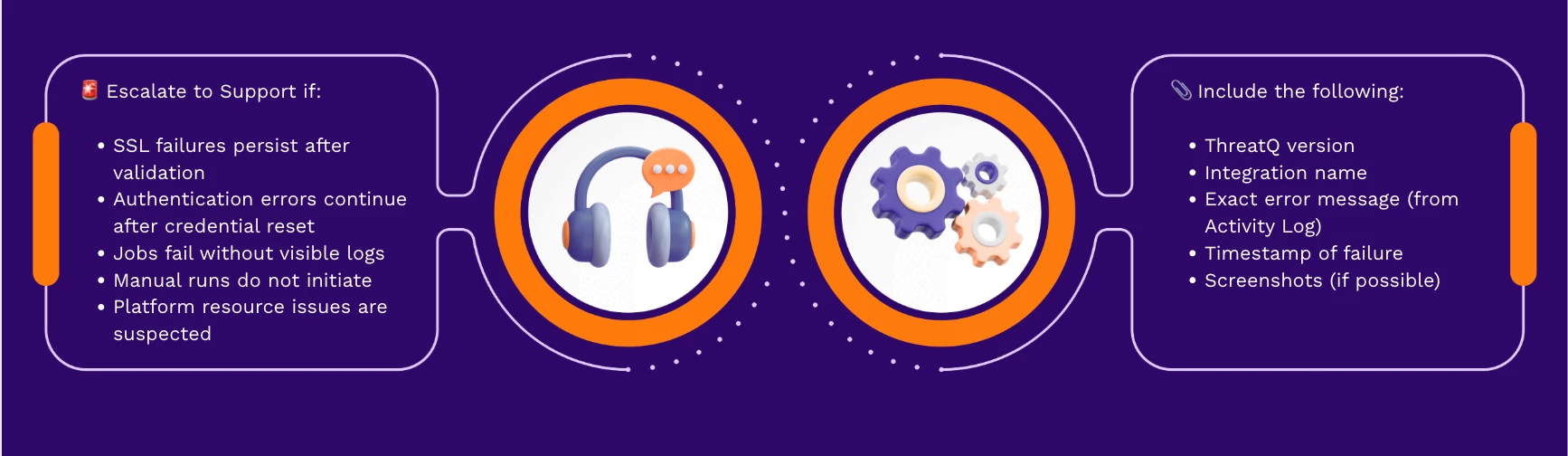
Step 10 – When to Escalate
Verification Checklist
✅ Before closing the issue, confirm:
-
Integration is enabled
-
Recent run executed
-
No authentication errors
-
No SSL errors
-
Endpoint reachable from ThreatQ server
-
Filters reviewed
-
Retention policies confirmed
-
Job Management shows no failures
🎯 If all checks pass, data should sync or export successfully.
Call to Action
If this guide resolved your issue, share feedback in the Community so we can continue improving troubleshooting resources.
If synchronization failures persist, provide exact error details and recent run output when engaging Support to accelerate resolution.