

Audience: Securonix Administrators, MSSPs, Security Operations Leaders
Product Module:
Menu → Main → Manage License or Menu → Administration → Settings → Manage License
Last Updated: March 10, 2026
KB ID: KB-20260227-uds-licensing-overview
Tags: UDS Licensing, Manage License, License Expiry, SOAR, Entitlements, Grace Period, Add-ons, Feature Availability
Table of Contents
Problem
Administrators may encounter licensing-related scenarios such as:
-
Expiry warning banners in the UI
-
License marked as expired
-
Login blocked due to license issues
-
“Feature not available” behavior
-
SOAR or storage add-ons not appearing
-
Services (ingesters, monitoring) stopping unexpectedly
Objective
This article explains:
-
How UDS licensing works
-
How to verify license status and entitlements
-
What happens during license expiry
-
How to troubleshoot missing features
-
When to engage Support
Step-Based Troubleshooting Workflow (Start Here)
Follow the steps in order and proceed based on what you observe.
Step 1 – Check for Expiry Banner
🔐 Log in and review the UI.
🔎 Do you see a license banner displayed?
| Condition | Action |
| Blue or Yellow banner | Go to Step 2 |
| Red banner | Go to Step 3 |
| No banner | Go to Step 4 |
Step 2 – Blue or Yellow Expiry Banner (Pre-Expiry Warning)
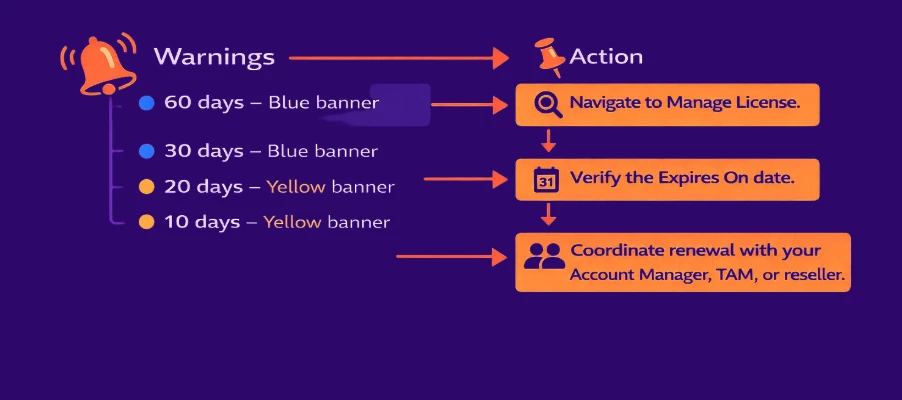
If renewal is already processed but the banner still appears:
🎫 Open a Support case and include:
- Screenshot of the banner
- Screenshot of the Manage License page
If the license shows expired despite only a blue/yellow banner:
➡️ Proceed to Step 3.
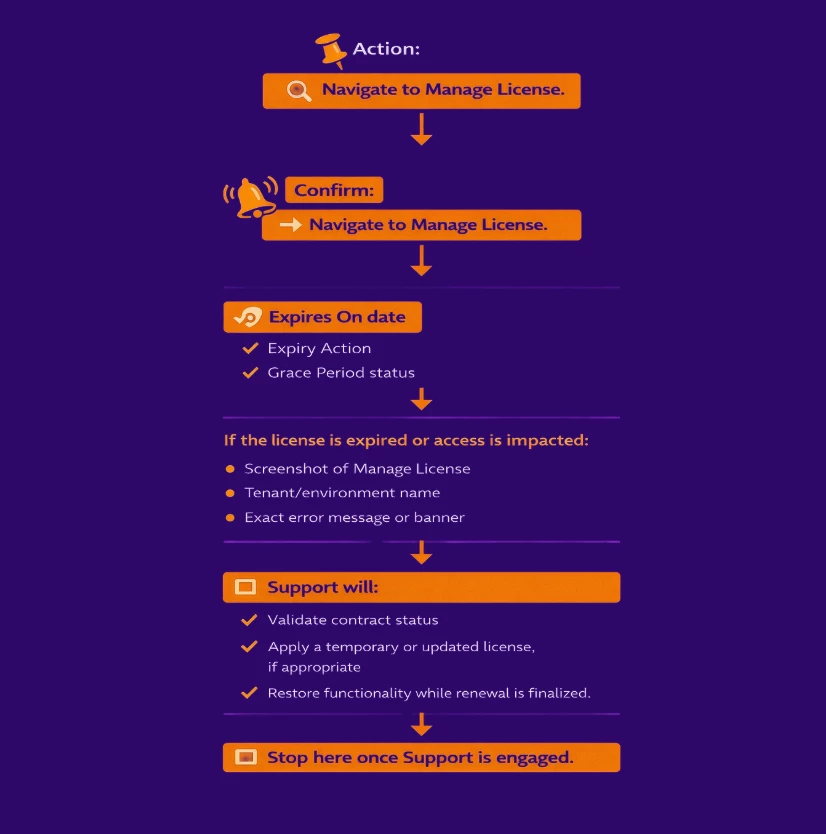
Step 3 – Red Banner or License Expired
🔴 A red banner indicates the license is expired.
⚠️ Possible Impact:
Depending on the environment state, you may observe:
- Login blocked
- Application inaccessible
- “License not installed” message
- Services (ingesters, monitoring) stopped
Step 4 – No Expiry Banner, but Feature Missing
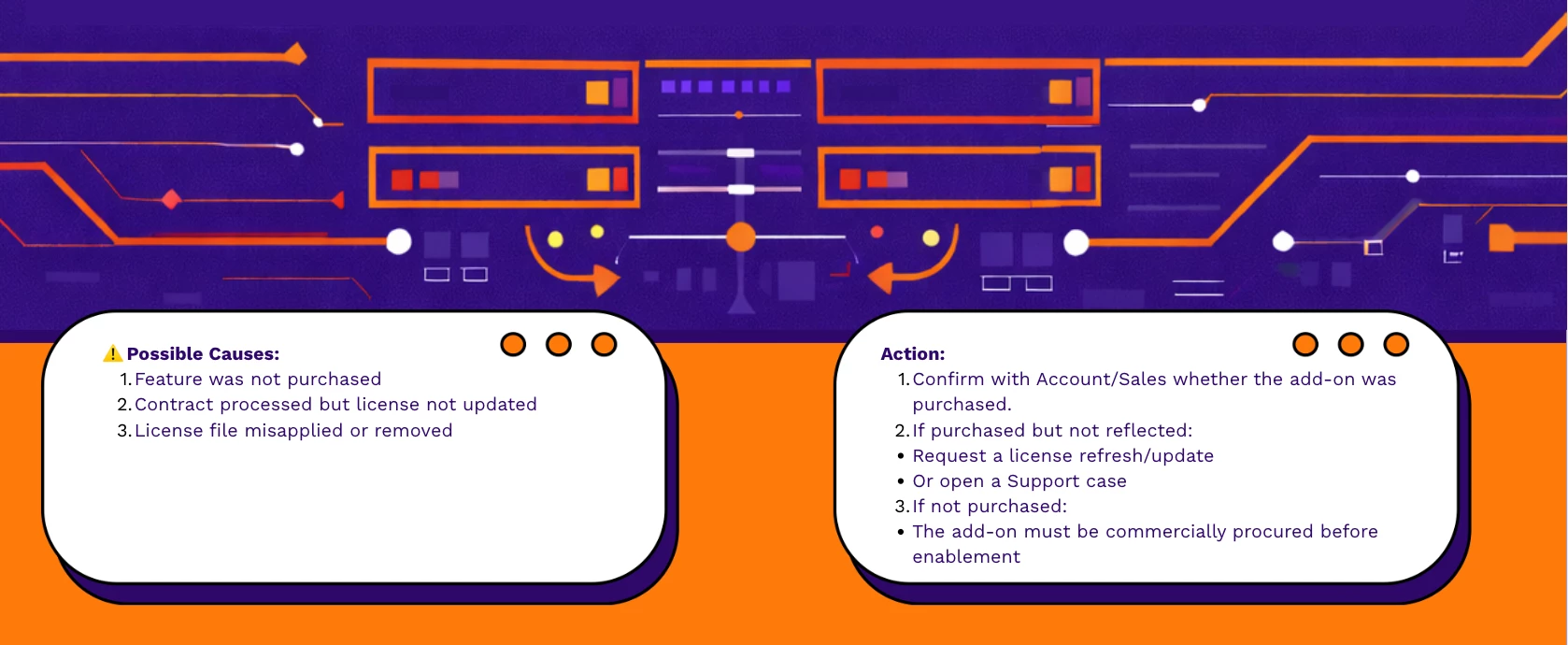
🔎 If no expiry banner is present but a feature (such as SOAR) is unavailable, verify entitlement.
Step 4.1 – Verify Feature Entitlement
🔎 Navigate to: Menu → Main → Manage License or Menu → Administration → Settings → Manage License
📋 Check the following:
-
Product Package
-
Add-ons (SOAR, NxLog, storage, etc.)
-
Licensed limits
-
Expiry status
✅ Does the feature appear in Manage License?
| Condition | Action |
| Yes – Feature is listed | Contact Support (possible configuration issue) |
| No – Feature not listed | Go to Step 5 |
| License shows expired | Return to Step 3 |
Step 5 – Feature Not Listed in License
⚠️ If the feature does not appear in Manage License:
How UDS Licensing Works (Reference)
🏷️ UDS uses a centralized licensing model with defined tiers such as:
- Basic
- Standard
- Advanced
- All In
- ELA
➕ Optional add-ons may include:
- UEBA
- NxLog
- SOAR (Full or Lite)
- Additional storage
- Other entitlements
📄 Each environment license defines:
- Product Package (tier)
- Licensed GB/day
- Entities
- Users
- Resources
- Events per Day
- Disk space
- Expiry date
- Grace period
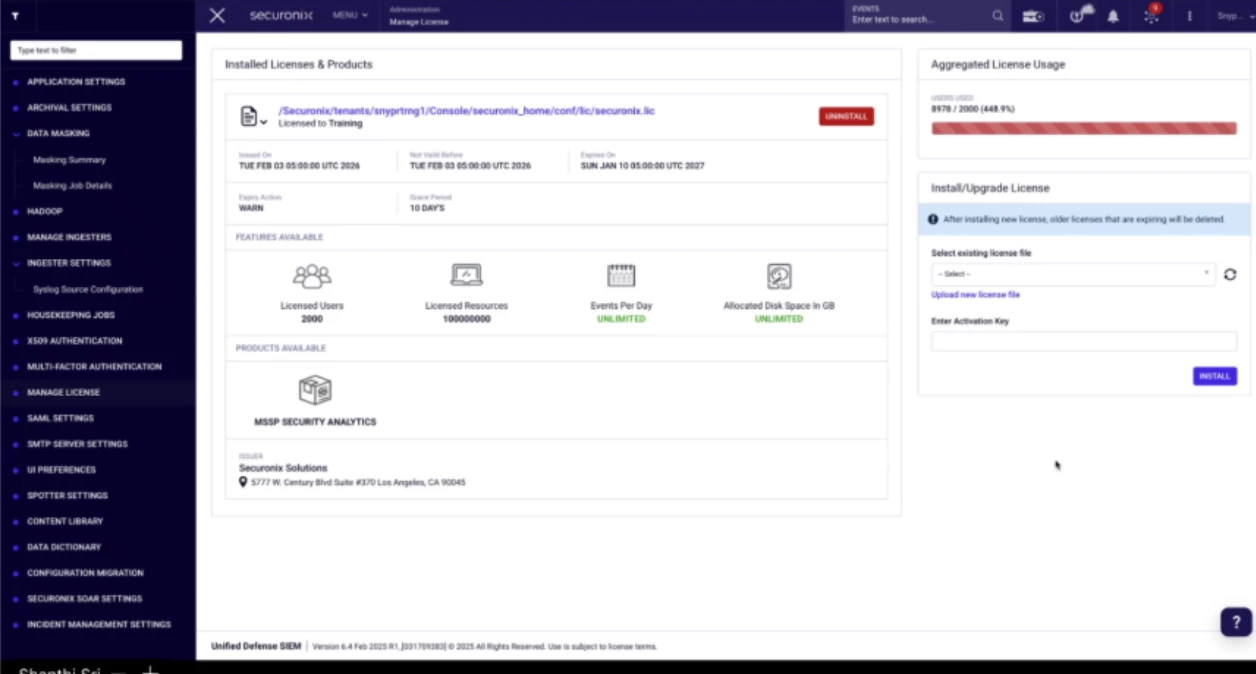
📄 All license details are visible in the Manage License screen.
⚠️ Important Note on Banner Accuracy
If you believe an expiry banner, expiration date, or entitlement display is incorrect, contact Support and include:
- 📸 Screenshot of the message
- 📸 Screenshot of the Manage License page
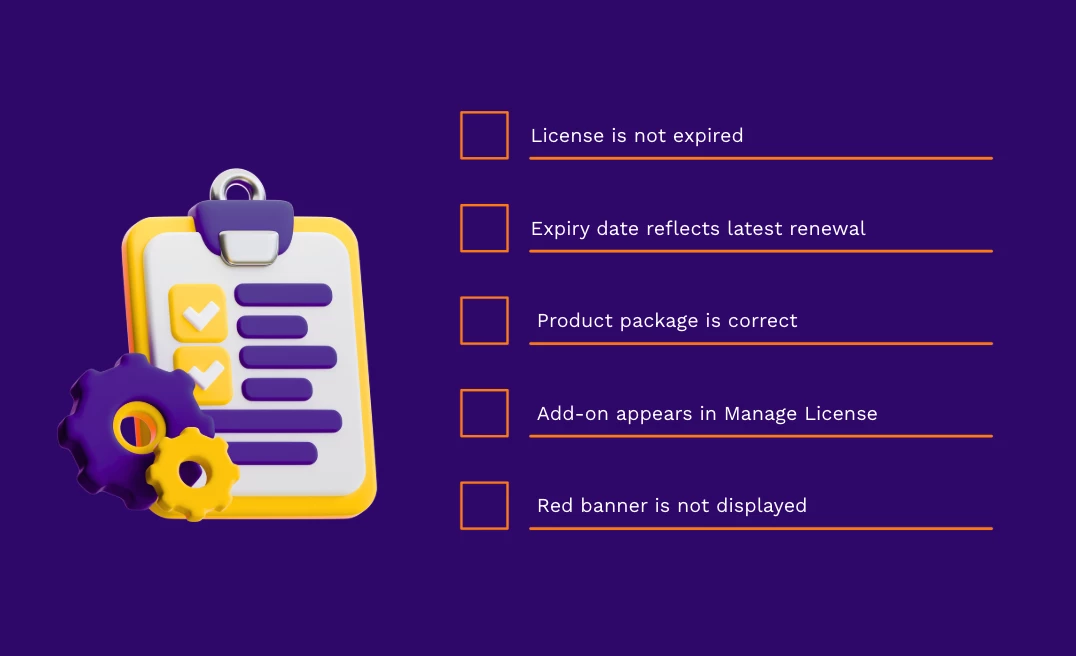
✅ Verification Checklist
When to Contact Support Immediately
Contact Support without delay if:
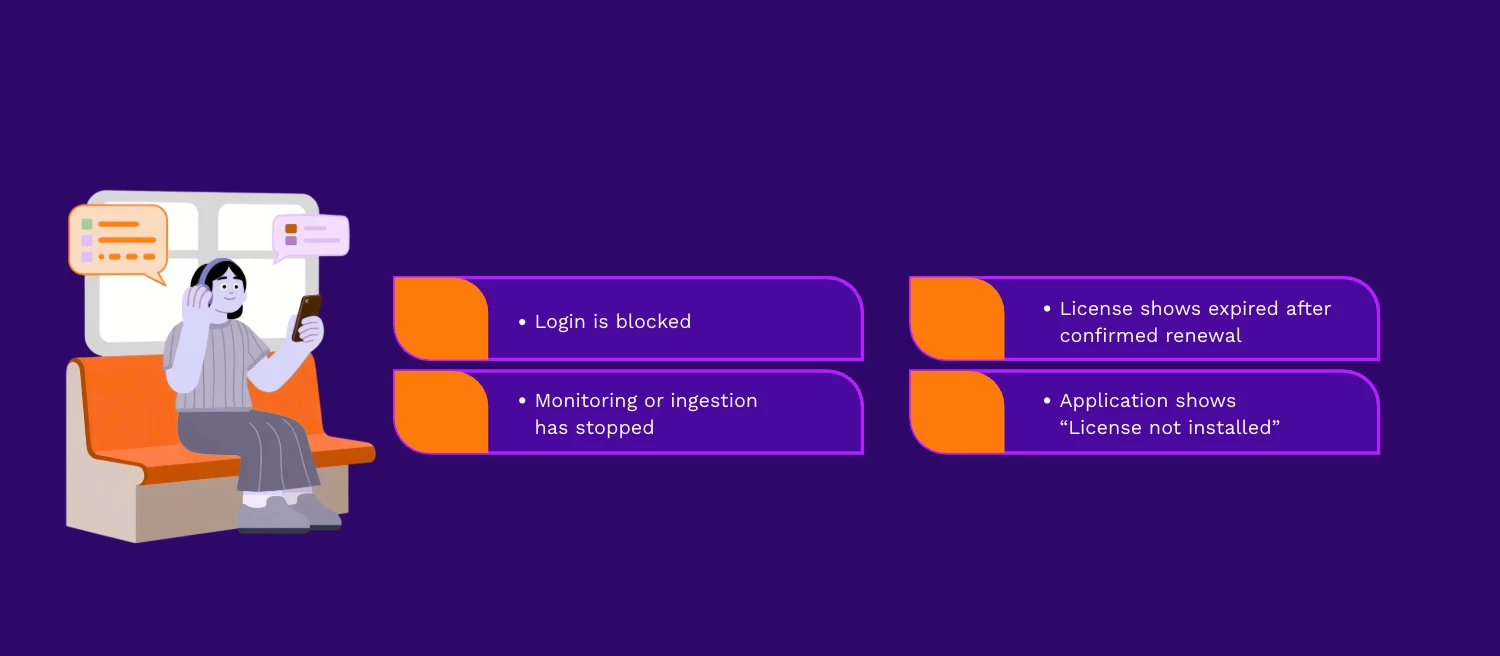
Include full screenshots and business impact details.
Need Additional Help?
If you have completed these checks and are still experiencing issues, open a Support case with the collected details or comment below with your scenario (excluding sensitive configuration details).