
Canary Files
Canary files are decoy documents placed in strategic locations to detect unauthorized file access, data exfiltration attempts, or ransomware activity. Besides creating these files manually in your network, Blue Teams can use free online tools like Thinkst Canary Tokens to even get an email when the token is opened or used - with the offenders IP address! How cool is that!? We’ll go over more techniques in the rest of this series. For now, here’s the strategy and some ideas for building your Canary Files manually:
File Naming Strategy
Create files with names that attract attackers:
passwords.xlsx
credentials.txt
employee_ssn.csv
financial_records_2024.xlsx
admin_passwords.docx
network_diagram.pdf
vpn_credentials.txt
bitcoin_wallet.txt
customer_database_backup.sql
hr_salaries_confidential.xlsx
File Placement Locations
| Location | Purpose |
|---|---|
C:\Users\Administrator\Desktop\ | Attracts attackers with admin access |
C:\Users\Public\Documents\ | Visible to all users |
\\server\share\IT\ | Network share commonly targeted |
C:\inetpub\wwwroot\backup\ | Web server sensitive area |
C:\Program Files\ | Unusual location, detects deep enumeration |
| User home directories | Detects lateral movement |
Creating Canary Files
# Define canary file locations$CanaryLocations = @( "C:\Users\Public\Documents\passwords.xlsx", "C:\Users\Public\Documents\admin_credentials.txt", "C:\Users\Administrator\Desktop\network_diagram.pdf", "C:\Shares\IT\vpn_credentials.txt")# Create convincing fake content$FakeContent = @"=== CONFIDENTIAL - DO NOT DISTRIBUTE ===VPN CredentialsServer: vpn.company.comUsername: adminPassword: [CONTACT IT SECURITY]Last Updated: 2024-01-15"@foreach ($Path in $CanaryLocations) { # Ensure directory exists $Directory = Split-Path -Path $Path -Parent if (!(Test-Path $Directory)) { New-Item -ItemType Directory -Path $Directory -Force } # Create the canary file Set-Content -Path $Path -Value $FakeContent Write-Host "Created canary file: $Path"}Configuring File Auditing (SACL)
# Function to set SACL on a filefunction Set-CanaryFileAudit { param( [string]$FilePath ) # Get current ACL $ACL = Get-Acl -Path $FilePath # Create audit rule for Everyone - Read access $AuditRule = New-Object System.Security.AccessControl.FileSystemAuditRule( "Everyone", "Read, ReadData", "Success, Failure" ) # Add the audit rule $ACL.AddAuditRule($AuditRule) # Apply the ACL Set-Acl -Path $FilePath -AclObject $ACL Write-Host "Audit rule set for: $FilePath"}# Apply to all canary filesforeach ($Path in $CanaryLocations) { if (Test-Path $Path) { Set-CanaryFileAudit -FilePath $Path }}GUI Method for File SACL
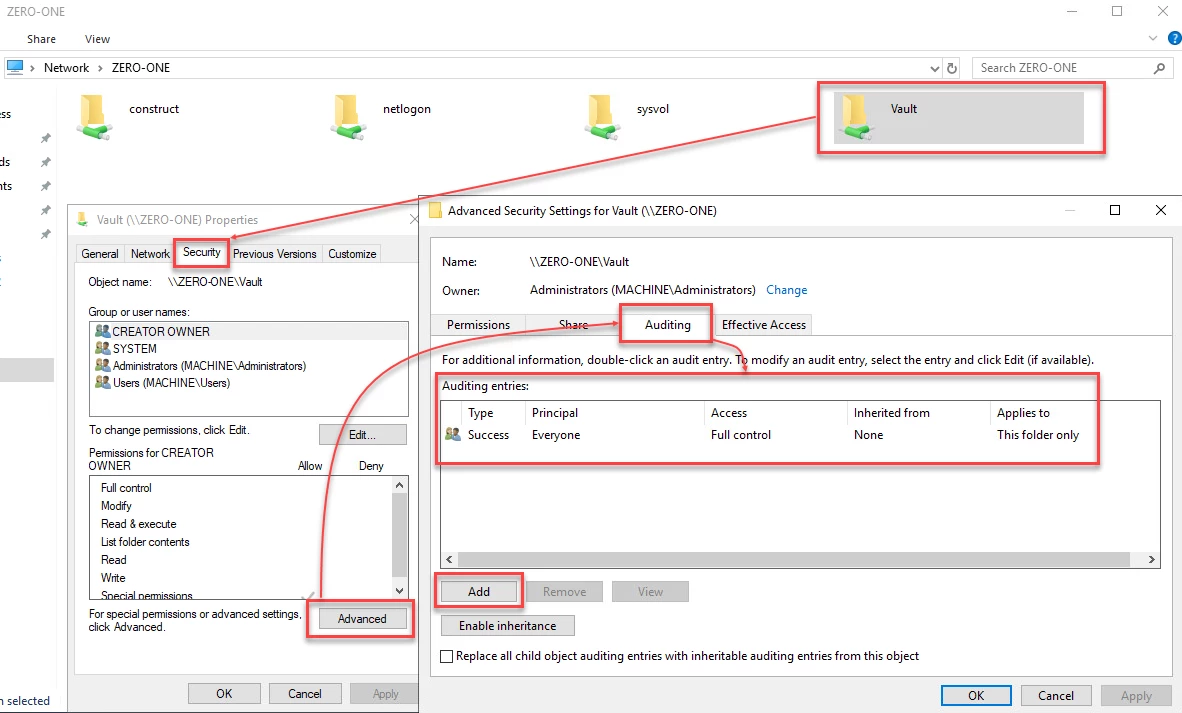
- Right-click the canary file > Properties
- Go to Security > Advanced > Auditing
- Click Add
- Configure:
- Principal: Everyone
- Type: Success and Failure
- Basic Permissions: Read & execute, Read
- Click OK and apply