


Audience: ThreatQ Administrators, Support Engineers, Hosted Operations Engineers
Product Module: ThreatQ → System Configurations → AI (Threat Research Agent)
Last Updated: August 5, 2026
KB ID: KB-20260805-ai-llm-settings-missing
Tags: ThreatQ, Threat Research Agent, AI, LLM, Agentic Assistance, BYOM, System Configurations, Licensing, SaaS, On-Premises
Table of Contents
Problem
After installing or upgrading ThreatQ, the AI or LLM Settings page is not visible under System Configurations.
Without this page, administrators cannot configure the Threat Research Agent (TRA), connect a supported Large Language Model (LLM), or use AI-powered capabilities within ThreatQ.
In most cases, this occurs because one or more prerequisites—such as the ThreatQ version, license entitlement, user permissions, or backend services—have not yet been enabled.
Objective
This article explains how to:
- Understand the Threat Research Agent feature.
- Verify that your environment supports the feature.
- Identify why the AI / LLM Settings page is missing.
- Enable the feature in Hosted (SaaS) and On-Premises deployments.
- Verify that the feature is working correctly.
- Troubleshoot common issues before contacting Support.
About the Threat Research Agent
The Threat Research Agent (TRA) is an AI-powered capability introduced in ThreatQ 6.18 that enables analysts to perform threat research using natural language.
ThreatQ uses a Bring Your Own Model (BYOM) architecture, allowing organizations to securely integrate a supported external Large Language Model (LLM) rather than using a proprietary AI model.
Because this feature requires additional licensing, backend services, and customer-specific configuration, it is not enabled automatically for every ThreatQ deployment.
Before You Begin
Verify that your environment meets the following requirements.
| Requirement | Details |
|---|---|
| ThreatQ Version | 6.18 or later |
| License | Agentic Assistance entitlement |
| User Role | Maintainer |
| Deployment | Hosted (SaaS) or On-Premises |
| AI Provider | Supported BYOM provider |
| AI Terms & Conditions | Accepted during initial configuration |
If any prerequisite is missing, the AI / LLM Settings page may not appear.
Why the AI / LLM Settings Page Is Missing
The AI configuration page is displayed only after all required prerequisites have been satisfied.
The following sections describe the most common causes and their resolutions.
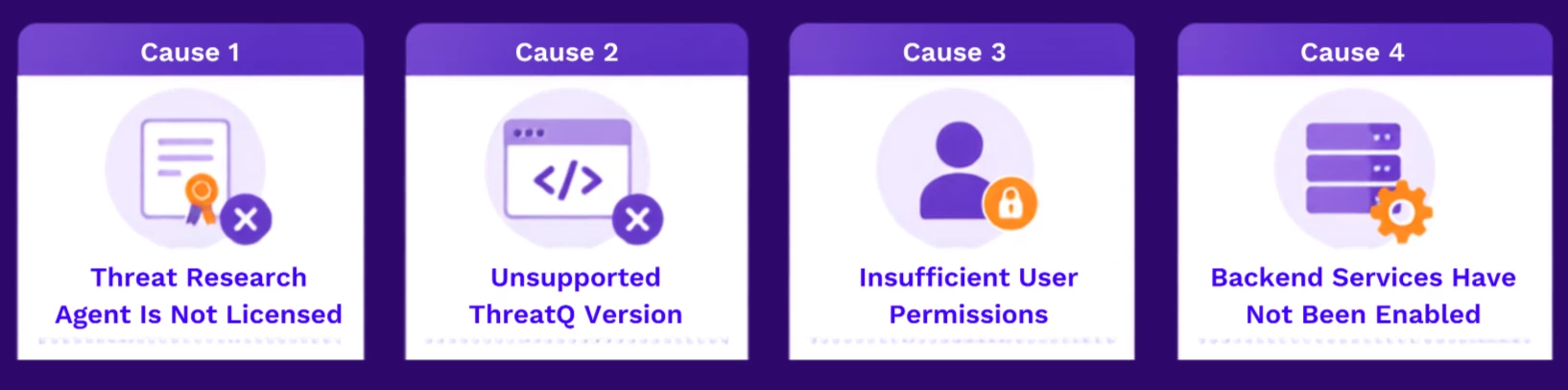
Cause 1: Threat Research Agent Is Not Licensed
The Threat Research Agent requires the Agentic Assistance license entitlement.
If this entitlement is not installed, ThreatQ hides the AI configuration page.
Verify:
- Navigate to Settings → About.
- Review the installed license entitlements.
Alternatively, verify the license from the command line:
threatq:licenseConfirm that the Agentic Assistance entitlement is present.
Resolution:
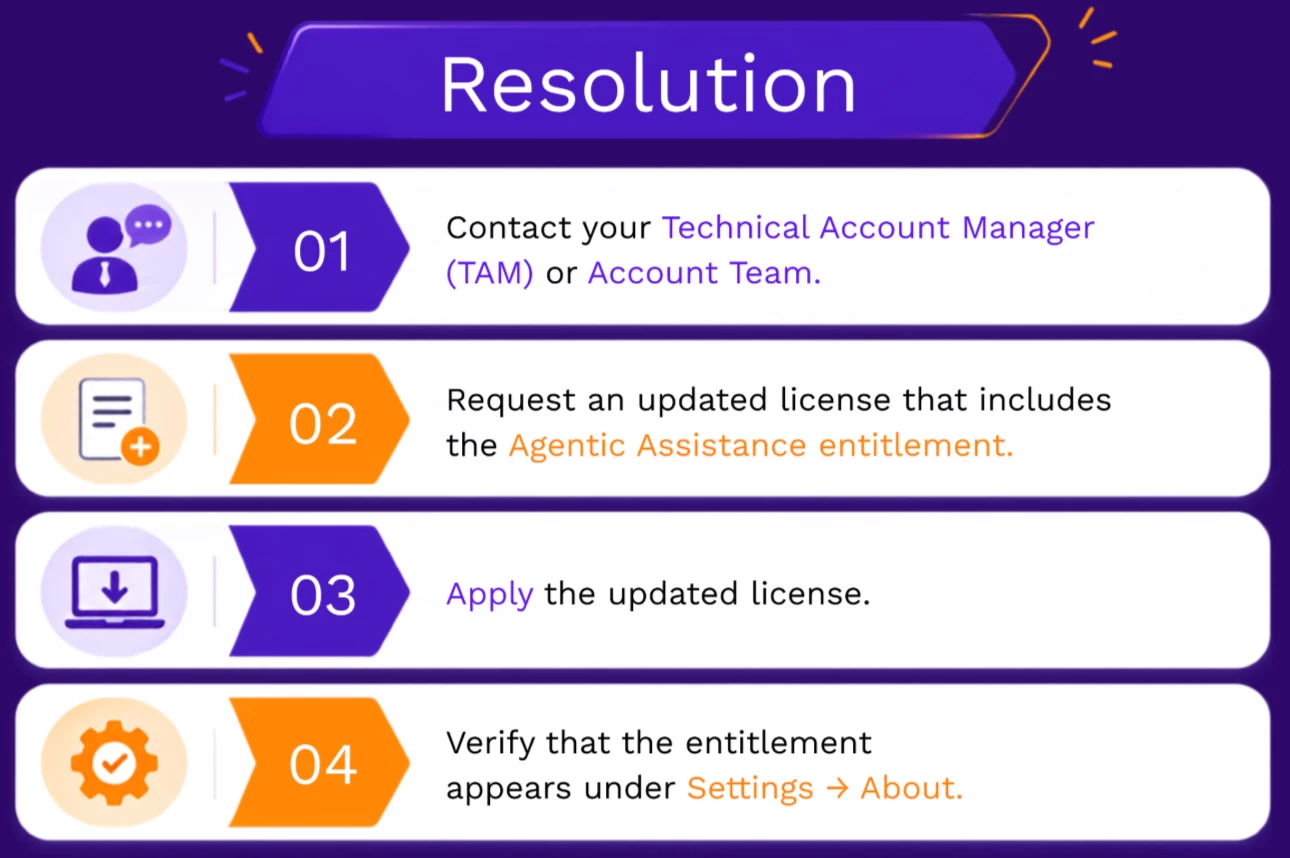
Contact Securonix Support to request for Licence.
Cause 2: Unsupported ThreatQ Version
The Threat Research Agent is available beginning with ThreatQ 6.18.
Earlier releases do not include the required services or configuration pages.
Verify:
Navigate to:
Settings → About
Confirm the installed ThreatQ version.

Cause 3: Insufficient User Permissions
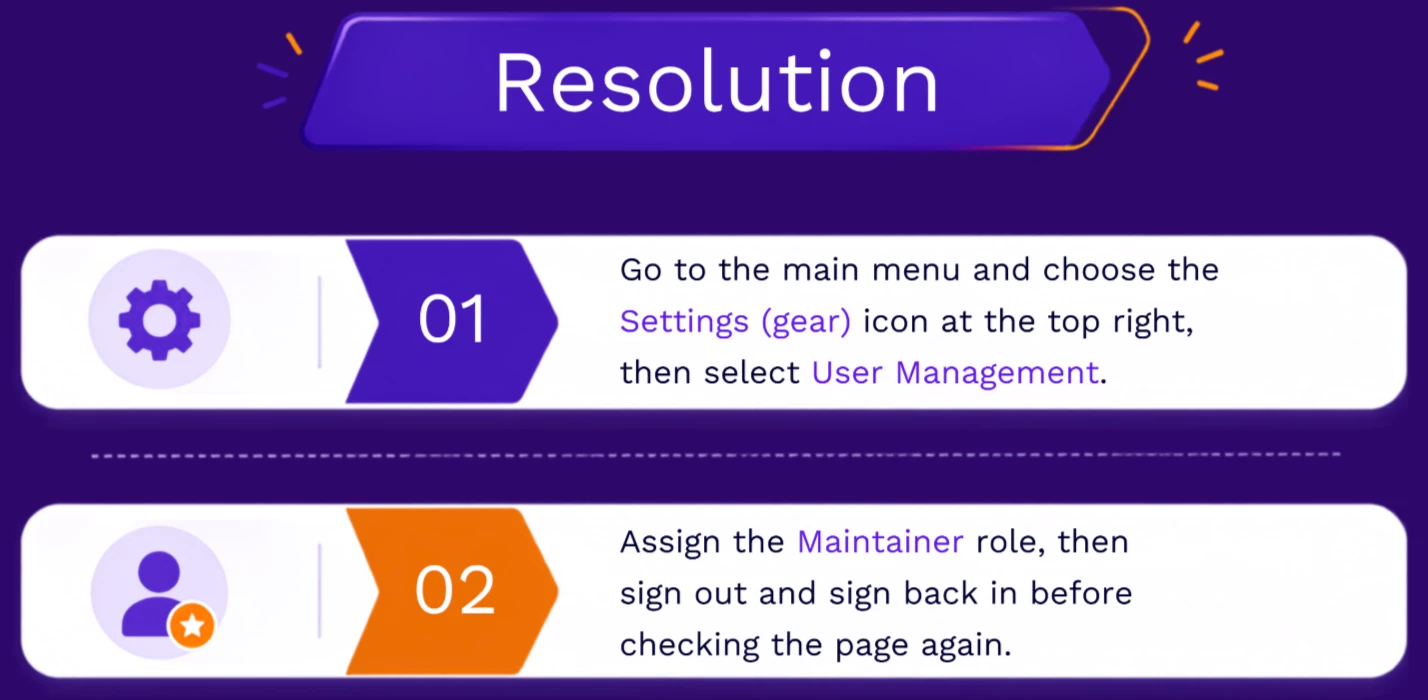
Only users assigned the Maintainer role can access the AI configuration page.
Verify:
Review the roles assigned to your user account.
Cause 4: Backend Services Have Not Been Enabled
This scenario primarily applies to Hosted (SaaS) deployments.
Even with the correct version, license, and permissions, the AI page remains hidden until the required backend services have been enabled.
Verify:
Confirm all of the following:
-
ThreatQ version is 6.18 or later
-
Agentic Assistance entitlement is installed
-
You are logged in as a Maintainer
If all conditions are met and the page is still missing, backend enablement is likely incomplete.
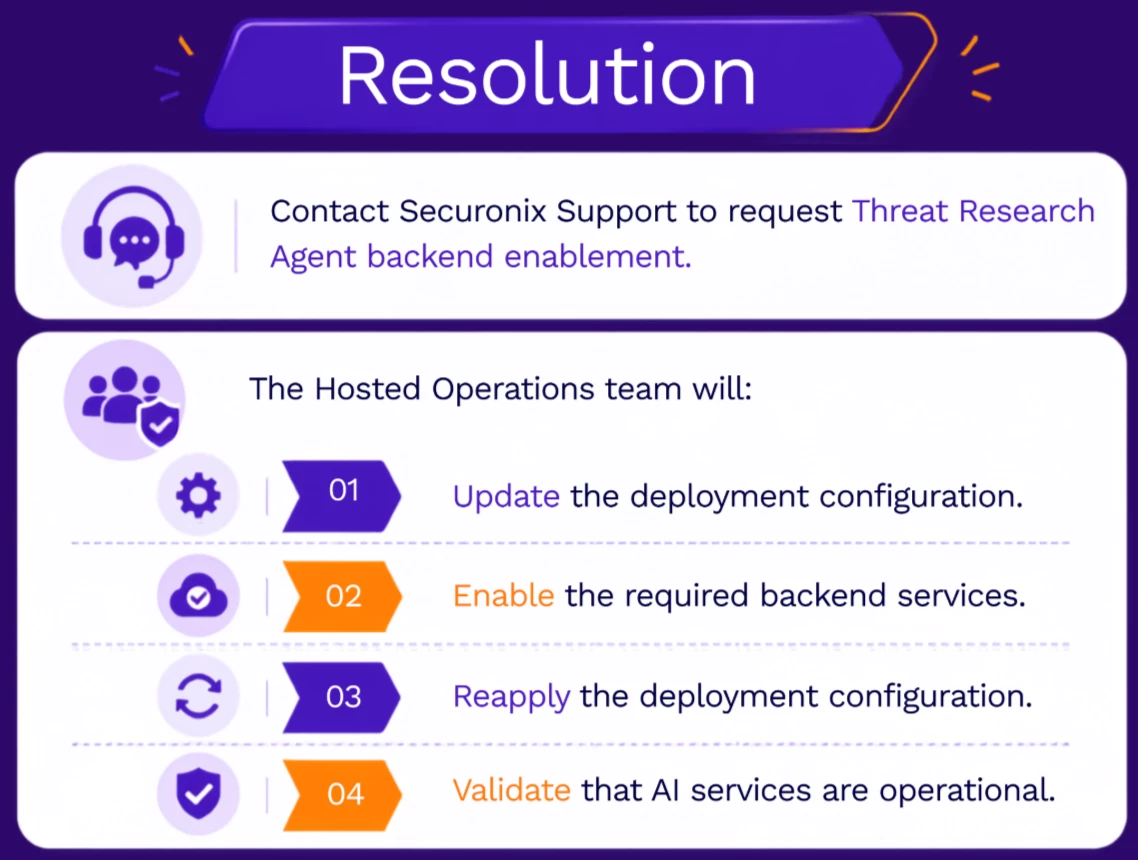
Important: Hosted backend enablement requires a deployment reconfiguration using tqadmin reapply. A 30-minute maintenance window is typically scheduled before implementation.
Enable the Threat Research Agent
The enablement process differs depending on your deployment type.
Hosted (SaaS)
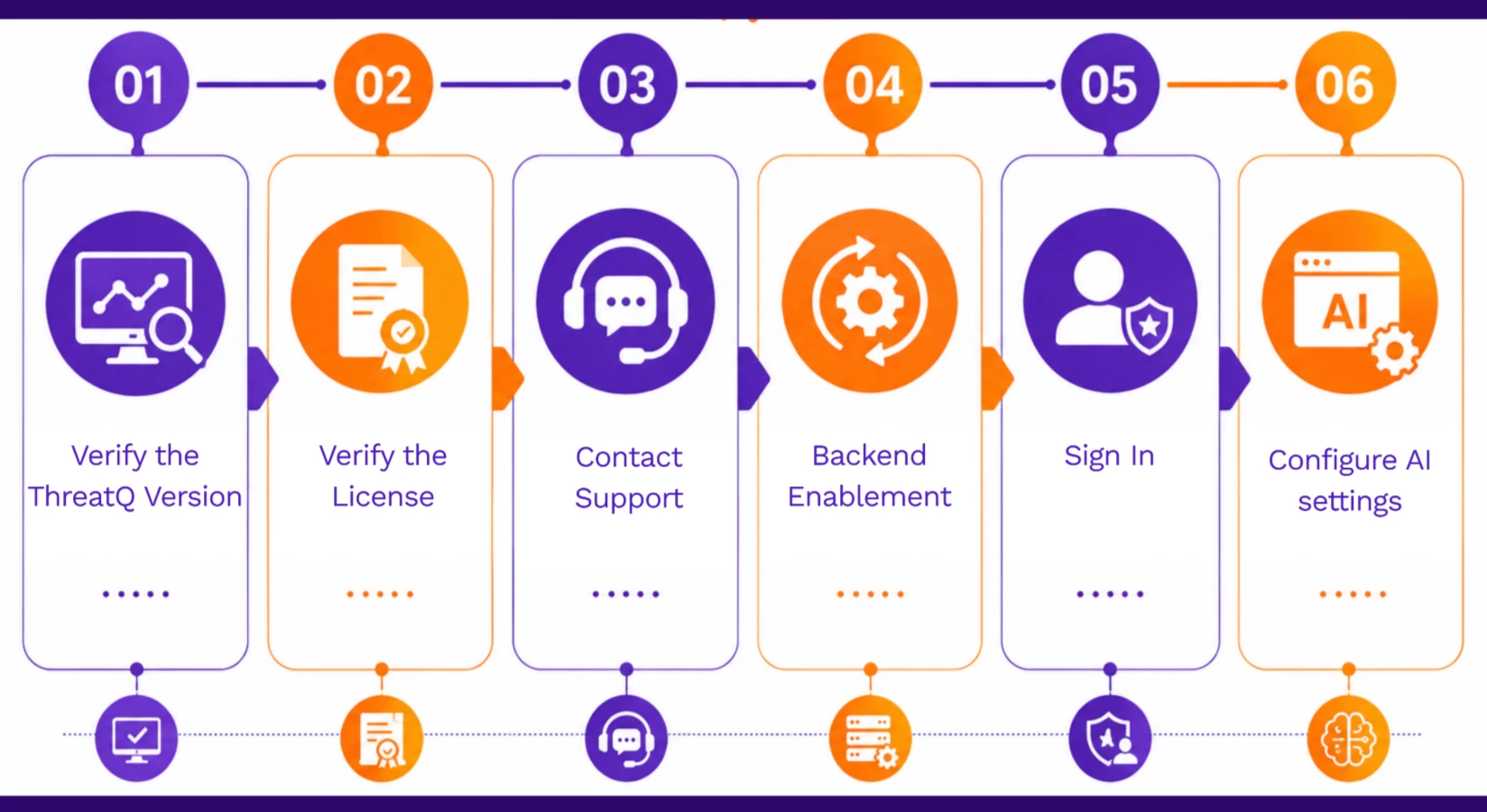
Step 1 — Verify the ThreatQ Version
Confirm that the deployment is running ThreatQ 6.18 or later.
Step 2 — Verify the License
Ensure the installed license includes the Agentic Assistance entitlement.
Step 3 — Contact Support
Open a Support case requesting Threat Research Agent backend enablement for your tenant.
Step 4 — Backend Enablement
The Hosted Operations team will:
- Update deployment configuration.
- Enable Threat Research Agent backend services.
- Reapply the deployment.
Backend changes are applied using:
tqadmin reapplyImportant: A maintenance window is typically required before backend enablement.
Step 5 — Sign In
Sign in using a user account with the Maintainer role.
Step 6 — Configure AI Settings
Navigate to:
System Configurations → AI
The first time you open the page:
- Review and accept the AI Terms and Conditions.
- Configure a supported BYOM provider.
- Enter the provider endpoint.
- Enter API credentials.
- Configure the desired model.
- Save the configuration.
On-Premises
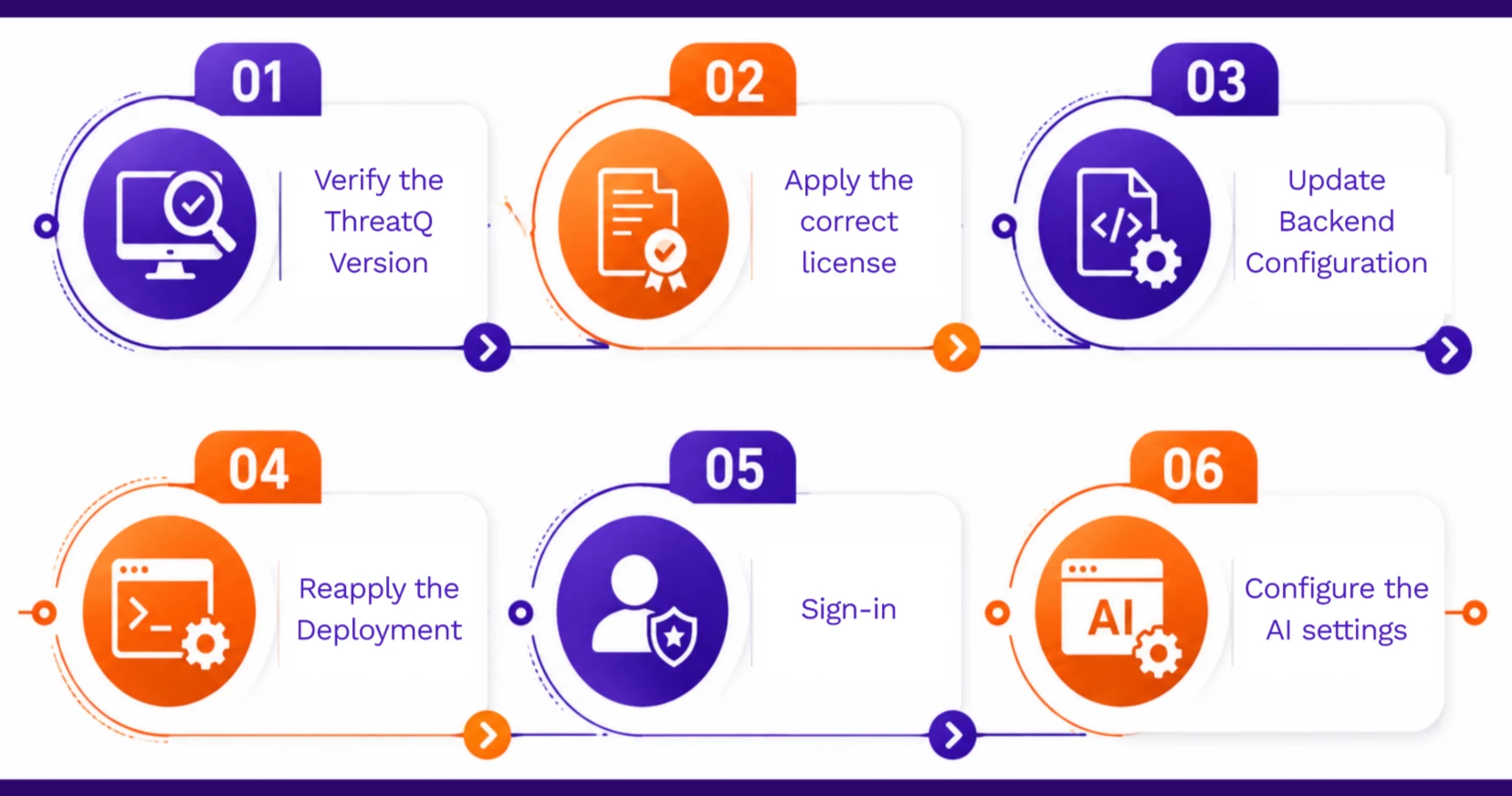
Step 1 — Verify the ThreatQ Version
Confirm the deployment is running ThreatQ 6.18 or later.
Step 2 — Apply the Correct License
Install a license containing the Agentic Assistance entitlement.
Step 3 — Update Backend Configuration
Edit the deployment configuration file:
/opt/threatq/threatq.tfvarsConfigure the required Threat Research Agent settings.
Step 4 — Reapply the Deployment
Run:
sudo /usr/local/bin/tqadmin reapplyThis provisions and restarts the required backend components.
Step 5 — Sign In
Log in with a Maintainer account.
Step 6 — Configure AI Settings
Navigate to:
System Configurations → AI
On first access:
- Accept the AI Terms and Conditions.
- Configure the supported BYOM provider.
- Specify the provider endpoint.
- Enter API credentials.
- Configure the desired model.
- Save the configuration.
Verification Checklist
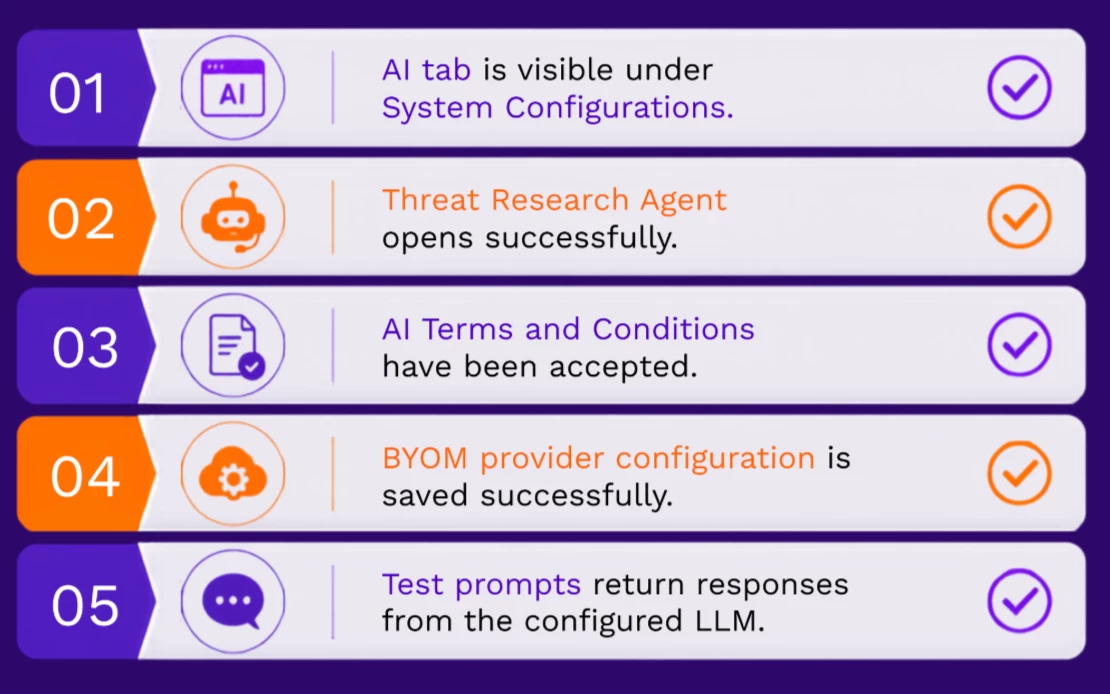
Example prompts:
- Analyze an indicator
- Summarize threat intelligence
- Query an IOC
Successful responses confirm connectivity with the configured LLM provider.
Troubleshooting
| Check | Expected Result |
|---|---|
| ThreatQ Version | 6.18 or later |
| License | Agentic Assistance entitlement installed |
| User Role | Maintainer |
| Backend Services | Enabled |
| Deployment Configuration | Successfully reapplied |
Scenario 1: AI Page Missing After Upgrade
Possible Cause
The deployment was upgraded without installing the required license entitlement.
Resolution
Install a license containing the Agentic Assistance entitlement.
Scenario 2: License Installed but AI Page Still Missing
Possible Cause
Backend services have not been enabled.
Resolution
-
Hosted: Contact Securonix Support.
-
On-Premises: Verify backend configuration and rerun:
sudo /usr/local/bin/tqadmin reapplyScenario 3: AI Page Visible for Some Users Only
Possible Cause
Affected users do not have the Maintainer role.
Resolution
Assign the required role and have the user sign in again.
Scenario 4: Unable to Connect to the LLM Provider
Possible Causes
-
Invalid API credentials
-
Incorrect endpoint URL
-
Firewall or proxy restrictions
-
DNS resolution issues
Resolution
Verify:
-
API credentials
-
Provider endpoint
-
Network connectivity
-
Proxy configuration
If necessary, test connectivity directly from the ThreatQ server.
Logs and Diagnostics
Host Logs
Review:
/var/log/threatq/php-fpm.log
/var/log/threatq/api-schedule-run.log
/var/log/threatq/nginx.log
Kubernetes Logs
Review the relevant backend service logs:
kubectl logs deployment/api -c php-fpm
kubectl logs deployment/api-schedule-run
kubectl logs <agent-pod-name>
kubectl logs <mcp-pod-name>
These logs can help identify startup failures, licensing issues, or connectivity problems.
When to Contact Support
Contact Securonix Support if:
- ThreatQ is running 6.18 or later.
- The Agentic Assistance entitlement is installed.
- The user has the Maintainer role.
- The AI / LLM Settings page is still missing.
Also contact Support if:
- Hosted backend enablement has not been completed.
- Backend services fail after configuration changes.
- The deployment remains unhealthy after running
tqadmin reapply. - The Threat Research Agent cannot communicate with the configured LLM provider.
Summary
The AI / LLM Settings page becomes available only after all required prerequisites have been satisfied.
To successfully enable the Threat Research Agent:
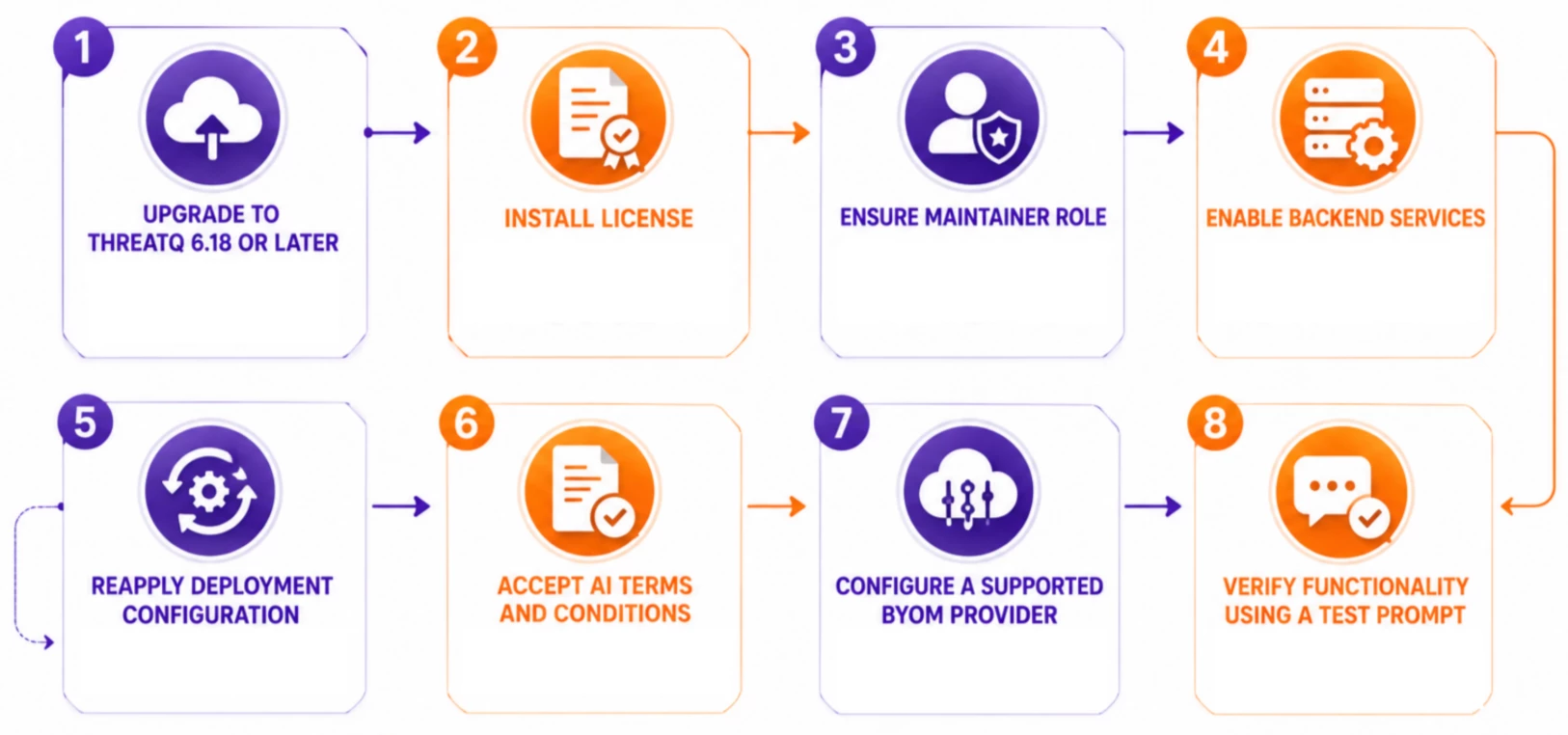
Following these steps ensures that the Threat Research Agent is correctly enabled and ready for use within ThreatQ.
Need additional assistance? If this article did not resolve your issue, open a Securonix Support case and include your ThreatQ version, license details, deployment type, and relevant log excerpts.