

Audience: Securonix Administrators, Data Onboarding Teams, SOC Engineers, and MSSPs
Product Module: Add Data → Activity / Activity Import Connectors
Tags: Activity Import Connector, Data Collection, Missing Events, Collection Window, Connector Checkpoint, Data Onboarding
Overview
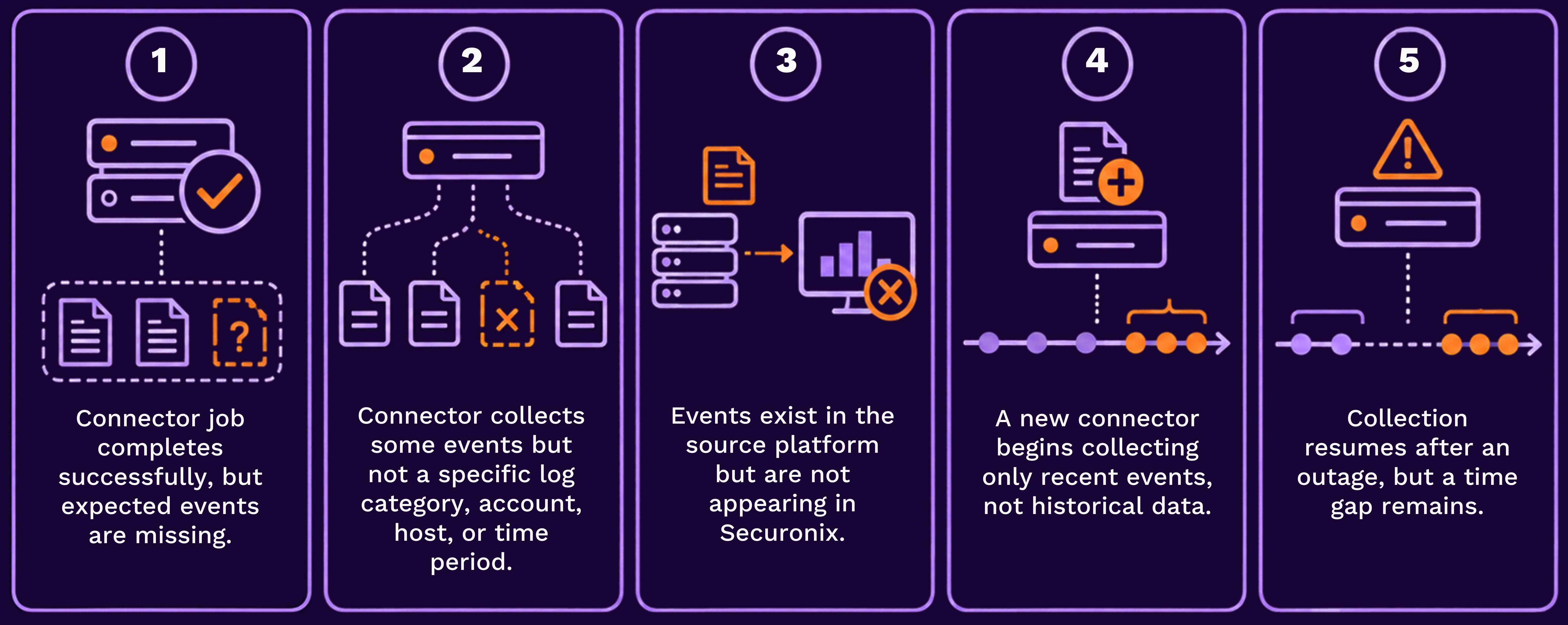
An Activity Import Connector can complete successfully and still fail to collect the specific events you expect. This usually means the connector can authenticate and connect to the source, but the expected events fall outside the collection scope, time window, source API permissions, or result set being retrieved.
This guide focuses on that scenario: a successful connector run with missing or incomplete Activity Data.
When to use this guide
Use this guide when:
Quick diagnosis: trace one known source event
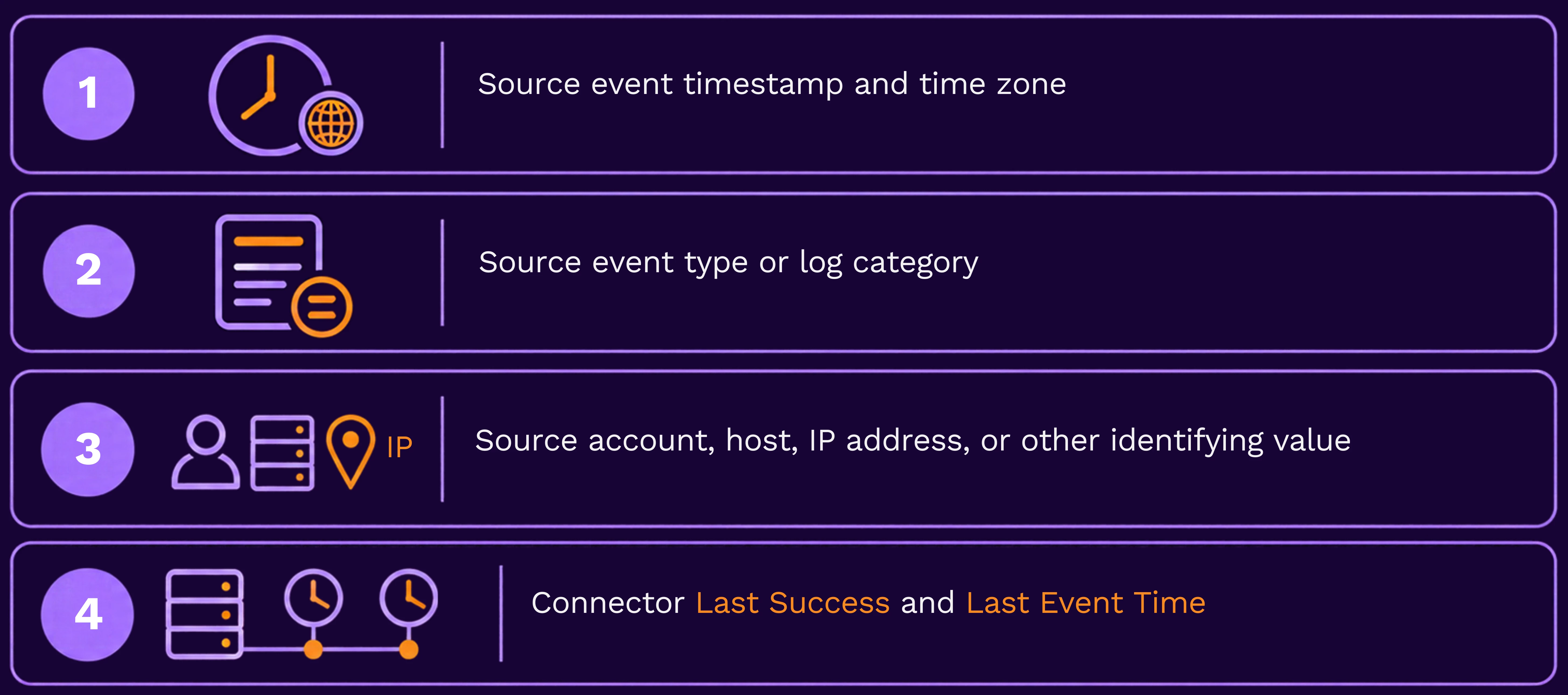
Choose one event that is visible in the source platform but missing from Securonix.
Record:
Then navigate to Menu → Add Data → Activity and open the affected connector.
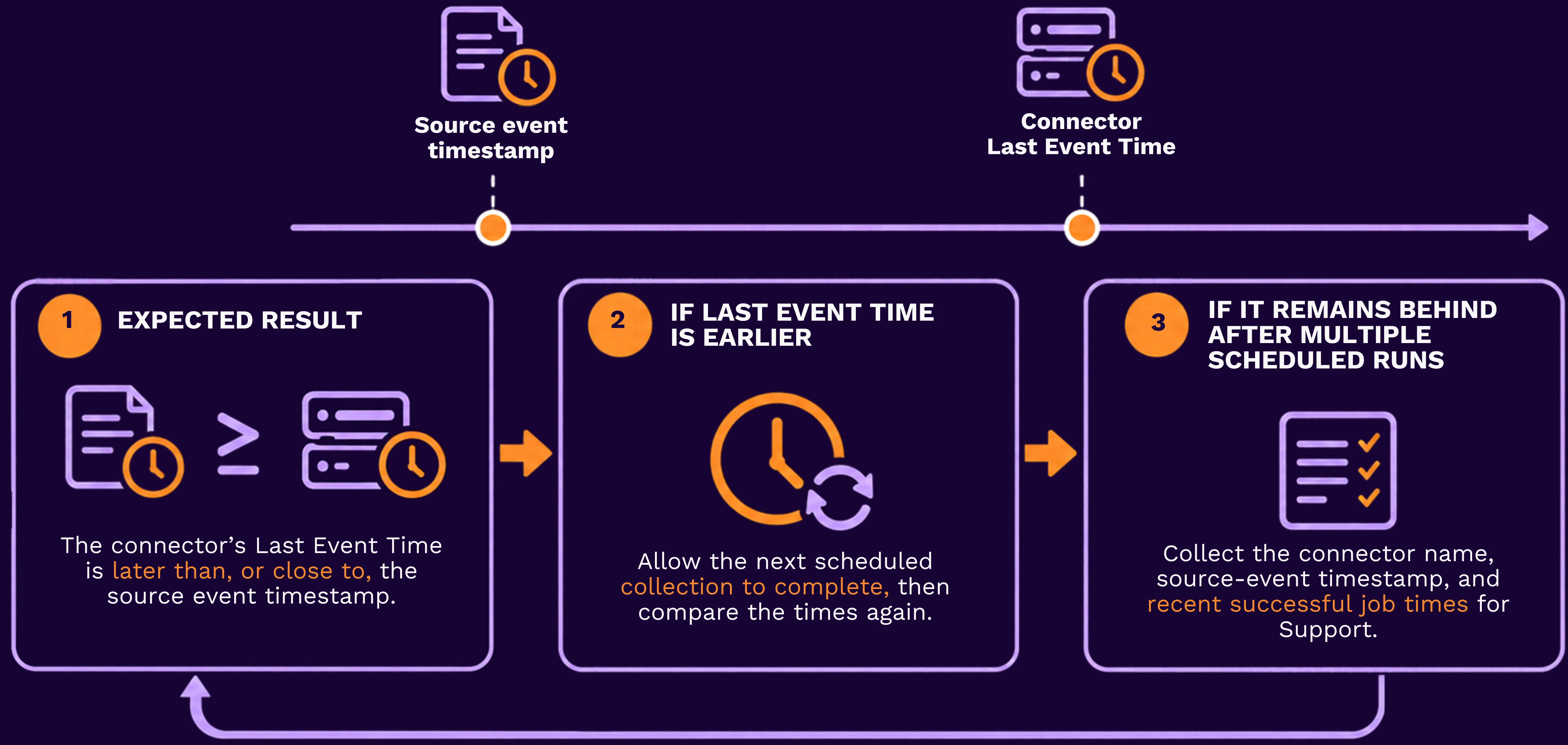
Step 1 – Determine whether the connector has reached the event time
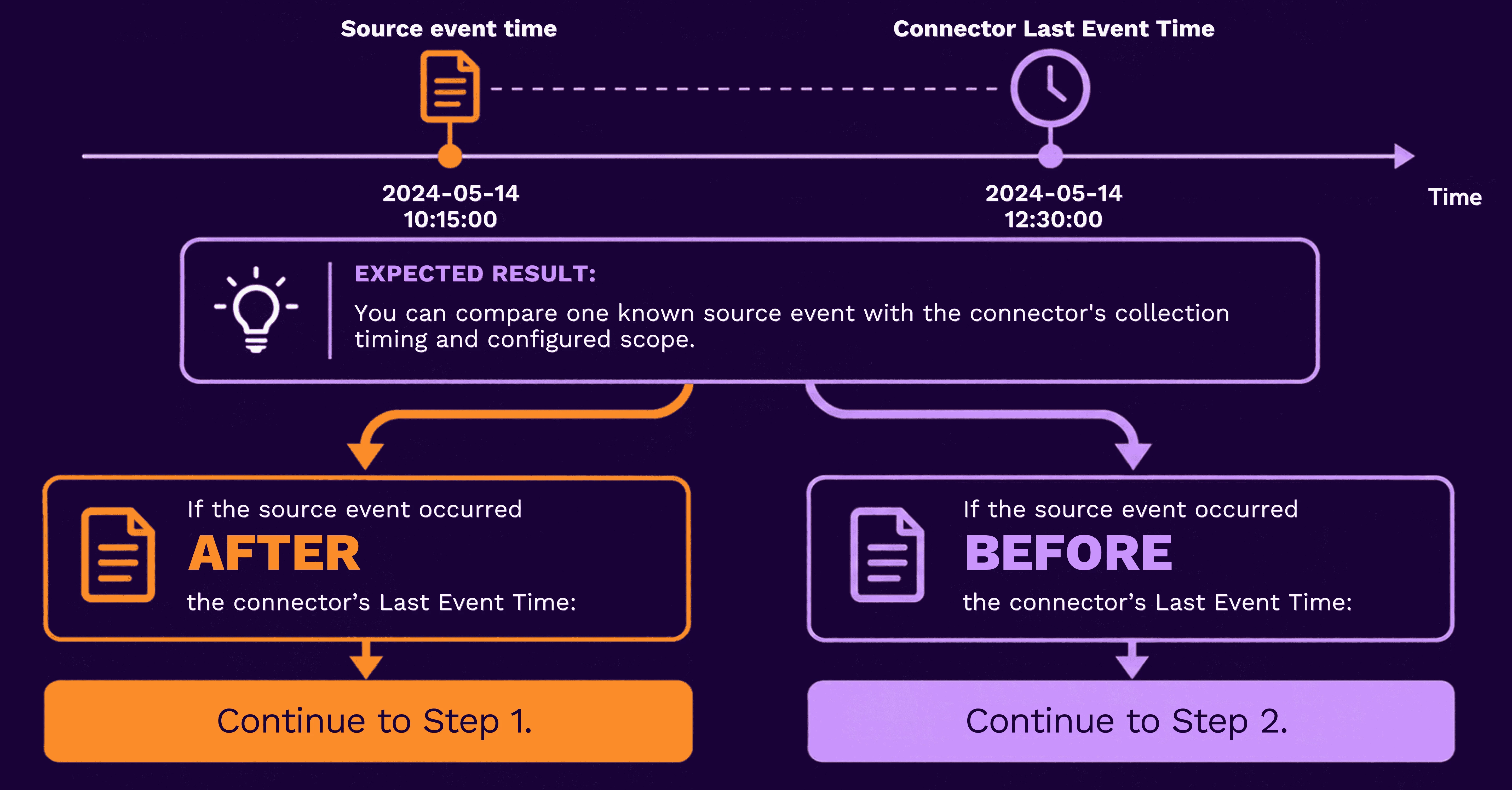
- In Menu → Add Data → Activity, open the affected connector.
- Record the connector’s Last Event Time.
- Compare it with the timestamp of the known source event.
- Use the same time zone for both values before deciding whether the connector has reached the event.
Step 2 – Validate the source data type and collection scope
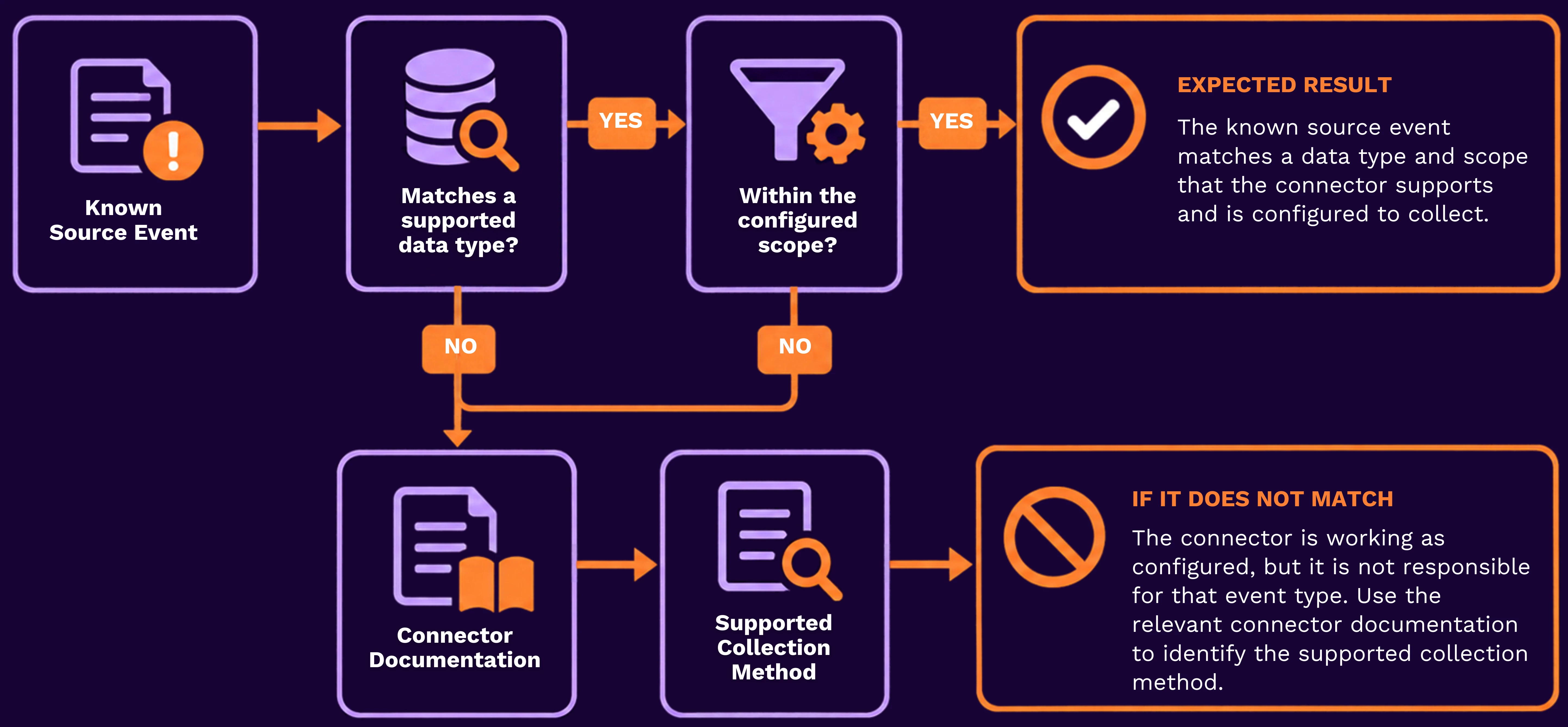
A successful connector run retrieves only the data types and source records that the connector is configured and permitted to collect.
- In the source platform, open the known missing event.
- Record its log category, event type, API resource, and any tenant, workspace, subscription, or account context required by that source.
- In Menu → Add Data → Activity, open the connector.
- Compare the event details with the connector’s documented source type, collection options, and configured account or scope.
- If the source event belongs to a data type that is not included by the connector, configure the appropriate supported connector or collection option.
Step 3 – Check incremental collection behavior
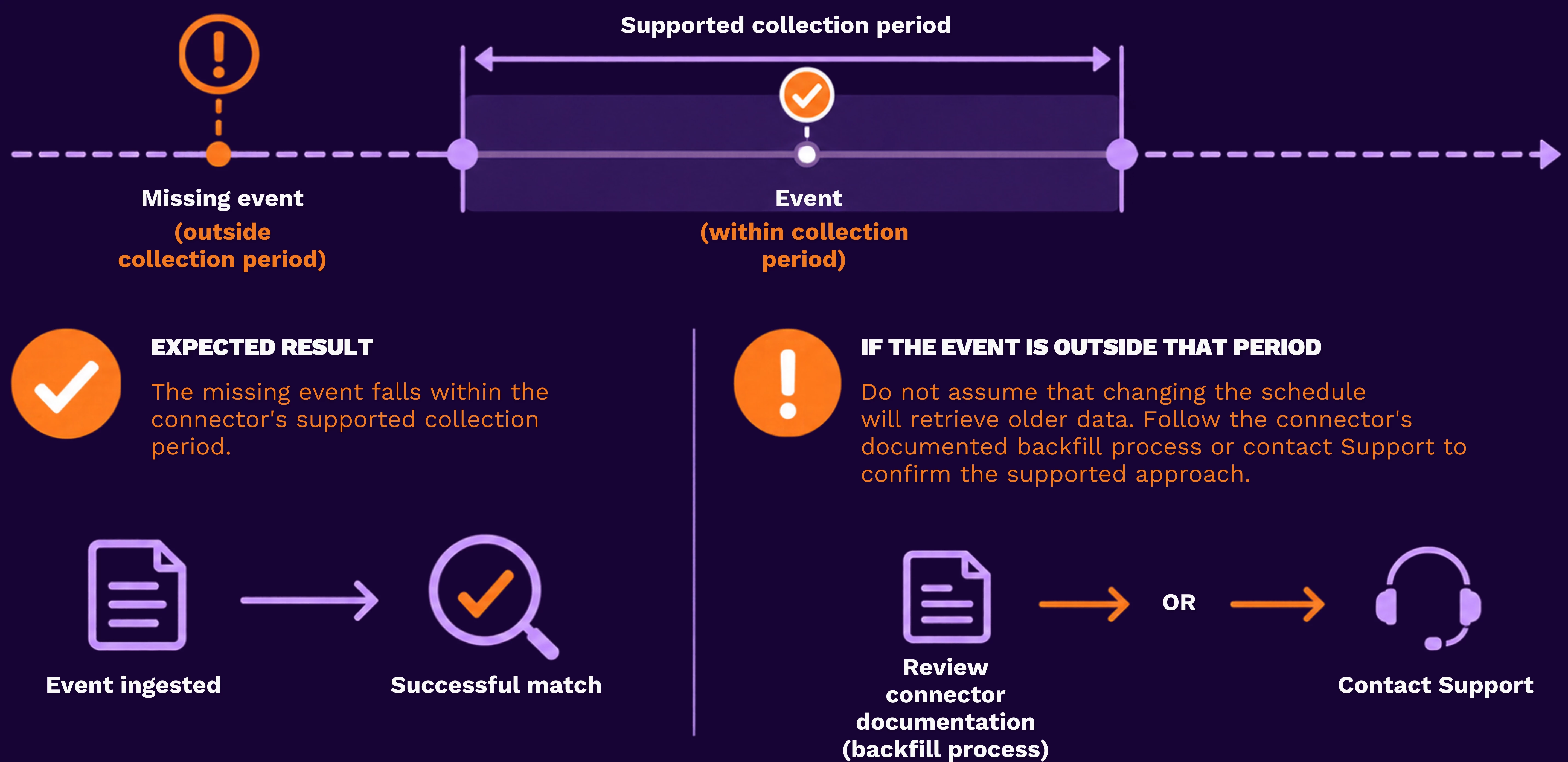
Many connectors collect new data incrementally after their initial successful run. Depending on the connector, the next request may begin from a saved checkpoint, cursor, watermark, or documented collection window.
- Open the connector documentation for the specific source.
- Identify whether the connector supports historical collection, an initial lookback period, a checkpoint, or a reset procedure.
- Compare the earliest missing event with the period the connector is documented to retrieve.
- If the event predates the supported initial collection range, use the documented backfill or historical-collection method if one is available.
Step 4 – Confirm that source permissions include the missing data
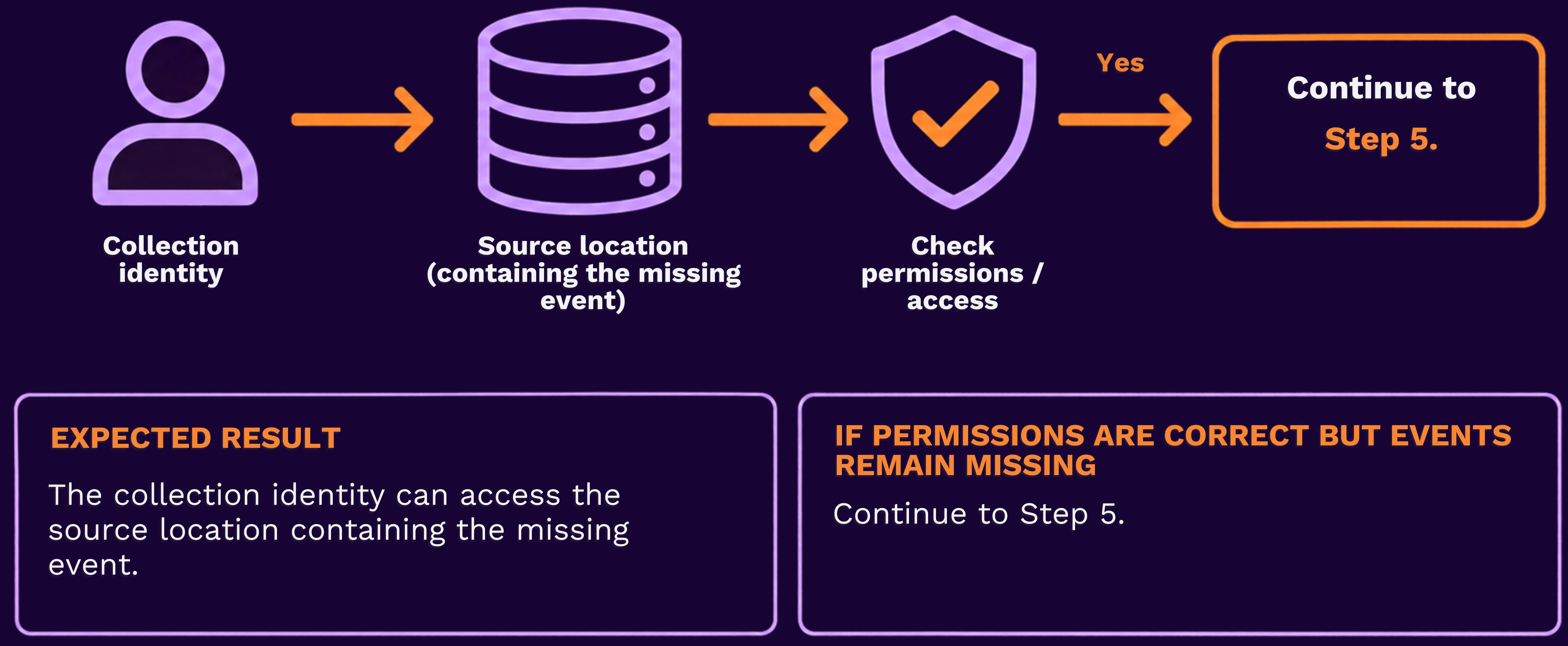
A source account may be able to authenticate successfully but lack permission to retrieve a particular log category, account, subscription, project, or tenant.
- In the source platform, identify the account or service principal used by the connector.
- Compare its assigned permissions with the source platform’s requirements for the missing event category.
- Confirm that the account can access the same tenant, workspace, subscription, project, or API resource where the known event exists.
- If the required permission is missing, have the source-platform administrator grant the documented read access.
- Monitor the next scheduled connector run.
Step 5 – Separate collection delay from a collection gap
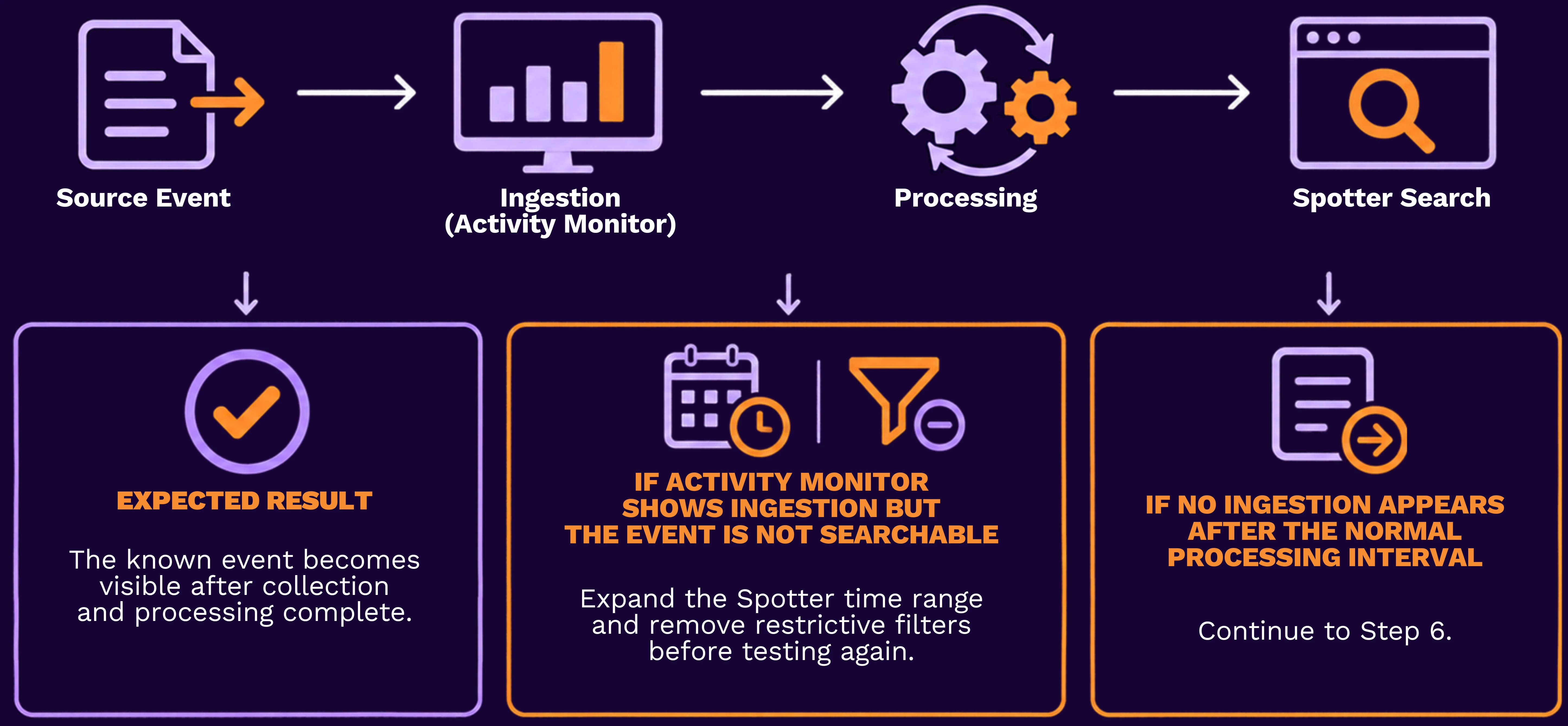
A successful collection job, ingestion, and search availability may occur at different times.
- After a successful connector run, wait for the normal processing interval used in your environment.
- Open Menu → Operations Center → Activity Monitor.
- Filter to the affected data source and the period of the successful run.
- Confirm whether Activity Monitor shows ingestion for the data source.
- In Spotter, search the same expanded time period using the affected data source.
Step 6 – Look for incomplete retrieval
A connector can collect some records while missing others because of source-side API limits, pagination, rate limits, or a response that exceeds the connector’s documented collection behavior.
- In the source platform, determine whether the known event appears with other events from the same time period.
- Compare the approximate volume of source events with the number of events visible in Securonix for that period.
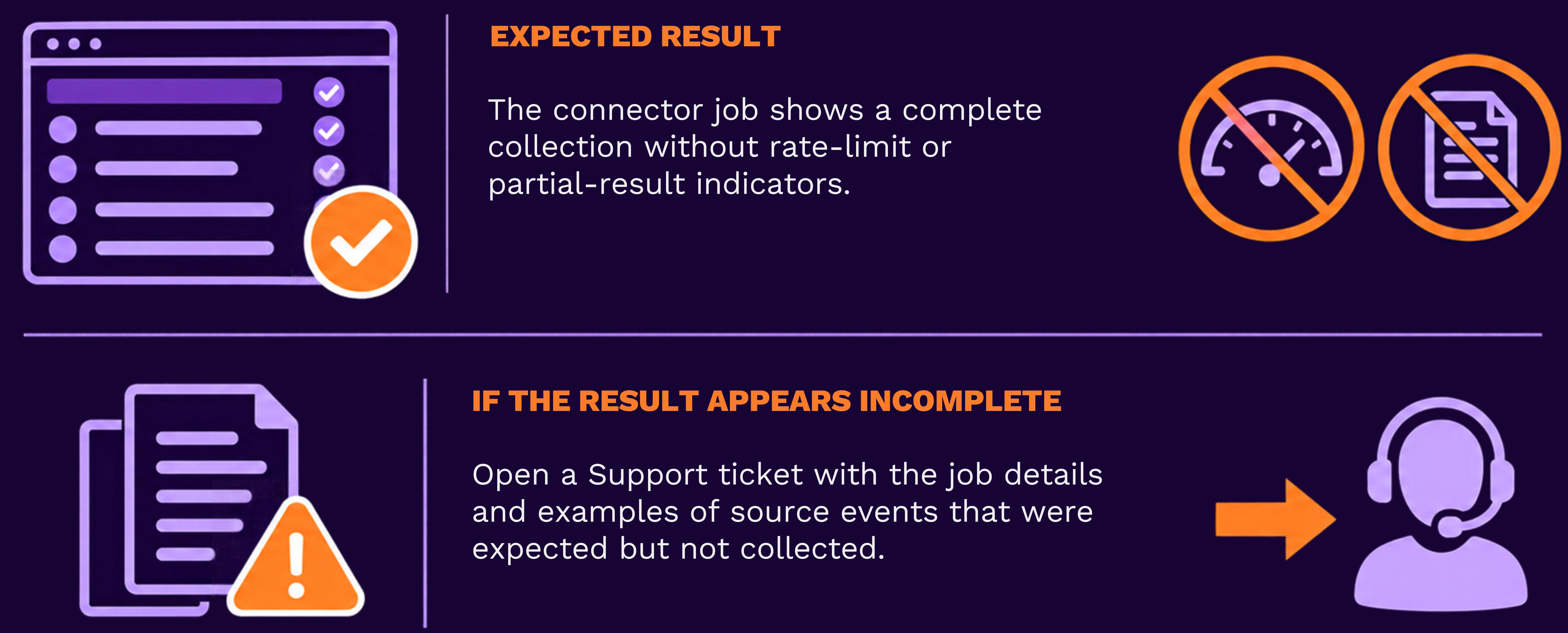
- In Menu → Operations Center → Job Monitor, open the successful connector job and look for warnings, partial-success messages, throttling messages, or API response-limit information.
- If the job indicates a rate limit, partial result, or pagination issue, capture the message and connector run time.
Common scenarios
Symptom | Likely explanation | Next action |
| The missing event is newer than Last Event Time | Connector has not yet reached that event | Monitor the next scheduled run and compare times again. |
| The event is older than the connector’s supported initial window | Historical data is outside normal collection scope | Use the documented backfill option or ask Support about supported historical collection. |
| The connector collects one log type but not another | The missing event type is outside the configured source scope | Compare the event category with the connector’s supported data types. |
| The job succeeds but no events appear immediately | Processing has not completed or search range is too narrow | Review Activity Monitor, then search a broader time range. |
| Only events from one source account or workspace are missing | Collection identity lacks access to that location | Validate the source-side account permissions and scope. |
| Only part of a high-volume period is present | API throttling, pagination, or response-limit behavior | Review the job details and provide the evidence to Support. |
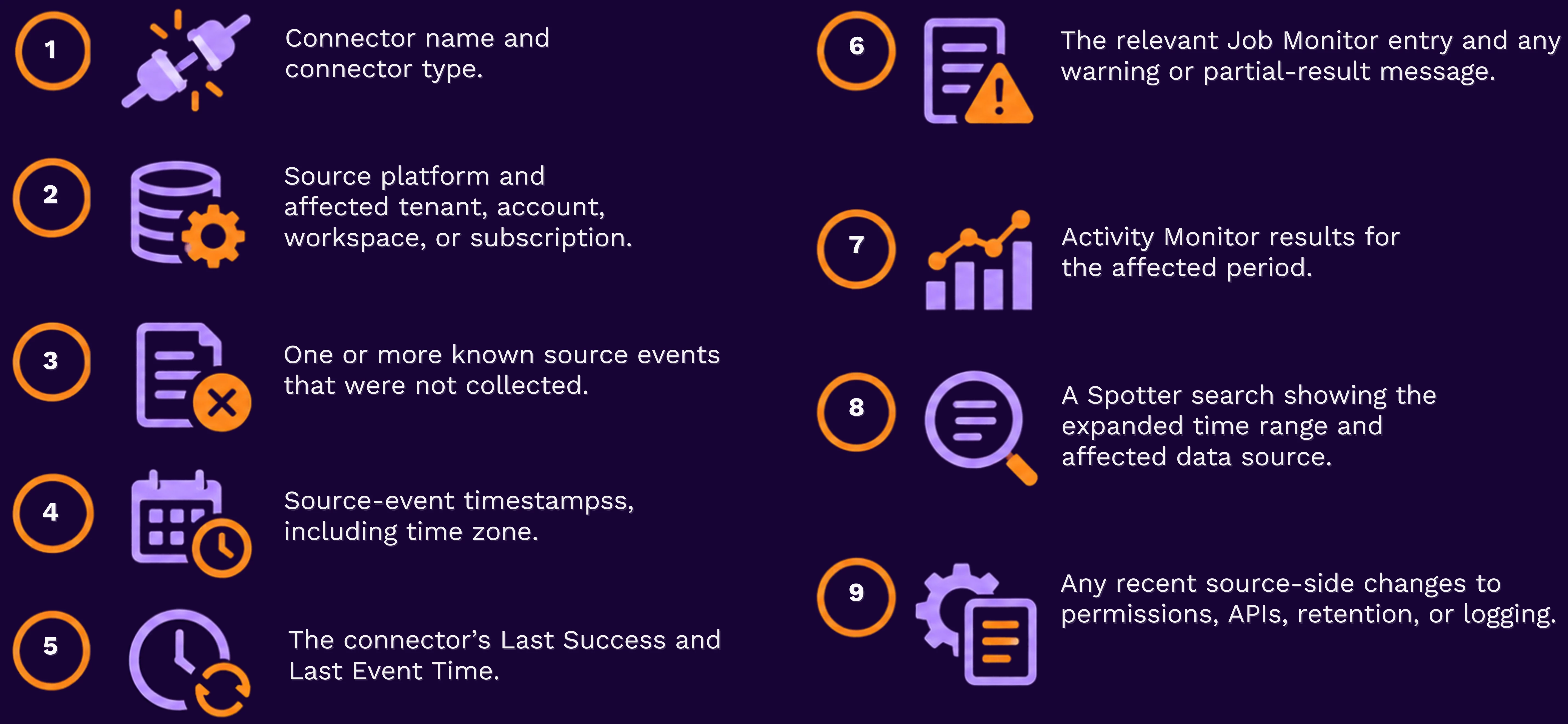
Before opening a Support ticket
Include:
Related resources
- Activity Import Connectors documentation
- Monitoring Event Activity documentation
- How to Troubleshoot Logs Not Appearing in Securonix
Have you used a connector-specific backfill, checkpoint, or collection-window approach that helped recover missing events? Share what worked in the Community—your experience may help another team close a data gap.
If the connector completes successfully but continues to miss expected source events, or if the issue requires investigation of tenant-specific connector behavior, backend processing, or a supported backfill method, open a Securonix Support ticket so the team can investigate with you.